
Create
Moderation Tools for World Owners
As a world owner in Sansar, you have access to powerful moderation tools that help you maintain a positive environment in your worlds. These tools allow you to manage who can visit your world, remove disruptive users, and enforce your community standards.
As a world owner, you are responsible for moderating your own worlds. Sansar staff will only intervene in extreme cases or violations of Sansar’s Terms of Service.
This guide covers the moderation capabilities available to world owners, including:
- In-world chat commands for managing users
- UI options for some commands
- Permanent banning through the ban list
- Access control settings to restrict who can visit your world
Note: These tools complement the basic moderation tools available to all Sansar users.
Quick Command Reference
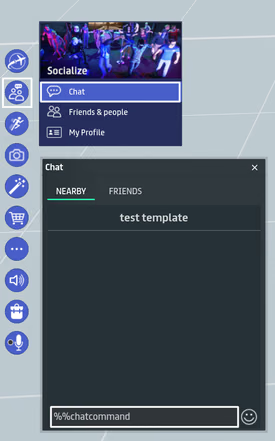
Section titled “Quick Command Reference”World owners can use these commands in Nearby Chat while visiting their world:
| Command | Usage Example | Description |
|---|---|---|
%%who | %%who | Shows all users currently in the world |
%%roles | %%roles | Shows your role (staff/world owner) |
%%kick <Avatar ID> | %%kick User-1234 | Kicks a user from the world |
%%mute <Avatar ID> | %%mute User-1234 | Temporarily switches off a user’s mic |
%%mega-on <Avatar ID> | %%mega-on User-1234 | Gives megaphone to a user |
%%mega-off <Avatar ID> | %%mega-off User-1234 | Removes megaphone from a user |
%%broadcast-on <Avatar ID> | %%broadcast-on User-1234 | Turns on broadcasting (shows avatar across instances) |
%%broadcast-off <Avatar ID> | %%broadcast-off User-1234 | Turns off broadcasting |
%%backpack-on | %%backpack-on | Enables backpack for all users (overrides world settings) |
%%backpack-off | %%backpack-off | Disables backpack for all users (overrides world settings) |
%%backpack-clear | %%backpack-clear | Removes all backpack items spawned by all users |
%%muteall [seconds] | %%muteall 20 | Locks mics for all users unless they have megaphone (optional time delay) |
%%unmuteall [seconds] | %%unmuteall 20 | Unlocks mics for all users (optional time delay) |
Important: Commands only work in Nearby Chat and must be used while you’re visiting your world. They cannot be triggered in private chat or from outside the world.
Checking Your Permissions
Section titled “Checking Your Permissions”To verify your moderation permissions, type %%roles in Nearby chat. This displays your current role (such as “world owner” or “staff”), confirming which moderation commands you have access to.
Understanding Kick vs. Ban
Section titled “Understanding Kick vs. Ban”Before using moderation tools, it’s important to understand the difference between kicking and banning:
- Kicking removes a user from your world immediately, but they can return at any time
- Banning prevents a user from entering your world, but doesn’t automatically kick them if they’re already present
- Best practice: Add abusive users to the ban list before kicking them to prevent them from immediately rejoining
Finding Users in Your World
Section titled “Finding Users in Your World”To get a list of users in chat
Section titled “To get a list of users in chat”To see a list of who is currently in your world, type %%who in Nearby Chat. This displays the Avatar IDs of all users currently present, which is helpful for determining who to kick, ban, or grant access to.
To see a list of users in the Nearby Panel
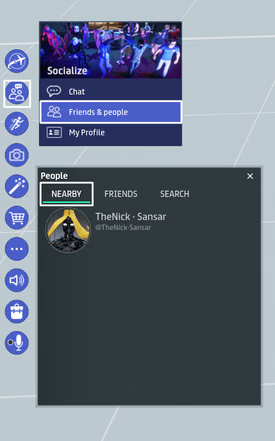
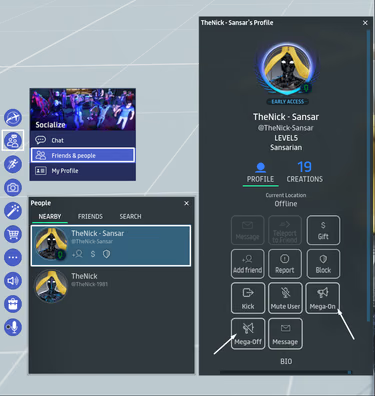
Section titled “To see a list of users in the Nearby Panel”Open the Socialize panel from the Main Menu, select Friends & People, then select the Nearby tab. The name with the @ symbol is the one you want to use with the commands, but the symbol itself is not needed.
Kicking Users from Your World
Section titled “Kicking Users from Your World”As a world owner, you can remove users who are causing disruption or violating your world’s rules.
Important: For repeat offenders, add them to the ban list before kicking to prevent them from immediately rejoining.
Via chat command
Section titled “Via chat command”- While visiting your world, open Nearby Chat
- Type
%%kick <Avatar ID>where<Avatar ID>is the user’s Avatar ID- Example: To kick a user with Avatar ID @User-1234, type
%%kick User-1234
- Example: To kick a user with Avatar ID @User-1234, type
- Press Enter to execute the command
The user is immediately removed from the world but is NOT banned and can return.
Important notes:
- Always use the Avatar ID (not the Avatar Name) when kicking users. For more information, see Avatar Name and Avatar ID
- You cannot kick yourself or Sansar Staff
- Only the world owner can kick users; visitors cannot use this command
- Kicked users receive a notification that they were removed from the world
Via UI button
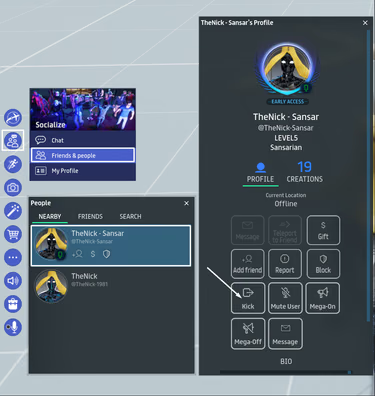
Section titled “Via UI button”- Open the Socialize panel from the Main Menu, select Friends & People, then select the Nearby tab
- Click a user’s name to open their profile window
- As the world owner, you will see a Kick button in the profile window
- Click the Kick button to remove the user
What happens when a user is kicked
Section titled “What happens when a user is kicked”The user is instantly teleported out of the world and sees a message indicating they were removed by the world owner. However, they can still return to your world at any time unless you add them to the ban list.
Managing User Audio
Section titled “Managing User Audio”World owners have several commands to control audio in their worlds:
Muting Individual Users
Section titled “Muting Individual Users”The %%mute command temporarily turns off a specific user’s microphone. They can turn it back on themselves.
Note: Unlike %%muteall, the %%mute command only temporarily turns off a user’s microphone. They can turn it back on themselves. For locked muting during events, use %%muteall instead.
Via chat command
Section titled “Via chat command”Type %%mute <Avatar ID> in Nearby chat. For example, %%mute User-1234 will switch off the microphone for the user with Avatar ID @User-1234.
Via UI button
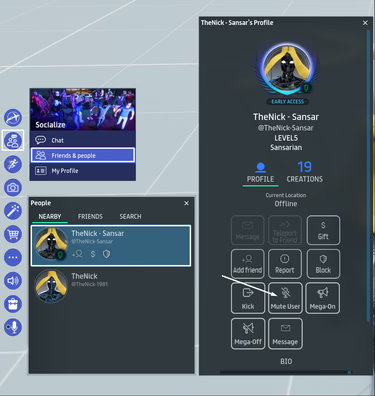
Section titled “Via UI button”- Open the Socialize panel from the Main Menu, select Friends & People, then select the Nearby tab
- Click a user’s name to open their profile window
- As the world owner, you will see a Mute button in the profile window
- Click the Mute button to turn off their microphone
Muting All Users
Section titled “Muting All Users”The %%muteall command locks microphones for all users in the world, except those who have been given a megaphone. This is useful for controlling audio during presentations or events. Users will not be able to turn their own mics on until the unmute command has been sent.
To mute all users:
- Type
%%muteallin the nearby chat to mute everyone immediately - Or add a time delay:
%%muteall 20will mute all users after 20 seconds
Unmuting All Users
Section titled “Unmuting All Users”The %%unmuteall command unlocks microphones for all users in the world.
To unmute all users:
- Type
%%unmuteallin the nearby chat to unmute everyone immediately - Or add a time delay:
%%unmuteall 20will unmute all users after 20 seconds
Megaphone Control
Section titled “Megaphone Control”The megaphone allows specific users to speak even when %%muteall is active, making it ideal for event hosts or speakers. They can also be heard across the entire scene by everyone.
Via chat command
Section titled “Via chat command”To give a user megaphone privileges:
- Type
%%mega-on <Avatar ID>(example:%%mega-on User-1234)
To remove megaphone privileges:
- Type
%%mega-off <Avatar ID>(example:%%mega-off User-1234)
Via UI button
Section titled “Via UI button”- Open the Socialize panel from the Main Menu, select Friends & People, then select the Nearby tab
- Click a user’s name to open their profile window
- As the world owner, you will see Mega On and Mega Off buttons in the profile window
- Click Mega On to give megaphone privileges or Mega Off to remove them
Broadcasting Controls
Section titled “Broadcasting Controls”Broadcasting makes a user’s avatar visible across all instances of your world simultaneously, which is useful for event hosts or performers who need to be seen by everyone.
To enable broadcasting for a user:
- Type
%%broadcast-on <Avatar ID>(example:%%broadcast-on User-1234)
To disable broadcasting for a user:
- Type
%%broadcast-off <Avatar ID>(example:%%broadcast-off User-1234)
Backpack Management
Section titled “Backpack Management”World owners can control backpack access for users, which is helpful for managing when they can spawn items in your world. If you previously turned off or on your visitor backpack in your Scene Settings, you can temporarily enable or disable it during runtime.
Enabling/Disabling Backpack
Section titled “Enabling/Disabling Backpack”Via chat command
Section titled “Via chat command”To enable backpack for all users:
- Type
%%backpack-onin nearby chat - This turns on the backpack even if the world has it disabled in settings
To disable backpack for all users:
- Type
%%backpack-offin nearby chat - This turns off the backpack even if the world has it enabled in settings
Clearing Spawned Items
Section titled “Clearing Spawned Items”Via chat command
Section titled “Via chat command”- Type
%%backpack-clearin nearby chat - This removes all backpack items that all users have spawned in the world
Via UI button
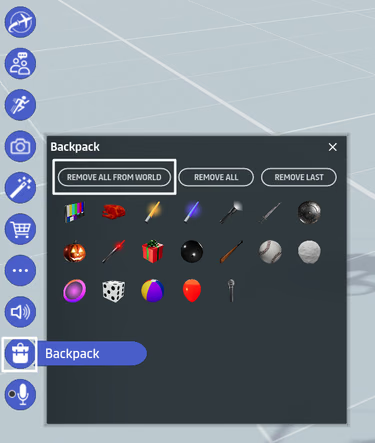
Section titled “Via UI button”Open your own backpack. As a world owner, you’ll see three buttons at the top:
- Remove All From World - Removes all backpack items spawned by all users (same as
%%backpack-clear) - Remove All - Removes only your own spawned items
- Remove Last - Removes the last item you spawned
Banning Users from Your World
Section titled “Banning Users from Your World”The ban list provides permanent protection by preventing specific users from entering your world. Users on the ban list cannot visit your world even if they have the direct link.
To ban a user:
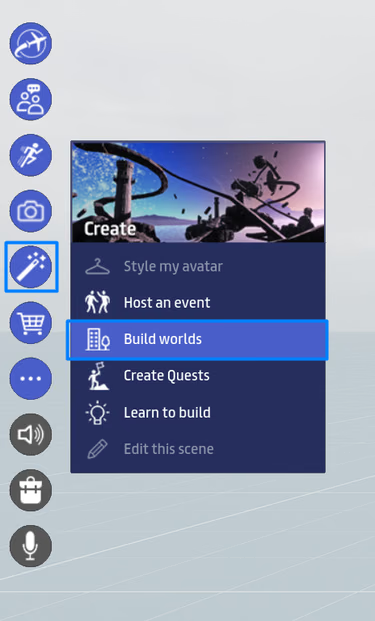
- Open the Build Worlds panel
- Locate the world you wish to add someone to the ban list of and click the Publishing options button
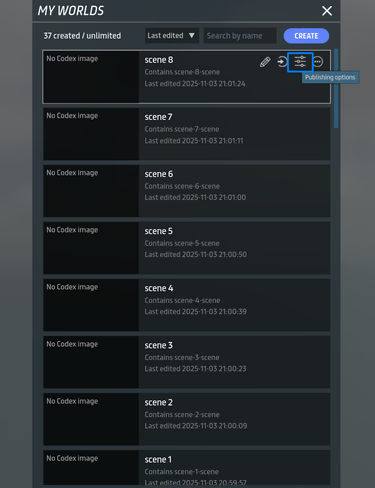
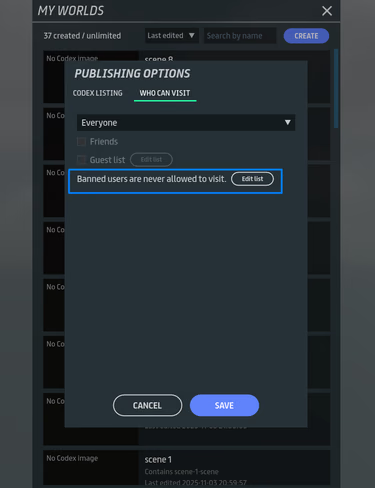
- Under Who can visit, click Edit list next to Banned users are never allowed to visit.
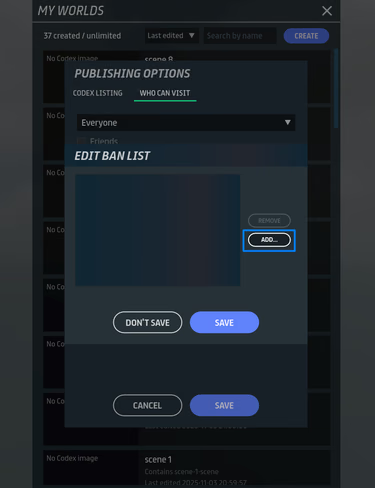
- In the Edit ban list panel, click Add
- Type the user’s full Avatar ID in the Add Someone panel and click Search. This is the name that appears in the Nearby users list and the %%who command results.
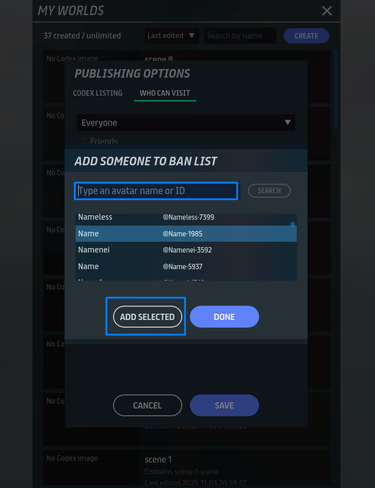
- Select the correct user from the search results and click Add selected
- Repeat steps 4-6 to add additional users to the ban list
- Click Done to close the Add Someone panel
- Click Save to save your changes
Unbanning Someone from Your World
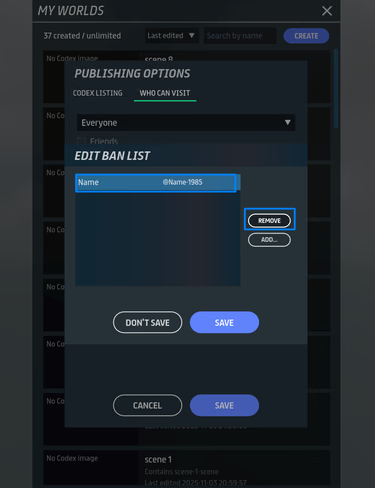
Section titled “Unbanning Someone from Your World”To unban someone, follow the previous steps 1-4 to access the ban list. Select a name from the list and click Remove. Make sure to click Save, then Done.
Important notes:
- You can add or remove users from the ban list at any time through the My Worlds panel
- Adding a user to the ban list does not automatically kick them if they’re currently in your world. You will need to use the kick moderation tools to remove them.
- Banned users who attempt to visit your world see a message indicating they don’t have access when they try to join.
What happens when a user is banned:
If a banned user attempts to visit your world, they receive a message stating they are not allowed to visit. They cannot enter the world through the Codex, direct links, or any other method.
Restricting Access to Your World
Section titled “Restricting Access to Your World”Beyond banning specific users, you can control who has access to your world using the Who can visit tab in the Publishing options of the My Worlds panel.
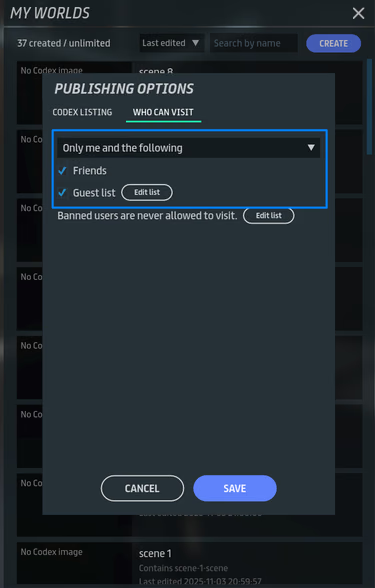
Access control options:
- Everyone - Anyone can visit, except banned users
- Friends only - Only users on your friends list can visit
- Guest list - Only users you specifically add to the guest list can visit
- Only me - Only you can visit the world
Publishing vs. Access Control:
Your world’s visibility is determined by both its publishing status and access controls:
- Published worlds appear in the Codex, but only to users who meet your access requirements, as an example even if your world is published but you have it set to ‘guest list’ only people added to the list will be able to find it on their codex.
- Hidden worlds don’t appear in the Codex but can still be accessed via direct link by users who meet your access requirements
You can change these settings at any time through the My Worlds panel.
Best Practices for World Moderation
Section titled “Best Practices for World Moderation”To maintain a positive environment in your world, consider these moderation tips:
- Set clear expectations - Communicate your world’s rules to visitors.
- Use progressive discipline - Consider warning users before kicking them for minor infractions.
- Ban before kicking - For repeat offenders, add them to the ban list before kicking to prevent immediate return.
- Document incidents - Keep notes on problematic users and incidents for your records.
- Review your ban list periodically - Consider whether banned users should remain on the list over time.
- Use access controls proactively - For private events, use the guest list feature to prevent disruptions.
- Encourage visitors to use their own moderation tools - Your visitors have their own ability to block and mute others for themselves.
Troubleshooting
Section titled “Troubleshooting”Command not working:
- Verify you’re using Nearby Chat (not private chat)
- Confirm you’re currently visiting your world
- Check that you’re using the correct command syntax
- Ensure you’re using the Avatar ID, not the Avatar Name
Can’t find a user’s Avatar ID:
- Use the
%%whocommand to list all users currently in your world - Check the People panel and click on their name to reveal their Avatar ID
- See Identifying and interacting with avatars for additional methods
- Use the player search box in the People and Friends panel
User keeps returning after being kicked:
- Add the user to your ban list to prevent them from re-entering your world
- See Banning users from a world above for instructions
Need to report serious violations:
- For serious violations of Sansar’s Terms of Service, report the user through Sansar’s official reporting channels in addition to using your world moderation tools
- See Blocking Avatars for information on blocking and reporting
Have more questions? Email help@sansar.com.