
Create
Importing a Skybox
Overview
Section titled “Overview”A short overview for skyboxes:
- Supported import format is
.exr. - The input image must be a horizontal 6:1 strip where
width = 6 * height. - If the image is not exactly 6:1, the skybox import fails.
- Skybox processing uses an HDR cubemap path with preview disabled.
- Effective maximum imported size is
24576 x 4096(which is4096 x 4096per cube face). - Per-face dimensions are capped at
4096, so larger inputs are clamped to that maximum.
What Is a Skybox?
Section titled “What Is a Skybox?”A skybox is a large cube that surrounds an entire scene and represents the sky and distant environment. Each face of the cube has an image applied to it, creating the illusion of a world beyond the playable area.
Skyboxes also affect scene mood by influencing lighting color, tone, and atmosphere.
Creating a Skybox Map
Section titled “Creating a Skybox Map”Skybox textures are mapped onto a cube, so your source image must follow a strict 6:1 layout (six square faces in one horizontal strip).

Skybox strip orientation order from left to right: +X, -X, +Y, -Y, +Z, -Z.
- Sansar skyboxes use
Y+as up andZ+as forward. - Use
.exrfor skybox source files. - Keep your strip within the effective maximum limit of
24576 x 4096(4096per face). - Try to use smaller texture resolution if you can for performance.
a full blender step by step guide coming soon…
Importing to Sansar
Section titled “Importing to Sansar”- Open an Edit Mode scene.
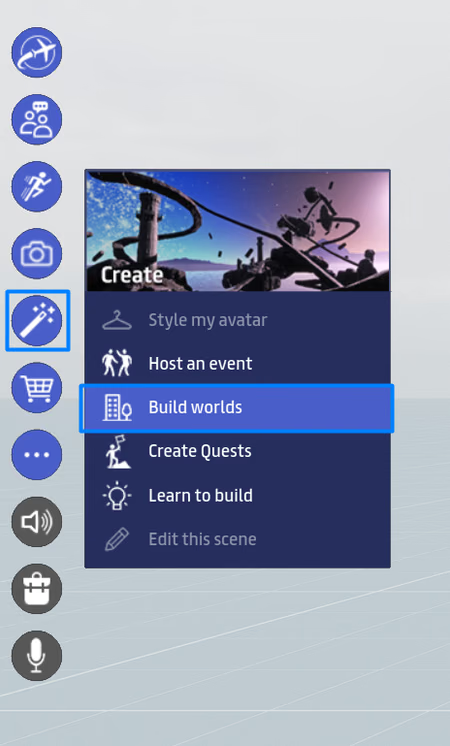
- From the top toolbar, choose Import and select Skybox.
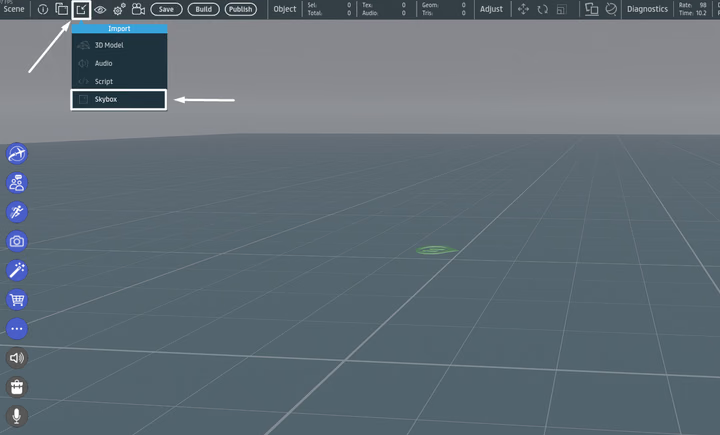
.
- Browse to your
.exrskybox strip file.
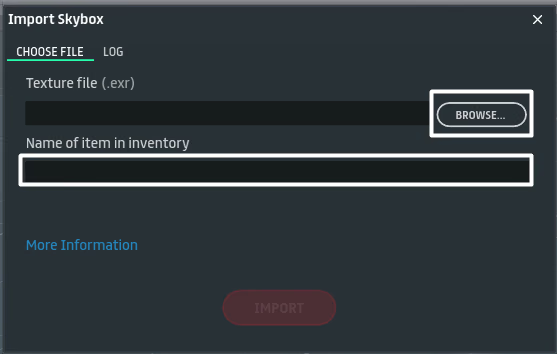
-
Wait for import to complete. These can take several minutes due to size. If an error occurs, confirm the image follows the required 6:1 layout.
-
Enter an item name for your inventory and upload.
-
After upload, apply the imported skybox from scene settings.
Have more questions? Email help@sansar.com.