
Explore
Taking a photo
You can quickly and easily capture images of a scene in Sansar while either visiting or editing the scene. Sansar includes tools to help capture images at the correct aspect ratio for various purposes, such as the Sansar Store, event listings, and world listings.
Taking a photo
Section titled “Taking a photo”To take a photo in Desktop mode:
- Choose Socialize > Take a photo from the main menu.
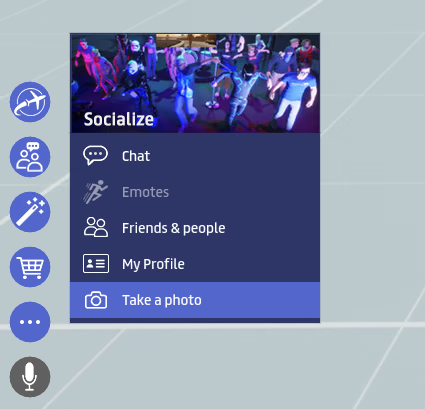
Socialize > Take a photo
- Click and drag the bars that appear at the edge of the screen to adjust the capture area. Drag a corner to adjust two edges at once.
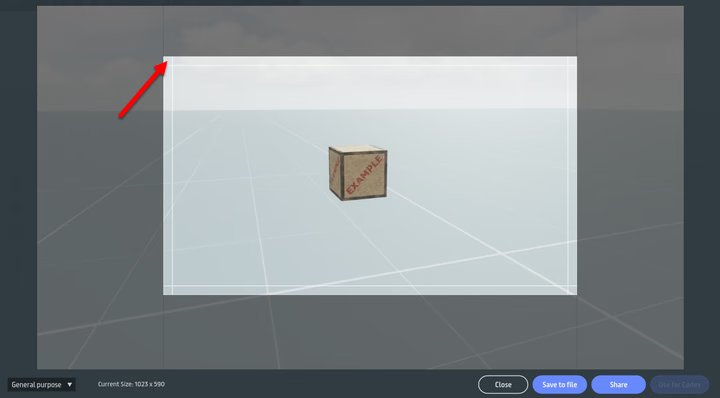
Adjusting the capture area by dragging the corners and edges.
- Once you have adjusted the capture area to your liking, click Save to file to save the image to your computer.
Capturing photos for listings
Section titled “Capturing photos for listings”While adjusting the capture area of a screenshot, you can choose from the following options in the dropdown menu:
- General purpose - Allows you to resize the capture area to any dimensions within the Sansar client.
- For the Codex - Constrains the aspect ratio and minimum size of the capture area to be compatible with the Codex. Can still be resized, but the height and width cannot be adjusted independently. Read the image guidelines for information on Codex image content and file requirements.
- For the Sansar Store - Constrains the aspect ratio and minimum size of the capture area to be compatible with the Sansar Store. Can still be resized, but the height and width cannot be adjusted independently. Read the image guidelines for information on Listing image content and file requirements.
- For a Quest - Constrains the aspect ratio and minimum size of the capture area to be compatible with quests. Can still be resized, but the height and width cannot be adjusted independently.
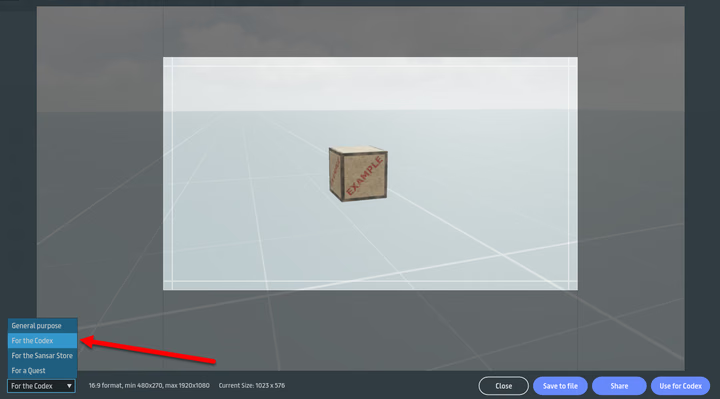
Select For the Codex to easily capture images at the correct aspect ratio for the Codex.
Sharing photos to your Sansar profile
Section titled “Sharing photos to your Sansar profile”To share a photo to your user profile instead of saving it on your computer, you can click the Share button. This immediately opens a tab in your web browser, showing the image as it appears in your profile.
Once you have shared an image, it can be viewed by anyone who visits your profile on the Sansar website.
Note**:** Images saved in this way can currently only be accessed on the web, through your user profile.
To delete a shared photo (called Snapshots in your profile):
- Visit your profile’s Snapshots page in your web browser.
- Click a snapshot to view it.
- Click Delete to delete the snapshot.
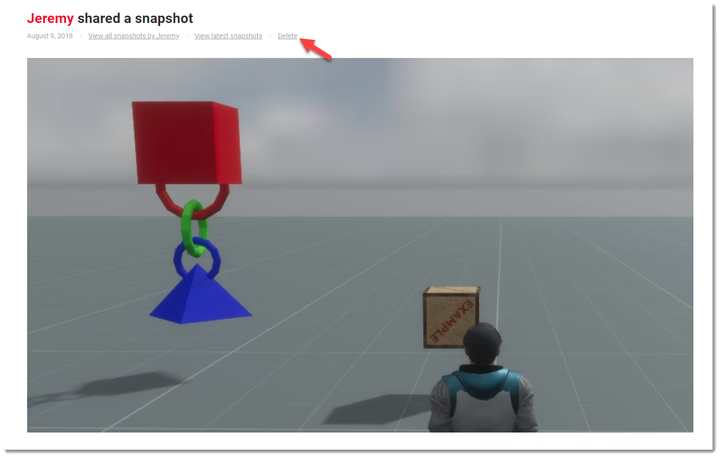
To delete a snapshot from your profile, click Delete while viewing it.
Have more questions? Email help@sansar.com.