
Explore
Keyboard Shortcuts for Visiting an Experience
The controls in this article are for using Sansar with a mouse and keyboard while visiting an experience. For additional controls available while editing a scene, see Keyboard shortcuts (editing a scene).
To see available controls using other controllers, see Sansar controls.
Avatar controls
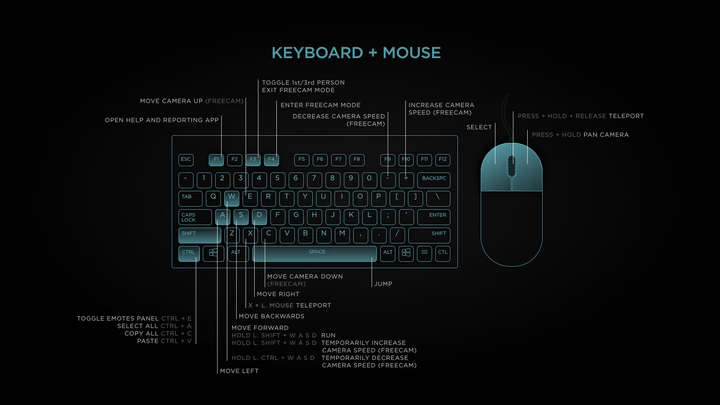
Section titled “Avatar controls”These controls can be used to move your avatar in VR and desktop mode:
- Arrow keys: Move your avatar forward, backward, left, and right .
- W,A,S,D: Move your avatar forward, backward, left, and right.
- Shift: Toggle between walking and running, If Toggle Run is set to On in Settings, you do not need to hold down the key.
- Spacebar: Jump. Hold longer to jump higher.
- C Key: Toggle Crouch
- F3: Toggle between first person and third person view.
Desktop only controls
Section titled “Desktop only controls”- Hold X or middle mouse button: Teleport Beam.
- Left Click while holding X or middle mouse: Teleports your avatar to the selected location.
- Scroll while holding X or middle mouse (prior to teleporting): Choose the direction your avatar faces upon completing the teleport.
- Left Click a dynamic object while standing near it: Pick up and hold a dynamic object.
- Hold and then release the left Click While holding a dynamic object, throw the object when you release the left mouse button. The longer you hold the button, the farther you throw the object.
- Scroll while holding left mouse button - While holding a dynamic object, modify the distance you will throw the object.
- F Key : Drops held object, if held object will be thrown.
- R Key : Alternate use button, can be assigned by scripts to functions
Camera controls
Section titled “Camera controls”- Hold right click and drag: Rotate the camera up, down, left, and right.
- I,K,J,L: Rotates the camera, up, down, left, and right.
- Scroll Wheel Zooms in and out of the avatar, will enter 3rd Person mode if close enough.
- F3 Key : Toggle 3rd Person mode.
- F4 Key : Toggle Freecam AKA F4Cam, see below for details.
- F7 Key : Toggle Mouselook mode.
- F10 Key : Toggle CineCam AKA F10Cam, See Below for details.
FreeCam and CineCam Controls AKA F4Cam or F10Cam
Section titled “FreeCam and CineCam Controls AKA F4Cam or F10Cam”-
F4: Toggle Free camera mode on or off.
-
F10 Toggle Cinematic Cam, a Smoothed version of Freecam.
-
Arrow keys: Move camera forward, backward, left, and right (free-camera mode).
-
W,A,S,D: Move camera forward, backward, left, and right (free-camera mode).
-
I,K,J,L: Rotates the camera, up, down, left, and right.
-
Hold right click and drag: Rotate the camera
-
E, C : Move camera up and down.
-
NUMPAD Plus or = Key: Increase camera movement speed.
-
NUMPAD Minus or - Key: Decrease camera movement speed.
-
Hold Shift: Increase camera movement speed while key is held.
-
Hold Ctrl: Decrease camera movement speed while key is held.
-
T Key: Teleports avatar to Freecam/Cinecam location
-
Chat controls
Section titled “Chat controls”Use these controls with text on the Chat Panel in desktop mode:
- CTRL + X: Cut text.
- CTRL + C: Copy text.
- CTRL + V: Paste text.
- CTRL + A: Select all text.
- CTRL+T: Open/close the chat panel.
- CTRL+E: Open the Emotes menu.
- M Key: Toggle microphone on/off.
- V Key: Push To Talk mic.
Debug controls
Section titled “Debug controls”Use this control to trigger the Script Console:
- CTRL + D: Toggle the Script Console on/off
Have more questions? Email help@sansar.com.