
Store
Redelivering Lost Purchases
Redelivering lost purchases
Section titled “Redelivering lost purchases”If you ever lose or delete an item purchased from the Sansar Store, you can redeliver it from its listing page.
Redelivering from the Store panel
Section titled “Redelivering from the Store panel”To redeliver a lost purchase from the Store panel in Sansar:
- Open the Store by choosing Shop > Scene creation or Shop > Avatar looks.
- Search the Store for the listing of the item you would like to redeliver, and click the listing to open it.
- In place of the Buy or Get button, there is a Redeliver button. Click Redeliver to instantly deliver a new copy of the item to your inventory. For items under Avatar looks, such as avatars, clothing, and emotes, the button is Wear it now instead of Redeliver.
Note: Avatar-related items are redelivered when you click Wear it now if there are no copies currently in your inventory.
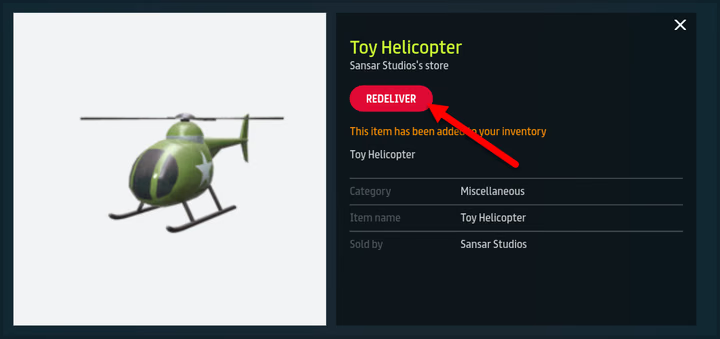
In the Store listing for an item you have purchased, the Buy or Get button becomes Redeliver.
Redelivering from the web
Section titled “Redelivering from the web”To redeliver a lost purchase from the Sansar Store on the web:
- Visit the Sansar Store on the web.
- Open the account menu (your name at the top right; on a phone, the ☰ menu) and select Purchases to view all past Store purchases.
- Locate your purchased item and move your mouse cursor over the Delivered button to change it to Redeliver and click Redeliver to instantly deliver a new copy of the item to your inventory.
You can also redeliver from the item’s Store listing. Move your mouse cursor over the Purchased button to change it to Redeliver, then click it, or tap it on a touch screen.
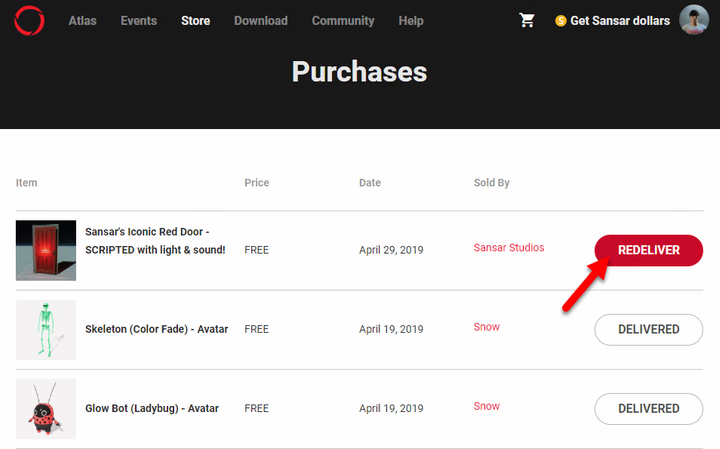
While viewing your purchase history on the web, move your mouse over a Delivered button to change it to Redeliver. Click to redeliver the selected item
Have more questions? Email help@sansar.com.