# Blender - Using Decimate Tool

## Using the Decimate Geometry tool to reduce triangle count on a skinned mesh

The mesh decimation is done algorithmically, so the final results usually are not as nice as they would be if a human artist were to reduce the geometry by hand, but it does allow you to reduce your custom avatar mesh to a triangle count supported by Sansar.

Using the Decimate Geometry tool

To use the Decimate Geometry tool while editing a model in Blender:

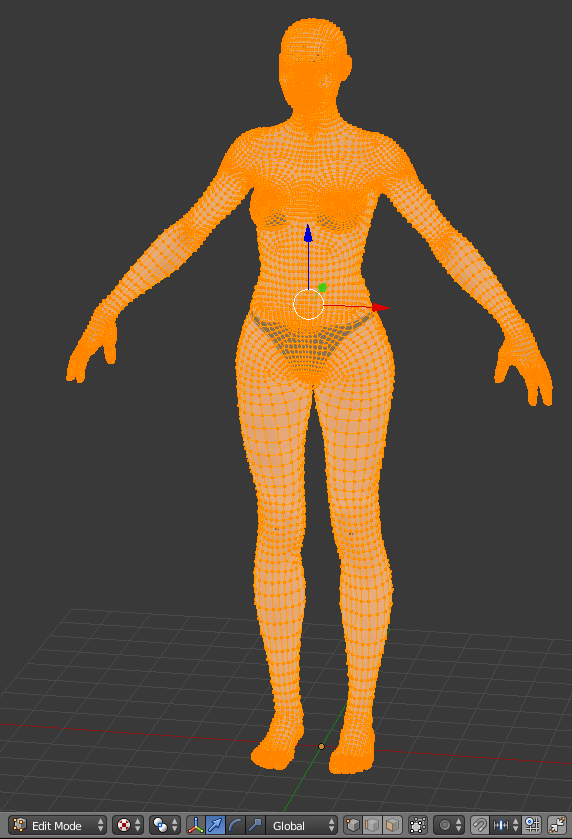
* Select the model and switch to Edit Mode.
<figure><img src="https://1251409636-files.gitbook.io/~/files/v0/b/gitbook-x-prod.appspot.com/o/spaces%2FeFXiTZShM8YWMV94n1eV%2Fuploads%2Fgit-blob-02f03951a8467e0d9e54cc0ed83ec03eaaac7f89%2Fselect-modal-decimate-tool-01.png?alt=media" alt=""><figcaption><p>Select the model and switch to Edit Mode.</p></figcaption></figure>

***

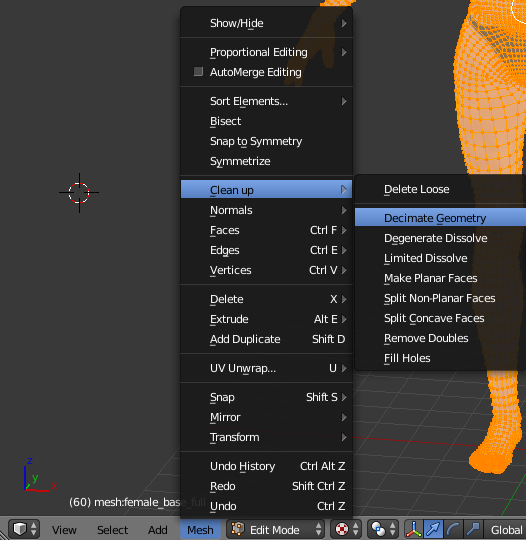
* Select **Mesh > Clean up > Decimate Geometry** from the bottom menu. A Decimate Geometry options menu appears on the left side.

<figure><img src="https://1251409636-files.gitbook.io/~/files/v0/b/gitbook-x-prod.appspot.com/o/spaces%2FeFXiTZShM8YWMV94n1eV%2Fuploads%2Fgit-blob-b7dea32ad7e4324820f58be58e0850282707158b%2Fdecimate-geometry-tool-02.png?alt=media" alt=""><figcaption><p>While the model is selected and in Edit Mode, select <strong>Mesh > Clean up > Decimate Geometry</strong>.</p></figcaption></figure>

***

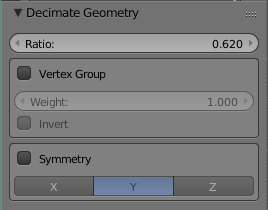
* In the Decimate Geometry options, set **Ratio** to the percentage by which to reduce the triangle count. For example, to divide the triangle count in half, enter 0.5.

<figure><img src="https://1251409636-files.gitbook.io/~/files/v0/b/gitbook-x-prod.appspot.com/o/spaces%2FeFXiTZShM8YWMV94n1eV%2Fuploads%2Fgit-blob-c26daa2a1e509bb00f8905718ef928ffac4ee4f7%2Fdecimate-geometry-ratio-03.png?alt=media" alt=""><figcaption><p>In the Decimate Geometry options panel, set <strong>Ratio</strong> to the percentage by which you would like to reduce the mesh's triangle count. In this example, the triangle count will be reduced by 62%.</p></figcaption></figure>

***

* Save the file and export as an .fbx as described in [Exporting custom avatars from Blender](https://docs.sansar.com/latest/avatar-creation/avatarresources/exporting-custom-avatars-from-blender).

***

Have more questions? Join our [Discord!](https://discord.gg/sansarofficial)


---

# Agent Instructions: Querying This Documentation

If you need additional information that is not directly available in this page, you can query the documentation dynamically by asking a question.

Perform an HTTP GET request on the current page URL with the `ask` query parameter:

```
GET https://docs.sansar.com/latest/avatar-creation/avatarresources/blender-using-decimate-tool.md?ask=<question>
```

The question should be specific, self-contained, and written in natural language.
The response will contain a direct answer to the question and relevant excerpts and sources from the documentation.

Use this mechanism when the answer is not explicitly present in the current page, you need clarification or additional context, or you want to retrieve related documentation sections.