
Help
The Sansar Cache
What is the Cache?
Section titled “What is the Cache?”The cache is a pair of files used to speed up loading of worlds, textures, sounds and a few other things, visiting a world for the first time will add it to the cache and it will load significantly faster the next time you visit.
Where are the cache files located?
Section titled “Where are the cache files located?”By default the cache files are located in C:\Users\YOURUSERNAME\AppData\Local\LindenLab\SansarClient
or by pasting %localappdata%\LindenLab\SansarClient into your file browser
you may need to enable the visibility of hidden files in the windows file browser.
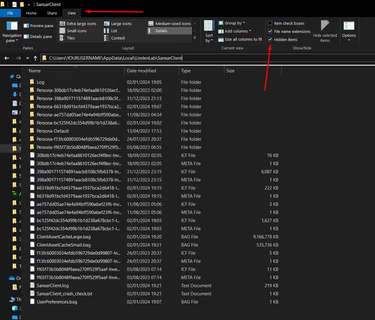
Show hidden folders
you are looking for two or more files called ClientAssetCacheLarge.bag and ClientAssetCacheSmall.bag sometimes extra cache files are created and have X’s at the end if you login to alternate accounts or have reached the maximum file size.
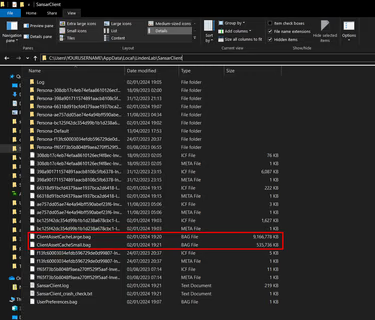
Files you can delete or remove to clear the cache
Clearing the Cache
Section titled “Clearing the Cache”Sometimes, certain things can corrupt the cache, such as bad internet or a failed world load. Currently, you cannot selectively clear worlds from the cache; you must clear it all or replace it with a known good cache file.
Support staff may ask you to clear the cache as a go-to first solution for solving a lot of issues. If you keep a copy of them, there is no harm in trying it first, as they can be dropped back in the folder later.
Once cleared you will notice things take a few minutes to load in like your avatar and inventory’s on the first time after a clear.
Automated clearing
Section titled “Automated clearing”- Open the ‘More Options’ menu from the left of the screen and then click settings.
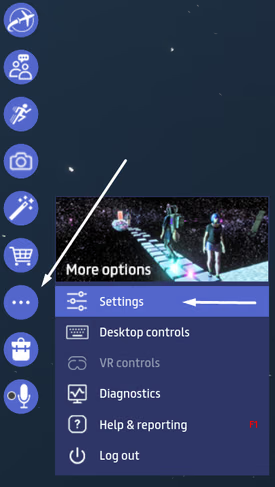
- Click on the ‘Advanced’ tab at the top and then click the ‘Clear’ button
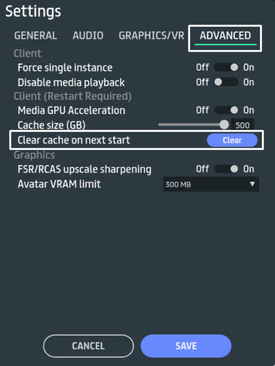
- Restart the Client, the Cache will auto clear itself.
Manually clearing
Section titled “Manually clearing”-
Close Sansar and locate the above folder; you may need to enable hidden files to find it.
-
Either delete both the ClientAssetCacheLarge.bag and ClientAssetCacheSmall.bag or move them to another location to replace them later if it didn’t solve the issue, (recommended)
-
Start up Sansar and wait for everything to load; you may notice it takes a minute or two for your avatar and inventory to appear.
-
If your issue is solved you will have to rebuild your cache over time, but if the issue remains you are able to replace the files previously removed.
Tip: if your cache is prone to becoming corrupted due to bad internet before loading a new world create a copy of your current known good cache files and keep them somewhere safe, if your cache becomes corrupted for any reason you can place these know good files back in to not need to start from scratch.
Have more questions? Email help@sansar.com.