
Events
Adding Events to Your Calendar
Adding events to your calendar
Section titled “Adding events to your calendar”While browsing events you might want to attend, you can save them to your calendar for easy reference later.
Adding events to your calendar using the Codex
Section titled “Adding events to your calendar using the Codex”While browsing the Events section of the Codex, you can add events to your calendar by clicking the Interested button that appears when you move your mouse cursor over the event’s image:
- Open the Codex to the Events section by choosing Go > Events from the main menu.
- Browse through the All events tab until you find an event you would like to add to your calendar.
- Move your mouse cursor over the event’s image and click the Interested button that appears. If the event is currently live, the button says Join event instead, and will take you directly to the event.
You can view and remove events on your calendar by clicking the Calendar tab of the Codex.
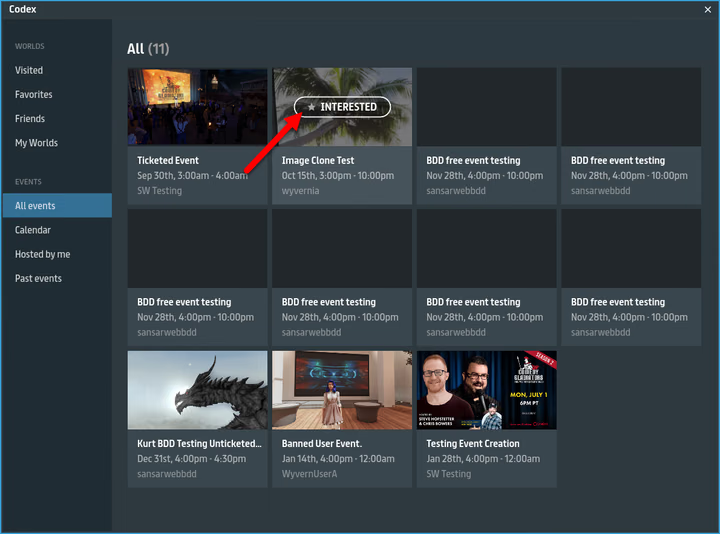
The All events tab of the Codex. Click Interested on an event to add it to your calendar.
Adding events to your calendar from the Sansar website
While browsing events on the Sansar website, open an event and use Add to Calendar to add it to a third-party calendar: Google Calendar, Outlook, or Apple Calendar.
Adding events to a third-party calendar
Section titled “Adding events to a third-party calendar”To add an event to one of your third-party calendars:
- Browse events on the Sansar website until you find one you would like to save to your calendar.
- Click the event’s image to open the full event listing.
- Click Add to Calendar, then choose your calendar:
- Google Calendar - Opens Google Calendar in a new tab with the event’s details filled in. Make sure you are logged into your Google account first.
- Outlook - Opens Outlook on the web in a new tab with the event’s details filled in.
- Apple Calendar (.ics) - Downloads a .ics file containing the event’s details. This file can be used by a compatible calendar of your choice on your computer, such as Apple Calendar.
Have more questions? Email help@sansar.com.