
Loading...
Loading...
Loading...
Loading...
Loading...
Loading...
Loading...
Loading...
Loading...
Loading...
Loading...
Loading...
Loading...
Loading...
Loading...
Loading...
Loading...
Loading...
Loading...
Loading...
Loading...
Loading...
Loading...
Loading...
Loading...
Loading...
Loading...
Loading...
Loading...
Loading...
Loading...
Loading...
Loading...
Loading...
Loading...
Loading...
Loading...
Loading...
Loading...
Loading...
Loading...
Loading...
Loading...
Loading...
Loading...
Loading...
Loading...
Loading...
Loading...
Loading...
Loading...
Loading...
Loading...
Loading...
Loading...
Loading...
Loading...
Loading...
Loading...
Loading...
Loading...
Loading...
Loading...
Loading...
Loading...
Loading...
Loading...
Loading...
Loading...
Loading...
Loading...
Loading...
Loading...
Loading...
Loading...
Loading...
Loading...
Loading...
Loading...
Loading...
Loading...
Loading...
Loading...
Loading...
Loading...
Loading...
Loading...
Loading...
Loading...
Loading...
Loading...
Loading...
Loading...
Loading...
Loading...
Loading...
Loading...
Loading...
Loading...
Loading...
Greetings, Sansarian! Whether you're a seasoned user or taking your first steps into the game our documentation is here to be your guide on this virtual journey.
Think of it as your trusty guidebook, helping you navigate the ins and outs of the Sansar platform. From the basics to advanced features, we are currently crafting this documentation to make your experience as seamless as possible.
Ever find yourself wondering how to customize your avatar, build your virtual haven, or troubleshoot a pesky issue? Look no further. This documentation is your guide, providing step-by-step instructions, tips, and troubleshooting info to ensure you get the most out of Sansar.
We get it, sometimes things don't go as planned. Our troubleshooting and guide sections is dedicated to addressing common issues, so you can spend less time figuring things out and more time enjoying your time in Sansar.
Sansar is more than just a platform; it's a community. Our new documentation is currently under construction and a revamp, we have collected together as much of the old info into one place from all over the previous community forums that have existed in the past so some info may be out of date while we sort through it all, in the mean time head on over to our where many members of staff and the community are happy to help with any questions!
Whether you're here to create, explore, or connect, the Sansar Platform Documentation is a great starting point, check out the tabs on the side for what you are trying to do and have a read!
Features
There's lots of them
and many more to come
Sign up at !
Join our
When using Sansar with a VR headset, you have access to some different settings than desktop users, the menu is in the same place but only some settings affect VR users vs Desktop users.
Coming soon...
For most support requirements we are currently using our discord in a open manner so you are able to see previous support posts of other users with similar issues, you can sign up by joining our Discord! and heading to the Support page then creating a new post by clicking at the top of the page.
404 - page not found
These documents are still being worked on and is currently a repository of all the old information from the previous help pages, We're putting in a lot of effort to update all the links and information to make sure everything is current. If you're looking for something that isn't ready yet, is missing or outdated consider joining our Discord!
You ended up on this page because you tried to click on a link that isn't available right now. We're actively working on updating the existing documentation and image links as quickly as we can. and undergoing a restructure of the content. In the meantime, feel free to use the wayback machine with any link that fails as it holds archives of the old forums.
https://archive.org/web/
If you cannot find something or the information is missing/hard to find or understand we are happy to try and resolve this by creating guides and new pages during this restructuring phase, reach out on
This content is licensed under the terms of the Creative Commons Attribution 4.0 International License. When using this content, you must:
Acknowledge that the content is from the Sansar Knowledge Base.
Include our copyright notice: "© 2017 Linden Research, Inc."
Indicate that the content is licensed under the Creative Commons Attribution-Share Alike 4.0 International License.
While in VR, you can use your Oculus Touch or HTC Vive wand controllers to perform hand gestures, such as pointing, thumbs-up, or "ok".
Note: The HTC Vive wand controllers have limited support for hand gestures in Sansar. At this time, the only available hand gesture for Vive is to make a fist (activated by pressing the trigger on either controller).
The basic controls for performing hand gestures are as follows:
Include the URL for, or link to, the license summary at https://creativecommons.org/licenses/by-sa/4.0/deed.hi (and, if possible, to the complete license terms at https://creativecommons.org/licenses/by-sa/4.0/legalcode.
For example:
"This work uses content from the Sansar Knowledge Base. © 2017 Linden Research, Inc. Licensed under the Creative Commons Attribution 4.0 International License (license summary available at https://creativecommons.org/licenses/by/4.0/ and complete license terms available at https://creativecommons.org/licenses/by/4.0/legalcode)."
Triggers - On Oculus Rift, curls your avatar's index finger. The more you depress the trigger, the farther your finger curls. On Vive, curls all fingers into a fist.
Grip buttons - On Oculus Rift, curls your avatar's remaining fingers (except for the thumb). The more you depress the grip button, the farther your fingers curl. Not available on Vive.
Thumb stick or buttons - On the Oculus Rift, you don't need to press these controls. If you simply rest your thumb on the thumb stick, buttons, or top of the Rift Touch controller, your avatar's thumb curls in. Not available on Vive.
By using combinations of these basic controls, you can create many familiar hand gestures.
Rotate left thumbstick: Moves the avatar forward, back, left, or right.
Press left thumbstick while moving: Run in the current movement direction.
Press right thumbstick: Toggle first person / third person view.
B: Jump. Hold longer to jump higher.
A: Teleport to targeted location or select a menu option from the App Launcher.
Thumbstick on opposite hand while holding A - Change the direction your avatar will face after completing the teleport.
B button: Open or close the VR main menu on your left wrist. Navigate the menu using the right Oculus Touch controller.
A button / Trigger / Grip (squeeze): Select a menu option.
Grip button (Squeeze with pressure): Grab dynamic unconstrained objects or the chat app (if open).
Gaze at an avatar and hold the grip button: To gaze on something, move your head and hover the circular bubble within your line of sight over the avatar. See the avatar's name and ID and have access to the mute/unmute and add/remove friend buttons.
Crouch: If you crouch low enough, your avatar enters a crouching/sneaking stance and moves slower.
Trigger: Activate item you are holding (pew pew guns)
Note: Matching your height with your avatar is now accomplished through the VR app launcher.
Have more questions? Join our Discord!
Please use the forgotten password link located here: Forgot Password or by clicking any of the 'forgot password' buttons located at any login page. You will be asked for the email associated with the account.
For steam based accounts, the login is authenticated by steam itself requiring you to be logged into the steam account that is connected to your sansar account.
I no longer have the email, please Contact Support

20000-20999 (inclusive)
You can force Sansar to run without UDP by using the command line option:
-networking.useTcp=true
It is not ideal to use TCP only, and you may notice degraded performance. You should only attempt this solution if you believe UDP has been blocked by your network administrator and you cannot contact them to change your firewall's rules.
Have more questions? Join our Discord!
TCP
80
443
TCP and UDP
By default the cache files are located in C:\Users\YOURUSERNAME\AppData\Local\LindenLab\SansarClient
or by pasting %localappdata%\LindenLab\SansarClient into your file browser
you may need to enable the visibility of hidden files in the windows file browser.
you are looking for two or more files called ClientAssetCacheLarge.bag and ClientAssetCacheSmall.bag sometimes extra cache files are created and have X's at the end if you login to alternate accounts or have reached the maximum file size.
Sometimes, certain things can corrupt the cache, such as bad internet or a failed world load. Currently, you cannot selectively clear worlds from the cache; you must clear it all or replace it with a known good cache file.
Support staff may ask you to clear the cache as a go-to first solution for solving a lot of issues. If you keep a copy of them, there is no harm in trying it first, as they can be dropped back in the folder later.
Once cleared you will notice things take a few minutes to load in like your avatar and inventory's on the first time after a clear.
Open the 'More Options' menu from the left of the screen and then click settings.
Click on the 'Advanced' tab at the top and then click the 'Clear' button
Restart the Client, the Cache will auto clear itself.
Close Sansar and locate the above folder; you may need to enable hidden files to find it.
Either delete both the ClientAssetCacheLarge.bag and ClientAssetCacheSmall.bag or move them to another location to replace them later if it didn't solve the issue, (recommended)
Start up Sansar and wait for everything to load; you may notice it takes a minute or two for your avatar and inventory to appear.
If your issue is solved you will have to rebuild your cache over time, but if the issue remains you are able to replace the files previously removed.
Tip: if your cache is prone to becoming corrupted due to bad internet before loading a new world create a copy of your current known good cache files and keep them somewhere safe, if your cache becomes corrupted for any reason you can place these know good files back in to not need to start from scratch.
This is not supported officially but we have had some success at running sansar using this method. As this is unsupported use at your own risk and expect there may be some bugs.
Update your OS to the latest
Download the game porting toolkit here: https://developer.apple.com/download/all/?q=game%20porting%20toolkit
Copy your Sansar game client folder over to your Mac C:\Program Files\Sansar\Client
Download this installer that will do all the work: This is the file you need:
Run the Installer you just downloaded Choose the game porting toolkit and SansarClient.exe files as shown below
During the installation you will see a window prompt pop up that says windows 7 in bottom of it. Change that drop down to windows10
Done. Sansar should launch
To launch Sansar another time just run the game porting toolkit installer a second time, but you only need to select the SansarClient.exe
Event-specific version of a published world that you want to use for an event listing.
Say you've created a private, event-specific version of a published world that you want to use for an event listing — yet you can't select it during the event creation process! Initial events can only link to published worlds, to register them as connected for popularity metrics.
However, after you've created that event, you can easily link the event to ANY unpublished content.
Here's a simple workaround you can do in less than a minute:
First, the usual event creation process:
Click Create menu > Host an event.
Fill out the event details. You should base it on the "main" published world that the variant was derived from, as it attributes the original with subsequent "popularity" info for the event hosted within. In any case, you'll be changing this shortly.
Click Save & Publish.
Time to deploy:
Open Create menu > Build worlds. In this MY WORLDS window, your new event will be on the top of the list.
Now, in the same MY WORLDS window, scroll to the actual world variant you want to use for this event.
Click (...) > Deploy scene and read the instructions inside.
You're done, have an eventful time!
Have more questions? Join our
The Chat panel allows you to communicate with other people in your current experience and respond to direct messages.
When you are visiting experiences, the Chat panel opens automatically to the Nearby tab. However, in Edit Scene mode, the Chat panel opens to the Friends tab by default.
|
To chat with all nearby people in your experience:
Open the Chat panel by choosing Socialize > Chat from the main menu.
Once the Nearby tab opens, write something in the Enter Message field at the bottom of the Chat panel, then click Send Message or press Enter to send a message.
All Nearby messages sent and received from others appears under the Nearby tab, along with the name of the experience you are visiting.
To send or reply to a private message:
Open the Chat panel by choosing Socialize > Chat from the main menu. If you have any private messages waiting, a green light appears on the Friends tab; click it to view your messages.
On the Friends tab, click the private message you want to reply to then click the > arrow to view the conversation. To start a new conversation, click New Message instead.
Type a message into the Say something to field, then press Enter to send a message to only that person.
While visiting an experience in Desktop mode, you can press F7 to toggle Mouselook mode. With the following effects:
The Menu UI disappears
F7 has a target reticle pop up an the camera follows mouse movement.
You can steer the camera and your avatar by moving the mouse without having to hold right click.
Your avatar only turns when moving, so you won't turn in place while looking around, But if holding a object your arm will follow the cameras movement.
Mouselook mode facilitates a more immersive movement and aiming with certain tools and weapons your avatar has picked up while in Desktop mode (VR users can easily aim using their VR controllers).
Have more questions? Join our
In Sansar, you have the ability to gather a nearly-unlimited amount of people in your event.
This is accomplished through our Instancing feature. When a scene reaches its designated max capacity, Sansar will automatically create a copy of that scene. These copies are called "Instances"
When multiple instances are created, users can choose which Instance they want to be in.
To do this:
Open your Codex, and select the world you desire by clicking the world's portrait. (NOT the "Visit" button)
Click on "View Instances"
Select an Instance from the list.
If you and your friends become separated in different Instances you can easily find each other.
Simply go to:
"View Instances"
Click on "Share my instance URL"
You will then be able to copy and paste your instance URL to your friends and they can follow you to the instance that you are currently occupying.
With this knowledge you can now successfully travel between Instances in Sansar and bring your friends along with you!
Have more questions? Join our
The People panel has tabs to show who's nearby, your Friends list, and pending Friend requests. You can open the People panel by choosing Socialize > Friends & People from the main menu.
Nearby - This tab lists all nearby people in your current experience. For each person on the list, you may click their name and choose to Message them to send a private message as described above, or you may Add Friend to request a mutual friendship. The other person must first accept your Friend request before they appear on your Friends list. You can also to send them Sansar dollars. Additionally, you may choose to open that person's , which contains additional muting, friendship, and reporting controls.
Note: There is no Nearby tab in edit mode.
Friends - This displays a list of your Friends, regardless of whether they are online or in your current experience. For each person on the list, you may click their name to either Message them, to send them Sansar dollars, or open their , which contains friendship and communication options.
Requests - Shows a list of currently pending Friend requests you have received from other people. For each pending request, you may click the person's name and then press Accept to accept the request.
Search - Enter part or all of someone's and press the Search button to return a list of matching results. You may click the resulting name to reveal options to
This article delves into managing avatar-related inventory items. To learn more about managing scene-related items, check out the action menu section of the Scene creation inventory page.
If you imported an avatar item, you may have been prompted to provide an inventory name and image for your avatar upon import. If you skipped adding an image during the import step or want to change the item name, you can do so by editing the item's information. To edit the item's name:
Open the avatar editor by clicking on the Style my avatar button on the main menu.
Once you are in the lookbook, click the Customize button on any avatar look you have on the list. This opens the avatar editor, where you can access your inventory panel.
On the inventory panel, simply right-click on the item that you want to manage and a sub-menu opens.
Click Edit Info in the sub-menu. A panel that allows you to change the inventory image or name appears.
To change the name of the item, simply type the new name on the Name of item in inventory field.
Click on Update to finalize your changes.
note: If you plan to sell the item in the store, the inventory name you designated also appears in the item buyer's inventory. Make sure to finalize the name prior to starting the listing process or you can change the inventory name as it appears to other users' from the . Inventory level changes don't propagate to any active listings.
Have more questions? Join our
This article delves into managing avatar-related inventory items. To learn more about managing scene-related items, check out the action menu section of the Scene creation inventory page.
You can delete items you've uploaded to the inventory or purchased from the Sansar Store from the inventory. To delete an avatar item from the inventory:
Open the avatar editor by clicking on the Style my avatar button on the main menu.
Once you are in the lookbook, click the Customize button on any avatar look you have on the list. This opens the avatar editor, where you can access your inventory panel.
On the inventory panel, simply right-click on the item that you want to manage. Once clicked, a sub-menu pops up with options.
Depending on the operation that you want to conduct, click on List Item, Edit Info, or Delete. We will delve into these operations in the next section.
Click Delete in the sub-menu.
A dialog with the message, Are you sure you want to delete this item?" appears.
Click Ok to permanently delete the item or click Cancel to go back to the avatar editor.
note: You can still retrieve lost or deleted purchased items back to your inventory provided that the content creator hasn't taken the item down. See to learn more.
Have more questions? Join our
When using Sansar with a VR headset, you should make sure to calibrate your height. Height calibration affects the elevation of you your first-person point of view, and plays a role in scaling how your avatar is animated when you move your arms, legs, and head.
Entering your height manually
You can set your height manually while in VR:
Open the main menu on your left wrist by pressing Y on your Oculus Rift controller or Left Menu on your HTC Vive controller.
Using your opposite hand, select Set height from the main menu.
Use your VR controller to activate the up and down arrows until your correct height is displayed.
Click Ok to confirm your height.
Detecting your height automatically
Sansar can estimate your height automatically by measuring the length of your arms:
Open the main menu on your left wrist by pressing Y on your Oculus Rift controller or Left Menu on your HTC Vive controller.
Using your opposite hand, select Set height from the main menu.
Choose Detect.
Extend your arms outward, then hold any button on your VR controller until calibration completes.
Height calibration settings
There are some Sansar that affect height calibration:
Remember height - Remembers your height between sessions so you don't need to calibrate every time you log in.
Show height in meters - Shows height in meters rather than the default feet and inches.
Have more questions? Join our
The Blender avatar files we provide contain the base skeleton that we use for the avatar and a copy of the body mesh skinned to the avatar. These files have been modified for improved visibility and quality of life when used with Blender.
These files can be found in Avatar reference files.
One of the Blender-modified avatars.
Special features of the Blender avatar files
The blender files provided in Avatar reference files, include the full-resolution avatar mesh, skinned to the avatar skeleton. We have hidden all of the bones that are unnecessary for skinning and animation, and the face and twist bones display as cubes for improved visibility. To see this "cleaner" view, you must enable Pose Mode by toggling the option in the bottom of the 3D View panel or by clicking Pose under Armature in the Outliner.
How Blender displays bones differently
If you are in Edit Mode, you will see the full skeleton with no bones hidden, and all bones will be drawn using the default Blender "Octahedral" view. These bones resemble the joint objects in Maya and 3DS Max, but Blender's display method is different. Every bone object has a head and a tail, which resemble Maya and 3DS Max's bones, but with an important distinction: The tail of the bone is actually a vector that tells Blender which direction the bone is facing (similar to Joint Orientation in Maya). This is why the face bones look so cluttered in Blender when you first import them or view them in Object Mode.
Have more questions? Join our
Any asset under the following item types (avatars, rigged hair, rigged clothing) created using the avatar 1.0 avatar skeleton will no longer be usable in the new avatar 2.0 system. It is key to be aware of which items are sunseting so purchasers have better insight on the items prior to purchase.
All Marvelous Designer clothing, accessories and emotes created against the 1.0 avatar skeleton will still be usable on the 2.0 avatar. These items will still be available in your inventory and any listed items will still be accessible from the store for purchase.
However, any rigged hair, rigged clothing or avatars will no longer be usable on any 2.0 avatar.
Changes to the base avatar's skeletal structure had to be made in order to support Avatar 2.0. Because of this, we had to make a tough decision to no longer support avatar 1.0, which meant that avatars, rigged hair and rigged clothing uploaded prior to the change would no longer be supported.
Yes, you will be able to update any of the affected content such as avatars, rigged hair, and rigged clothing. Creators will be given one opportunity per affected store listing to update their listings with Avatar 2.0-compatible content.
Have more questions? Join our
This article delves into managing avatar-related inventory items. At this time, scene creation items do not support inventory images.
If you imported an avatar item, you may have been prompted to provide an inventory name and image for your avatar upon import. If you skipped adding an image during the import step or want to change the item name, you can do so by editing the item's information. To edit the item's information:
Open the avatar editor by clicking on the Style my avatar button on the main menu.
Once you are in the lookbook, click the Customize button on any avatar look you have on the list. This opens the avatar editor, where you can access your inventory panel.
On the inventory panel, simply right-click on the item that you want to manage and a sub-menu opens.
Click Edit Info in the sub-menu. A panel that allows you to change the inventory image or name appears.
To change or add an inventory image, click on Browse to choose the file to upload as an image.
Click on Update to finalize your changes.
note:
An inventory image is required in order to be able to list an item.
If you plan to sell the item in the store, the inventory image you designated also appears in the item buyer's inventory. Make sure to finalize the image prior to starting the listing process otherwise the original image at the time of listing will still be the image that will be shown on the users' inventory. Inventory level changes don't propagate to any active listings.
Have more questions? Join our
You can use to track the positions of your right foot, left foot, and waist for improved body tracking and avatar movement in Sansar.
VIVE tracker setup
For each tracker:
In SteamVR, choose Devices > Pair Controller.
You can import custom animations for use as avatar emotes. The file must be in .FBX format.
To import a custom emote:
Open the Lookbook by choosing Create > Style my avatar from the menu buttons.
System Requirements
For a list of recommended and minimum system specifications for people using desktop only or desktop with VR headsets, please see .
Install Sansar
To install Sansar:
Download the client from the .
Locate the file in your browser's download folder.
Blender's Decimate Geometry tool can reduce the triangle count of a skinned mesh without requiring you to re-skin the mesh afterwards.
The mesh decimation is done algorithmically, so the final results usually are not as nice as they would be if a human artist were to reduce the geometry by hand, but it does allow you to reduce your custom avatar mesh to a triangle count supported by Sansar.
Using the Decimate Geometry tool
To use the Decimate Geometry tool while editing a model in Blender:
This page provides information on how to delete your Sansar account and all information associated with it.
All your content will be permanently removed. This includes your avatar, inventory items, created experiences, Store items, and any other data associated with your account.
Custom emotes are set separately for each of your avatar looks. At this time, you may only replace the animations used for existing slash commands, such as /clap, but you may not add additional slash commands.
To replace an emote animation for one of your avatar looks:
You can interact with certain objects in an experience to trigger actions and effects. Interactive objects are created using Sansar's script API, and act as input controls for those API scripts. Some examples of interactive objects might be: a door that opens when you click it, or a button that plays an audio clip.
We provide a simplified, "lower resolution" animation skeleton that is suitable for creating animations and uploading them to Sansar for your avatar to use. This skeleton is different from our main avatar skeleton and is suitable for creating custom animations but cannot be used to create avatars.
Note: Sansar is able to interpret the animation skeleton for the purposes of importing animations, but any avatars that attempt to use this simplified skeleton are rejected during the import process.
This article answers a variety of questions related to Subscriptions
Subscriptions are currently not available (17/09/24)
Is my subscriptions status transferable to another account?
No, your subscription status is non-transferable.
Will my subscription renew automatically?
Yes, your subscription will renew automatically on a monthly basis.
How can I change my subscription plan?
To change your subscription plan, go to the page.
How can I cancel my subscription?
To cancel your subscription, you will need to visit the
We currently support both HTC Vive and Oculus Rift, Quest 2 To experience Sansar on Vive, you must install Steam and Steam VR. Steam and Steam VR are not required to run Sansar on the Oculus Rift.
We currently do not officially support Windows Mixed Reality (WMR) headsets. There are cases where some users have made it work in Sansar, but we do not guarantee that the headset will work 100% well with Sansar.
We currently support the VIVE Tracker. See here for more information on how to set it up to work in Sansar.
Yes, you can use the Xbox One or Xbox 360 game controller. See Game controller buttons for more information.
Sansar is currently only available on PC. We are working on official support for Mac. But an unofficial way is possible. See Running sansar on mac
Sansar currently doesn't support the Oculus Quest or Quest 2 standalone. There are currently no plans to support it in the immediate future since the Oculus Quest and Quest 2 is not powerful enough to run Sansar standalone. However it is possible to use these headsets in PCVR mode with a link cable or via Airlink to play sansar.
Have more questions? Join our Discord!
Deploy scene is an extremely useful feature, because it does NOT disconnect a scene from its original world — each time you deploy, it makes an extra copy! So you'll have a backup.
Optional: under "Choose a name for the scene's copy", rename it if you wish.
Under "Move the scene copy into this world", choose the event. Events have "(event)" next to their names.
Click DEPLOY.
Visit the event world to confirm the content is as intended.
Also note: as a general policy, unless it's a very minor/quick change, Sansar Studios (Linden Lab's internal content/art team) does NOT edit event scenes directly, because they are prone to mishaps. We edit the non-event world, THEN deploy. ALWAYS BACKUP!
Double click SansarInstaller.exe to start the installer.
Agree to install the program.
The Sansar Installer appears. Click Next to begin the installation process.
Review the License Agreement, select the box to Accept, and click Next.
You may choose an alternate install location for Sansar, and choose to add shortcuts to the desktop and startup menu.
Click Install to install Sansar.
Click Launch to run the Sansar Updater.
The Updater installs the latest version of Sansar and launches the program.
Note: Sansar is also available for download on the Steam platform. For information about how to install Sansar with Steam, see Steam integration
Upgrading Sansar
It is not necessary to uninstall Sansar to install the latest version. The Sansar Updater automatically checks for and installs the newest version of Sansar.
Uninstall Sansar
To uninstall Sansar:
Access the Windows control panel.
On the control panel, select Uninstall a program under Programs.
Choose Sansar from the list of programs.
Click Uninstall. This opens the Sansar Installer.
Follow the prompts on the Sansar Installer to uninstall Sansar.
Have more questions? Join our Discord!


Choose Devices > Pair Controller.
Hold down the VIVE Tracker's button until it syncs with SteamVR.
Follow the onscreen setup instructions to complete pairing the Tracker.
To set up each tracker for use in Sansar:
Launch Sansar.
In SteamVR, choose Devices > Configure Controller. If you are prompted to choose an application, choose Sansar.
Each of the trackers you have just set up should appear as "Vive Tracker in Hand". Select one and then click Manage.
On the Manage Trackers page, click Held in Hand and change it to one of the following:
Left foot
Right foot
Waist
Repeat this process for the remaining trackers until you have set one Tracker each for Left foot, Right foot, and Waist.
Known issues
As of April 30, 2019, there is a bug in SteamVR can cause VIVE Trackers to become unrecognized in Sansar. To work around this issue:
In SteamVR, choose Devices > Configure Controller.
Under Current Binding, click Edit.
Add, then remove any button mapping. You can add a button mapping by clicking the Power + symbol.
Select Edit action pose and set it to Unused, then back to Pose.
Save your local changes and go back to Sansar.
Have more questions? Join our Discord!
An avatar dancing in Sansar with full body tracking in VR.

B Button Held (B) - Teleport beam
X Button (X) - Interact/ pickup or drop object
X Button Held (X) - Throws held object
Y Button (Y) - Crouch
Left Bumper (LB) - Mic push to talk
Right Bumper (RB) - Teleport beam (DUPLICATE)
Left Trigger (LT) - Secondary action like keyboard 'R Key'
Right Trigger (RT) - Use held item
Back - Cinecam toggle like F10
Start - Freecam toggle like F4
Left Stick - Movement
Right Stick - Camera
Left Stick Press (LS - Press) - Toggle walk / run
Right Stick Press (RS - Press) - Toggle 3rd / 1st person
While throw object is active
Right Stick - Changes trajectory
While teleport beam is active
Left Stick - Moves target location
Right Stick - Changes direction you will face when landed
Back - Cinecam toggle like F10
Start - Freecam toggle like F4
X Button (X) - Drops avatar at cam location
Y Button (Y) - Speed up cam
B Button (B) - Slow down cam
Left Trigger (LT) - Lower cam
Right Trigger (RT) - Raise cam
Left Bumper (LB) - Mic push to talk at avi
Have more questions? Join our Discord!


What happens if I downgrade my subscription level mid-billing cycle?
If you choose to downgrade your subscription mid-billing cycle, you will still receive the benefits of your current subscription level through the end of your billing cycle. Your subscription will switch to the newly selected level at the start of your next billing cycle.
What happens to my experiences if I downgrade my subscription?
If you downgrade your subscription and you currently have more than the allotted number of experiences, you will need to remove any experiences that exceed the allotted amount of experiences for your subscription level.
Why was my subscriptions level downgraded to the free plan?
If the payment method associated with your subscription is no longer valid, you will be downgraded to the free subscription plan if you do not update your payment method within your next billing cycle.
Do unlisted experiences count towards my total number of experiences?
Yes, unlisted experiences count towards your total number of experiences.
Do scene templates count towards my total number of experiences?
No, unused scenes do not count towards the total number of experiences. You can keep a scene template by deleting the experience it is linked to.
Does an experience with no scene count towards the subscription count?
Yes, an experience with no linked scene counts towards the total number of experiences.
Can I delete my experience, but still keep the scene?
Yes, you can still keep your scene even if you delete the experience it is linked to.
Have more questions? Join our Discord!
When you are finished, you may click Back to return to your list of private messages.
Note: Sending and receiving private messages can only be done with friends.
| | |
The Chat panel supports the use of emojis in text messages. You can click the emoji button next to the Enter Message field to choose from the available emojis, or you can cut and paste one from elsewhere. You can even type emoji codes directly into the Enter Message field and the Chat panel will suggest emojis based on your partial input.
Windows 7 does not support emojis in Sansar by default. Windows 7 users can gain access to emojis in Sansar by installing an updated version of the font Segoe UI.
Have more questions? Join our
Click Ok to confirm your height.
VR height settings.
All events - All upcoming events in Sansar.
Calendar - Upcoming events specifically saved by you.
Hosted by me - Upcoming events hosted by you.
Past events - Previous events hosted by you and others.
To visit an event that is currently live indicted by the red LIVE image, Hover over the event picture and click the Join event button that appears The Join event button only appears for events that are in progress or starting soon.
You can add an event to your personal calendar for later reference by clicking the Interested button that appears when you move your mouse cursor over the event image. For more information about adding events to your calendar, see Adding events to your calendar.
For information about creating your own events, see Creating your own events.
To check out an upcoming event on the Sansar website:
Visit the Events page on the Sansar website to view all upcoming events.
Click an event's thumbnail to view more details about the event.
(Optional) Click Add to calendar to add the event to your personal calendar. For more information about adding events to your calendar, see Adding events to your calendar.
Check the time of the event, and if you wish to visit the venue, click the Location link to visit the world where the event is held.
Have more questions? Join our Discord!


First, go to the registration page.
Fill out the required information on the registration page.'
Please Note, that your "Display name" will be the name of your avatar upon completion of creating your account. Chose this name carefully as this will be how you are known in the Sansar world.
Note: The name you provide on the registration page is collected for user account record purposes only and does not appear in any way in the Sansar client or website.
Once your information is filled out, click Create Account.
You are sent an email to verify your email address.
Open the verification email in your mail inbox and click the Verify Email Address button. This opens a page where you are prompted to download and install Sansar.
After installing the Sansar client, you can use your email address and password to log into the client and continue with the second part of the account creation process.
Have more questions? Join our Discord!
Select an avatar look and click the Customize button to open the avatar look editor.
Select the Animation tab in the Avatar panel.
Click the Library tab at the top of the Avatar panel.
Click the Import button to open the Import Character Animation panel.
Click Import to import an emote animation.
Click Browse and choose a .FBX file from your computer. The .FBX file must contain an animation or it will fail to import.
Enter a name for the animation in the Name of item in inventory field.
Click the Import button.
Wait for the import to finish, then click the Close button to close the Import Character Animation panel.
The imported emote animation now appears in the Library tab of the Animation tab in the Avatar panel.
See Previewing and setting custom emotes to learn how to set a custom animation on an emote slot.
Have more questions? Join our Discord!
Choose Style My Avatar from the Create menu.
In the Create Event panel, enter the following information:
Choose starting content - Choose a scene template from the dropdown. This determines the content of the event's world.
Event name - Enter a name for the event.
Image: Upload an image for the event listing. The image must have a 16:9 aspect ratio, be between 480x270 and 1920x1080 pixels, and be 10mb or less.
Description - Provide a brief description of the event to provide more information to potential visitors.
Date - Select the date of the event from the dropdown. You may select a date several months in advance.
Start time - Select the start time of the event from the dropdown.
Duration - Select the duration of the event from the dropdown. Events run in 30 minute increments and may not be longer than 8 hours at this time.
Click Save & Publish to publish your event to the Upcoming events calendar.
You can duplicate the details of your event into a new event. This is helpful if you plan on running a recurring event with the same name and description, but at a different date or time.
To host an event again:
Choose Go > Events from the main menu to open the Codex to the Events section.
Click the Calendar or Past events tab.
Find the event you would like to duplicate, click it to open its details, and choose ... > Duplicate.
The Duplicate Event panel appears, populated with the information from your existing event.
Change the relevant details, then click Save & Publish to create a new copy of the event.
Events take place in a new world created specifically for the event, so you must have at least one free slot in order to create the event. The world remains after the event has ended, so you must delete it in order to reclaim the slot.
Because events take place in a newly-created experience, visitors cannot visit the event by simply visiting the world using the Codex Instead, visit events by using the Events section of the Codex, which can be accessed by choosing Go > Events.
Have more questions? Join our Discord!
If you haven't already, be sure to download Sansar and create an account!
If you need help setting up an account, check out our account creation tutorial
Go to an event (with tipping enabled).
Click the gold tip button
After you click on this icon you will be given several options regarding how much you want to tip!
Fig A
4. Select the amount you want to tip from the tipping menu (shown here in Fig B)
(Fig B)
5. Once confirmed you will see a reaction confirming that your tip was successful (shown here in Fig C)
Fig C
When you select an amount to tip, that amount will be transferred from your Sansar account to the performer or artist's account! There will also be a reaction that appears above your avatar's head reflecting how much you have tipped.
Have more questions? Join our Discord!
While browsing worlds on the web, in the Codex, or through the Prime Portal, you may notice a small Popular now icon in the corner of certain worlds. This icon indicates that there are currently other people visiting that world. Click Visit to enter the world and say hello to your fellow visitors!
Attend an event to meet up with other people while you enjoy exciting experiences and locations in Sansar. Events can take many forms, from community meetups to murder mysteries and other special activities.
You can find a list of upcoming events in the Codex and on the web. For more information about events in Sansar, see Upcoming events in Sansar.
While visiting or editing a scene in Sansar, you can use the People panel to search for specific friends to add to your Friends list. Once your friend accepts your friend request, you may exchange chat messages and coordinate your activities.
For more information about friends, see The People Panel.
Sansar's Discord community is a way to connect with other Sansar users and make friends, plan meetups, ask questions, get feedback, share your ideas and creations, and more.
To participate in the Sansar Discord community, you must link your Sansar account to your Discord account. If you do not have a Discord account, you will be prompted to created one as part of the linking process. To begin, log into the Sansar website, then visit the Link Discord page from your Account page and follow the instructions onscreen.
For more information about the Discord community, see Sansar Discord FAQ.
You may visit Sansar's community forums to share your experiences, report bugs, request features, and more.
Have more questions? Join our Discord!
Your level, visible in your user profile, is a simplified representation of your total accumulated XP. At certain XP thresholds, you "level up" and your level increases. Someone's level can be used as one possible indicator of the amount of time and experience (no pun intended) someone has invested in Sansar. Keep in mind that not everyone uses Sansar in a way that will necessarily accumulate a lot of XP, so this is by no means a definitive measure.
Your title is also displayed in your profile, just below your level. In later updates, you will be able to accumulate and select different titles to display as you achieve milestones in your Sansar journey.
There are four types of experience points, each representing a specific area of focus in Sansar. These areas of focus are called traits:
Explorer - Awarded for exploration-related activities.
Social - Awarded for social activities.
Creator -Awarded for activities related to creating content for Sansar.
All XP contributes to your level progress, but you (and others) can view the breakdown of your traits to see how you earned your XP and ascertain the types of activity you most often engage in.
Any XP earned that does not fall under one of the three types is categorized as General XP. General XP contributes towards your overall level progress, but is not included in the breakdown.
To view the breakdown of someone's traits while viewing their profile, hover your mouse cursor over their Level.
Have more questions? Join our Discord!
Select the model and switch to Edit Mode.
Select Mesh > Clean up > Decimate Geometry from the bottom menu. A Decimate Geometry options menu appears on the left side.
In the Decimate Geometry options, set Ratio to the percentage by which to reduce the triangle count. For example, to divide the triangle count in half, enter 0.5.
Save the file and export as an .fbx as described in Exporting custom avatars from Blender.
Have more questions? Join our Discord!
This action is irreversible. Once your account is deleted, it cannot be recovered.
Any remaining Sansar Dollars (S$) in your account will be forfeited. Please ensure you have used or converted any S$ before proceeding with account deletion.
You must have access to your account to delete it. Support will not delete an account you cannot log into as a security measure without ID verification and proof of ownership.
To initiate the account deletion process, please follow these steps:
Log in to your Sansar account on the official website Sansar.com.
On the top right click the profile icon
Navigate to your "Account Settings"
Look for the "Delete Account" option and select it.
5. If you are sure press the DELETE button.
6. Now on the popup either Confirm or Cancel, This is your last chance to change your mind after clicking OK on this confirmation window deletion is final and cannot be undone.
7. Finally click ok, you will be signed out and all information held of your account will be removed.
We are sorry to see you go, If you ever change you mind and wish to return please sign back up through the official website Sansar.com
your previous email is available again to use but will be a new account.

Select an avatar look and click Customize.
Select the Animation tab in the Avatar panel.
Click one of the emotes in the list to preview the animation on your current avatar.
Click the > next to the emote's name to select a new animation for that emote from the library. Note that the slash command does not change when you select a new animation for it; if you replace the animation for /lol, you must still type /lol to trigger the new animation.
Previewing the default /wave animation. Click the > next to /wave to select a different animation to play when you type /wave in chat.
Emotes are currently divided into full body animations and upper body animations.
Full body animations override the animation of your avatar's entire body. For example, most dance animations must animate both your upper and lower body. Full body animations are set to loop, which means that the avatar will continuously repeat the animation until the avatar is moved.
Upper body animations only animate your avatar from the waist up, allowing your lower body to continue its existing lower-body animation. For example, /wave allows you to wave your hand without interrupting your walking gait or lower-body dance moves. Upper body animations are non-looping, which means that the animation will only play once.
Note: At this time, it is not possible to switch an emote from upper body to full body or full body to upper body. You should check the animation type before replacing an emote's animation. You can find the animation type at the top of the animation list when selecting a replacement animation.
The animation type can be found at the top of the animation list when replacing an emote's animation.
See Importing a custom emote animation for steps on importing a custom animation.
Have more questions? Join our Discord!
Purchase a ticket from this site, and "My Tickets" section of your account.
Find the option to "Download your tickets here"
Click on "Download your tickets here" (Shown below in Fig A)
Fig A
This will open up a receipt for your ticket, your redemption code is the 8 digit code beneath the QR code on the top right (Shown below in Fig B)
(Fig B)
Log in to Sansar.
If you haven't already, be sure to download Sansar and create an account!
If you need help setting up an account, check out our account creation tutorial
Navigate to event.sansar.com
Find the event that you want to redeem a ticket for (Examples shown below in Fig C )
(Fig C )
9. Click on "Get Ticket" (Shown below in Fig D )
(Fig D)
10. In the Payment page, click on "Use redemption code"
11. Enter your redemption code!
12. Claim your ticket!
The "Purchase ticket" button should now indicate that you have a ticket and are ready to go!
You will now be able to attend the event of your choice and enjoy the show! Please note, this redemption code cannot be redeemed on mobile. To redeem the code you must do so on the internet. However, once the code is redeemed it will work on mobile.
Have more questions? Join our Discord!
To use an interactive object in desktop mode, your avatar must be within 3 meters of it. When you move your mouse cursor over the object, it highlights green and some "prompt" text (if defined by the API script) may appear. Click the object to interact with it.
To use an interactive object in VR mode, look at it and point your VR controller at it to highlight it. Then, tap the "grab" trigger to interact with the object.
Some interactive objects, such as weapons and tools, may have additional functions when held by your avatar. Controls for these objects vary depending upon how the creator designed them, but they are often activated by using the trigger in VR or left mouse button in Desktop mode.
When in Desktop mode, Mouselook (Esc key) can provide a more comfortable experience for aiming and moving while using a handheld objects.
Interactive objects are created using the Sansar script API.
The following API documentation is specific to interaction:
Interaction class - Contains methods for reading and setting the interactive properties of the scripted object.
InteractionData class - Handler for Interaction events. Can provide data on any interaction events that occur, including information such as who interacted with the object and where they touched the object.
Tip: InteractionData can determine where the object was touched, so it is possible to create a single interactive object that triggers multiple effects. One way to achieve this would be to texture the object with multiple images of buttons and then use the API to detect when a touch occurs inside one of the designated button areas.
Note: A dynamic object cannot be both interactive and grabbable. If a dynamic object becomes interactive, it can no longer be grabbed using VR controllers or the mouse.
The following example script is also included in the Sansar client's install directory, along with a full set of current API documentation. See Working with scripts for full details on the location and how to add scripts to an object:
InteractionExample.cs - Click the object to make its interaction prompt show data about the interaction.
Have more questions? Join our Discord!
Interactive objects highlight green when you move your mouse cursor over them or look at them in VR. This particular interactive object also displays the prompt text "Click Me!" when highlighted.
Non-default settings:
All settings default
Main tab
Non-default settings:
Use Modifiers Render Setting: Selected
Geometries tab
Non-default settings:
Add Leaf Bones: Deselected
Primary Bone Axis: X Axis
Secondary Bone Axis: Y Axis
Armatures tab
Non-default settings:
Baked Animation: Deselected
Animation tab
Have more questions? Join our Discord!
The animation skeleton files can be found in article Avatar reference files.
Mixamo is a web-based animation customizer that allows you to upload a custom character and customize animations from a large library of stock animations:
Go to https://www.mixamo.com and log in with your account.
Once you are logged in, click Upload Character at the top right.
In the Upload A Character window that opens, drag and drop any of the low resolution skeleton files into it. These files can be found in Avatar reference files.
Once the skeleton has successfully uploaded, a preview appears. Click Next to confirm the upload.
Select any animation to see it loaded up on our rig and skeleton for you to preview and tweak.
Click the Download button to download a .fbx file containing this animation on our skeleton. Be sure to use these settings for your download:
Format - FBX(.fbx)
Skin - With Skin
For information on how to import your saved custom animation to Sansar, see Custom avatar emotes.
Have more questions? Join our Discord!
While browsing the Events section of the Codex, you can add events to your calendar by clicking the Interested button that appears when you move your mouse cursor over the event's image:
Open the Codex to the Events section by choosing Go > Events from the main menu.
Browse through the All events tab until you find an event you would like to add to your calendar.
Move your mouse cursor over the event's image and click the Interested button that appears. If the event is currently live, the button says Join event instead, and will take you directly to the event.
You can view and remove events on your calendar by clicking the Calendar tab of the Codex.
Adding events to your calendar from the Sansar website
While browsing events on the Sansar website, you can add them to your personal calendar for later reference by clicking the Add to calendar button on the event listing. You can also add events to your third-party calendars, such as Google, Apple, Outlook, or Yahoo.
To add an event to one of your third-party calendars:
Browse events on the Sansar website until you find one you would like to save to your calendar.
Click the event's image to open the full event listing.
Next to the Add to calendar button, click the down arrow and select your third-party calendar service.
Google - Make sure you are logged into your account before clicking. This option opens your Google calendar with all event details pre-filled.
Apple - Downloads a .ics file containing the event's details. This file can be used by a compatible calendar of your choice on your computer, such as Apple Calendar.
Outlook - Downloads a .ics file containing the event's details. This file can be used by a compatible calendar of your choice on your computer, such as Microsoft Outlook.
Yahoo - Make sure you are logged into your account before clicking. This option opens your Google calendar with all events pre-filled.
Have more questions? Join our Discord!
Closeup of the face bones in Pose Mode. Note that they appear as small cubes, rather than the larger "head and tail" of the other bones.
Quests are acquired tasks that provide you with rewards for completing their objectives. You can get quests from the quest givers named Agent Animus and Agent Forma at the quest giver terminal in the Sansar Social Hub.
You can receive quests from the quest givers Agent Animus and Agent Forma at the terminal in the Sansar Social Hub. To receive quests:
Visit the . You can find it in the , or by entering the in your Home world.
In the Sansar Social Hub, find and approach the quest giver terminal, which shows holograms of Agent Animus and Agent Forma.
Click one of the quest givers to receive a quest.
Review the quest information and rewards in the panel that appears.
Click Start the quest to add the quest to your Quests panel and begin tracking its objectives. If you wish do decline the quest, click Maybe later.
Your Quests panel tracks your current quests and progress on your quest objectives. To open the Quests panel, choose Go > Quests from the main menu.
The Quests panel has two modes: All quests, and quest details.
This mode displays all of your current quests. You can view a brief description of the quest by moving your mouse over the quest's thumbnail image.
Progress on quest objectives is shown in bars below the thumbnail. Gray bars represent incomplete objectives, and blue bars represent completed objectives.
Click Continue quest to view the quest's objectives and rewards.
This mode displays all information, objectives, and rewards for completing the selected quest. You can view a brief description of the quest by clicking the Info tab. To view the quest's rewards, click the Rewards tab. To view your quest objectives, click the Objectives tab.
Progress on quest objectives is represented visually for each objective:
Objective appears normally - Objective may be completed.
Objective is grayed out - Objective is locked or has already been completed.
Lock icon - Objective is locked until other requirements have been met. Usually, all other quest objectives must be completed before unlocking the final objective.
While viewing quest details, you can click the minimize icon in the lower-right of the panel to condense it into a small tracker, with blue and gray bars representing progress on quest objectives. Blue bars represent completed objectives, and gray bars represent incomplete objectives.
Click Quests in progress to return to the list of your current quests.
Have more questions? Join our
The controls in this article are specific to editing a scene with a mouse and keyboard. For additional controls available while visiting an experience, see Keyboard shortcuts (visiting an experience).
To see available controls using other controllers, see Sansar controls.
Use these controls when editing a scene in desktop mode:
Arrow keys: Move the camera forward, backward, left, and right.
W,A,S,D: Move the camera forward, backward, left, and right.
E,C: Move the camera up and and down.
I,J,K,L: Rotates the camera, If a object is 'Focused' orbits the object.
NUMPAD+ and NUMPAD- : Increase and decrease camera speed.
Hold left click and drag: Move the camera left and right.
Hold right click and drag: Rotate the camera up, down, left, and right.
F key : Focus to a selected object, camera rotation will orbit selection.
ScrollWheel Zooms in and out of a selected or 'focused' object
Use these controls when editing objects placed in a scene:
Left Click: Select an object or expose the translate tools to move the object.
Shift Left/Right Click Clicking one object after another selects multiple objects while shift is held.
Right Click Opens the objects options menu, Will also select if nothing is selected.
Hold CTRL while an object is selected: Changes the translate tool to rotate.
Hold CTRL + SHIFT while an object is selected: Changes the translate tool to scale.
CTRL + Z : Undo last action.
Note: If multiple objects are selected movement controls will be located at a center of all selected objects origins.
CTRL + L key: Move Lock, Stops a object from being moved
ALT + L : Edit Lock, Disables all options in the properties menu of the object except movement ones.
CTRL + P : Opens the Properties menu of a selected object.
Have more questions? Join our
If you have Steam installed on your computer, you can use it to install Sansar, create a Sansar account, and easily log into Sansar. As a Steam user, your Steam Wallet functions as your payment method for purchasing Sansar dollars.
Note: Only new Sansar accounts may use your Steam credentials. Existing Sansar accounts cannot be linked to your Steam account.
You can find Sansar in the Steam Store. To install it, click the Play Game button on Sansar's store page.
Note: You may only have Sansar installed from one source at a time. If you previously installed Sansar from Sansar.com, Viveport, or another source and attempt to run Sansar from Steam, you will receive a message asking you to uninstall the non-Steam client.
Creating a Sansar account using your Steam credentials
If you do not yet have a Sansar account, you can create one using your Steam credentials:
While Steam is running, launch Sansar.
On Sansar's login screen, click Steam.
If you have not previously created a Sansar account using your Steam credentials, you are prompted for the following information:
Email - This is the email address we will use to verify your account and send you Sansar-related information. It does not need to be the same as your Steam email account.
Once your account is created, you are prompted to verify your email address. When your address is verified, you are immediately provided a default avatar and transported to a curated first Sansar experience.
If you have created a Sansar account using your Steam credentials, you can quickly log into Sansar:
While Steam is running, launch Sansar.
If you previously logged into Sansar using Steam, you are automatically logged in using the same credentials. Otherwise:
On the login screen, click Steam to log in using your Steam credentials.
If you signed up for Sansar using you Steam account, your Steam Wallet is used as your payment method for purchasing Sansar dollars.
To link your Steam Wallet to your Sansar account:
Visit the tab of your Sansar Account page.
Under Payment Methods, click Link Steam Wallet.
Enter your name and address. If you want to know more about why we collect certain information, see our
Click Next to finish linking your Steam Wallet.
Once your Steam Wallet is linked to your Sansar account, you may use it to purchase Sansar dollars.
Have more questions? Join our
Rigged clothing is clothing that has been designed in a 3D modeling tool and has been rigged to move with your avatar's skeleton. Each piece of rigged clothing must usually be created to fit over a specific avatar body shape, and cannot be altered once uploaded to Sansar.
Wearing rigged clothing
Once you have purchased or uploaded some clothing, you can add it to your avatar the same way you would add any other piece of clothing or accessory. Some rigged clothing comes standard in your Sansar Lookbook:
Open the Lookbook by clicking the Lookbook button in the App Launcher.
Select an avatar from the Lookbook and click Customize.
Click the Clothing tab to view your available clothing. Marvelous designer clothing is marked with a Marvelous Designer logo; all other clothing is rigged clothing.
Click the thumbnails in the clothing tab to add or remove articles of clothing. Note that there is currently a limit on the number of pieces of clothing you can wear at one time.
Compatibility with Marvelous Designer clothing
Sansar also supports Marvelous Designer clothing, which may stretch to fit multiple body types and can be adjusted on your avatar using cloth simulation. Rigged and Marvelous Designer clothing may be worn together, and Marvelous Designer clothing can be worn over rigged clothing. Use the appearance editor to to correct any obvious interpenetration by the rigged mesh clothing.
A note about layering clothing
It is possible for clothing to interpenetrate, or "poke through" other clothing under certain circumstances. Typically, Sansar avoids this issue by hiding any clothing or body parts that are covered by a layer of clothing. However, any layer of clothing that includes transparency prevents the layer underneath from being hidden.
For example, if your avatar wears a shirt with a hole in it, Sansar must also show the avatar's torso behind the shirt and cannot hide the torso as it normally would. During certain animations, this can cause unexpected overlap or interpenetration between the avatar and layered clothing as they move in slightly different ways.
Creator resources
Avatar reference files
A selection of default avatars, skeletons and poses can be found in the article:
Import requirements
See for more information.
Have more questions? Join our
Notes:
Both Freecam and Cinecam are currently only available to Desktop users and cannot be used in VR.
They must be enabled by a worlds creator to be available.
The cameras currently ignore collision.
The mic is located at the avatar, not the camera's position.
Other users' mics cannot be heard in freecam mode unless the avatar is within hearing range.
Press F4 on the keyboard or (start) on Xbox Controller
In freecam mode, Desktop users can detach their camera from their avatar and navigate through the virtual environment without being bound to the movements of the avatar itself. This can be especially handy for taking screenshots, recording videos, or simply exploring areas in a more flexible way.
Press F10 on the Keyboard or (back) on Xbox Controller
CineCam is similar to Freecam but has smoothed movements to assist in a smoother-looking video or stream when flying around.
Both modes have the same control scheme.
Keyboard:
F4: Toggle Free camera mode on or off.
F10: Toggle Cinematic Cam, a smoothed version of Freecam.
Arrow keys: Move camera forward, backward, left, and right (free-camera mode).
Controller:
Back: Cinecam toggle like F10.
Start: Freecam toggle like F4.
X Button (X): Drops avatar at cam location.
Y Button (Y):
Avatar broadcasting is a feature that allows event hosts to project their avatars into parallel "clone" instances of the same world in order to circumvent the usual limits on the number of people who are allowed to visit a world simultaneously. This allows you to reach a much larger audience and provide a "front row" experience to all visitors, regardless of the number of attendees.
For performance reasons, worlds normally have a maximum occupancy of about 50 avatars. Once this limit is reached, new visitors are instead sent to a parallel copy, called an instance, of the same world where they can explore the scene without worrying about degrading performance due to the excessive number of avatars in the scene. However, this arrangement can be problematic during events where the presenter wants to reach more than 35 guests; under default circumstances, any visitors over the instance limit are unable to see or hear the presenters, since they have been sent to a copy of the scene with a different set of visitors.
Avatar broadcasting allows avatars from one "broadcasting" scene to be projected into other instances of the same scene, allowing a much larger audience to see and hear them.
Avatar broadcasting makes use of two or more instances of a scene: A broadcasting instance, inhabited by the event hosts and VIPs, and one or more clone instances, which may be visited by event guests.
The broadcasting instance is typically where the event host and certain VIPs reside during an event. These broadcasters can be seen and heard in all the clone instances of the world, as though they were actually there. However, this projection goes only one direction: people in the broadcasting instance cannot see people in clone instances or hear their voice chat. Text does carry across all broadcasting and clone instances.
As a broadcaster, this means it may feel as though you are talking to an empty room, but remember that for your audience it most likely appears to be a full house.
Visitors to an avatar broadcasting event are sent to copies, or clones of the the world the broadcaster is in. There can be multiple clones depending on the number of visitors. Visitors in the clone instances can see and chat with each other if they are in the same instance, and they can also see and hear everyone who is in the broadcasting instance. Broadcasters cannot see or hear visitors to the clone instances, but text chat carries across all broadcasting and clone instances. This lets everyone communicate with each other across instances.
Broadcasters who appear in a clone instance look and sound just like everyone else, but are marked with a red Broadcasting tag to set them apart from other visitors. Broadcasters also have an icon above their head that consists of animated concentric circles.
Visitors to a clone instance cannot affect the environment in the broadcasting instance. However, broadcasters may take certain actions that have an effect on the clone instances. Here are some of the effects you may observe:
Visitors to a clone instance cannot run into, or collide with broadcasters. Instead, the avatars pass harmlessly through each other. (Remember, broadcasters cannot even see visitors so they may accidentally walk through someone.)
Visitors can hear broadcasters in voice chat, but the broadcasters cannot hear visitors.
Visitors may see movable dynamic objects that appear in the broadcasters' scene, but they cannot move them or pick them up. They may see the broadcasters manipulating some objects, while they cannot see others. Broadcasters cannot see or collide with dynamic objects that appear in a clone instance.
One notable exception to these rules is that text chat carries both ways between the broadcasting and clone instances, giving visitors a means to communicate with broadcasters in the broadcasting instance.
Currently, the only way to participate in an avatar broadcasting event is to obtain a special URL for the event. While in Sansar, paste this URL into the Chat app and click the Go button that appears.
The ability to create a broadcasting instance is coming soon. Currently, the use of avatar broadcasting is limited to special events curated by Sansar.
Have more questions? Join our
This article delves into managing avatar-related inventory items. To learn more about managing scene-related items, check out the action menu section of the Scene creation inventory page.
You can manage your avatar-related inventory items in the avatar editor. To manage your avatar items:
Open the avatar editor by clicking on the Style my avatar button on the main menu.
Once you are in the lookbook, click the Customize button on any avatar look you have on the list. This opens the avatar editor, where you can access your inventory panel.
On the inventory panel, simply right-click on the item that you want to manage. Once clicked, a sub-menu pops up with options.
Depending on the operation that you want to conduct, click on List Item, Edit Info, or Delete.
To learn more about these action buttons, see:
Note: Avatar items are currently classified as either male or female. Switch between a female or male avatar in order to access the item that you want to manage. On some item tabs, you have the option to show both male and female inventories at the same time.
Have more questions? Join our
You can upload and attach accessory objects to your avatar. Accessories attach to and move with your avatar, and can be used to customize your look. Currently, the types of accessories allowed are: glasses, earrings, necklaces, watches, and rings. Each type of accessory attaches to your avatar and moves in a way that corresponds to that type.
Wearing accessories
While in Sansar, click Create > Style my avatar from the main menu.
Click the Customize button on any avatar in your lookbook.
Click the Accessories tab of the panel at the right side of the screen.
Choose an accessory type from the top row of accessory icons. The types of accessories currently available are: glasses, earrings, necklaces, watches, and rings.
Choose an accessory and click its thumbnail image once to add it to your avatar. You can click again to remove it.
Creator Resources
Avatar reference files
A selection of default avatars, skeletons and poses can be found in the article: .
Import requirements
See for more information.
Have more questions? Join our
We encourage you to get the word out about Sansar by live streaming your exploration and experiences. If you are new to live streaming, here are a few popular sites for streaming live content:
Launched as a game streaming platform in 2011, Twitch.tv has evolved into the world's largest streaming platform offering a diverse array of streaming content featuring games, music, art, and more.
Twitch.tv official links and documentation
Launched in 2015, is a product of that specializes in on-demand and live streaming video game content. As with regular YouTube, you can subscribe to specific content creators to keep up with their work. With YouTube Gaming, you can also subscribe to specific games to follow content about your favorite game regardless of the streamer.
YouTube Gaming official links and documentation
Formed in 2017 by the merger of eSports streaming services Hitbox and Azubu, offers live streams of video games, competitive eSports, and even live stock trading.
Have more questions? Join our
Discord acts as an extension of our community, allowing you to chat with other Sansar users, make friends, and plan meet-ups in real time. Discord works on the web, a desktop app, and a mobile app, so you can stay connected with the Sansar community wherever you are. Discord keeps you connected with the community, whether you are at home or on the go.
Your Codex is a directory of all the worlds and events you have visited (or created) in Sansar. It allows you to browse and return to those worlds or events from anywhere.
The Worlds section of the Codex allows you to browse and revisit all the worlds you have previously visited. It also displays listings for your favorite worlds and worlds you and your friends have created. You can revisit any world listed in the Codex by moving your mouse cursor over the listing's thumbnail and clicking the
This article explores the roles that both the Avatar Name and Avatar ID play in Sansar.
In Sansar, your Avatar Name and Avatar ID play an important role in creating your identity and personal branding. When you first log into the Sansar client, you are asked to name your avatar.
Both the Avatar Name and the Avatar ID are tied to your account, your avatar, the items you have listed on the store, and the worlds that you have created. The name and the ID are used to identify you within Sansar. We highly encourage you to choose your Avatar Name and Avatar ID carefully because the Name and ID are finalized once you hit the _Next_** button.**
You can quickly and easily capture images of a scene in Sansar while either visiting or editing the scene. Sansar includes tools to help capture images at the correct aspect ratio for various purposes, such as the , event listings, and world listings.
To take a photo in Desktop mode:
Choose
The client keeps a local running log of what you mouse over and click plus a few other basic details to help aid in figuring out what caused a crash or problem, these logs can be really helpful when needing help from support staff,
No personal information is retained within the logs other than some hardware information, worlds visited during that session and your public username. most of what can be found is chatter between the client and sansar services.
By default the Client log files are located in C:\Users\YOURUSERNAME\AppData\Local\LindenLab\SansarClient\log
or by pasteing %localappdata%\LindenLab\SansarClient\log into your file browser.
I, K, J, L: Rotate the camera up, down, left, and right.
Hold right-click and drag: Rotate the camera.
E, C: Move camera up and down.
NUMPAD Plus or = Key: Increase camera movement speed.
NUMPAD Minus or - Key: Decrease camera movement speed.
Hold Shift: Increase camera movement speed while the key is held.
Hold Ctrl: Decrease camera movement speed while the key is held.
T Key: Teleports avatar to Freecam/Cinecam location.
V Key: Mic Push to Talk at avatar's location.
B Button (B): Slow down cam.
Left Trigger (LT): Lower cam.
Right Trigger (RT): Raise cam.
Left Bumper (LB): Mic push to talk at avatar's location.
Use these controls when editing objects placed in a scene:
CTRL + Z: Undo
CTRL + Y: Redo
To change views around the avatar:
Use the mouse scroll wheel: Zoom in / away from the avatar.
Press on the left / right mouse button: Turn the avatar clockwise / counter-clockwise.
Use these controls when modifying the face of a default avatar in the Face tab:
Press W: Switch to Translate, which allows you to move the highlighted area up, down, front, back, left and right.
Press E: Switch to Rotate, which allows you to rotate the highlighted area in different directions. Note that rotate has been disabled for some highlighted face parts.
Press R: Switch to Scale, which allows you to resize the highlighted area bigger or smaller.
Use these controls when adjusting a Marvelous designer item:
Click on the clothing and hold the Left Mouse Button: Grab a point of the clothing and move it around.
Click on a zipper tab on a MD clothing and hold the Left Mouse Button: Pull the zipper up/down the zipper line to open or close the zipper.
Click the Middle Mouse Button while holding the Left Mouse Button: Place a pin to hold the point in place even after releasing the point. . Pins stay in place permanently until they are removed, even after you finish customizing your avatar.
Click on the pin locations with the Middle Mouse Button: Remove pins individually.
Click W+Left Mouse Button: Remove all pins on the item or items that are being adjusted.
Other controls:
CTRL + T: Open the chat window to message friends. Nearby chat is disabled.
Have more questions? Join our Discord!
Shift Left Click and drag: Box Select Multiple Objects.
CTRL + D : Duplicates selected objects.
Delete or Backspace button: Deletes selected objects.


If a broadcaster is standing on an object that moves, visitors see him move around the scene as the object moves. If the corresponding object in the clone instance is in a different place, the broadcaster may appear to be flying or otherwise standing on an invisible object.


Keyframe Reduction - none


Display name - This is the name you will use in Sansar. It does not need to be unique.
Click Create Account to create your account.
Log in or create an account using your Steam credentials by clicking the Steam button on the login screen.
To join the Sansar Discord community, you must first link your Sansar account with your Discord account. Link your accounts.
If you don’t already have a Discord account, you are be prompted to create a new one as part of the linking process. Alternatively, you can visit the Discord registration page to create an account.
Once you have created your Discord account, make sure to verify your email address so your account is secure.
Connect your Sansar account with Discord.
Click on the link provided on the page to begin the linking process.
The Discord login page appears. Enter your existing Discord credentials and log in. If you do not have a Discord account yet, create one by clicking on the register button.
Note: If you are already logged in on your Discord account, you are automatically directed to Step #4. If you don't have a Discord account yet and create one during the linking process, be sure to check your email and confirm Discord's verification email.
Once you are logged in, Discord asks for authorization to link your Sansar and Discord accounts. Click Authorize to link your accounts.
The authorization page.
Once you have authorized and linked the accounts, you are directed to a page that confirms that the accounts are now linked.
Click the link provided, go to discordapp.com, or open your Discord app to join the Sansar Discord community.
Discord needs to be granted access to the following:
Access your username and avatar - To record which Discord account is linked with a particular Sansar account, as well as, set your nickname on the Sansar Discord Community appropriately.
Join servers for you - To create and immediately accept an invite to the Sansar Discord community on your behalf. This is only done once when you link accounts.
When you are on the Sansar Discord server, there are two names associated with the account: your nickname and username.
When you link your Sansar account with your Discord account, your Sansar Avatar ID is pulled into the Discord server and is used by the Discord system to identify you.
Your nickname and username on Discord.
In the Sansar Discord community, your nickname should always show your Sansar Avatar ID and cannot be changed. However, you can change your Discord username, if you so desired. To change your username:
Go to My Account under User Settings.
Click the Edit button located beside your username.
Enter your desired new username and click Save. You may be asked to enter your current password to change your username.
There are a few cases wherein the Discord server may cause your nickname to disappear from your profile. If you are experiencing this issue, please contact the support team for assistance.
Why am I getting a nickname issue?
If you get this error message, your Avatar ID is likely the same as your username. Normally, you should not encounter any issues with having the same Avatar ID (nickname) as your username. However, there are times, especially when relinking your account, wherein the Discord server may get confused with setting your nickname. If you hit this issue, simply log into your Discord account and change your username. Once your username is different from your Avatar ID, the server should be able to set your nickname and allow you to link your account. If you are still experiencing this issue, please contact the support team for assistance.
Do not be alarmed if you have left the Sansar Discord community and still see your Discord information on the page. The Sansar account page always shows the latest Discord account linked to your Sansar account.
Yes, you can always come back and join the Sansar Discord community. Be sure to have an active Discord account and go through the Discord linking process again.
What happens if I misbehave in the Sansar Discord server?
The Sansar Discord server is considered an extension of Sansar. This means that it is also subject to the same Terms of Service, Community Standards or Content Guidelines as Sansar. Misconduct in the Sansar Discord server and in Sansar will be filed against your Sansar account.
The Worlds section of the Codex contains tabs for Visited worlds, Favorites, worlds created by Friends, and worlds created by you. To visit any of these worlds, move your mouse cursor over the listing's thumbnail and click Visit.
Your Codex is updated automatically whenever you visit a new world. The most common way to visit new worlds is to discover them in The Nexus by browsing worlds accessed by the Prime Portal. You can visit The Nexus at any time by clicking Go to The Nexus on the Visited tab of the Codex.
The first entry on the Visited tab of the Codex allows you to access where you can socialize with other people and use the Prime Portal to find new worlds to visit.
You may also visit a world using its direct URL, even if the world has been hidden from the Prime Portal. If the URL is on a webpage, simply click the hyperlink to visit the linked world. Otherwise, you can paste the URL into Nearby chat where it becomes a clickable link.
You can visit any world by entering its URL in Nearby chat and clicking the resulting link.
You can view more information about a world in your Codex by clicking the world's thumbnail (but not the Visit button). This open a panel displaying a brief description of the world, along with buttons to Visit the world, Add this world to your favorites, Create a portal to this world, and Copy this world's URL.
To view more information about a world in your Codex, click its thumbnail image to open the world's profile.
You can use the Events section of the Codex to browse events in Sansar, even if you haven't visited the event venues before. For detailed information on finding, attending, and creating events in Sansar, please see:
Have more questions? Join our Discord!
To open the Codex, choose Go > Codex from the main menu.

Under the Payment methods heading, click Add Credit Card.
Fill out the required fields, then click Next.
Enter your credit card number, expiration date, and security code in the required fields, then click Pay.
* Your credit card is added to your account and you are returned to your Account Billing information page.
Note: As of April 17, 2019, a PayPal account may not yet be used to purchase a Sansar subscription, but may be used to purchase Sansar dollars.
To add a PayPal account to your Sansar account:
Visit your Account Billing information page on the Sansar website. You may need to provide your Sansar login information to proceed.
Under the Payment methods heading, click Add PayPal.
Provide your login credentials to log into PayPal.
Choose a way to pay, then click Continue.
Confirm your information, then click Agree & Continue.
Your PayPal account now appears as a payment method and process credit method on your Sansar account.
To remove a payment method from your account:
Visit your Account Billing information page on the Sansar website. You may need to provide your Sansar login information to proceed.
Under the Payment methods heading, find your credit card number (only the last four digits are shown) or PayPal email address, and click Remove.
The payment method is removed from your account.
If you signed up for Sansar using you Steam account, your Steam Wallet is used as your payment method for purchasing Sansar dollars. For information about how to link your Steam Wallet to Sansar, see Steam integration - Steam Wallet integration.
Have more questions? Join our Discord!
Your Avatar Name is the name everyone in Sansar sees and knows you by. For example, this is the name that appears in the Chat app and People app. If you click a user's Avatar Name in the People app, a box expands and shows the user's Avatar ID.
When expanded, the People app also shows the user's Avatar ID. For example, Cara is the Avatar Name and @Cara is the Avatar ID.
If you are a creator, this is also the name that is associated with and shown on your item listing in the Sansar Store and/or on your worlds in the Codex and the Prime Portal.
Avatar Names are not unique and it is possible for multiple users to share the same Avatar Name. For example, there can be multiple users named “John Smith” in Sansar. However, while multiple users can have the same Avatar Name, they cannot have the same Avatar ID.
Note: The Avatar Name cannot be changed at this time.
Your Avatar ID is a permanent ID that serves as a unique identifier for each user. This unique ID is linked solely with your account; no two users can have the same Avatar ID. For example, once a user uses "@johnsmith" as a Avatar ID, no one else can use "@johnsmith" as an ID and will have to choose a different one (For example, @johnsmith123).
Note: The Avatar ID is permanent and cannot be changed.
Your Avatar ID helps your friends find you in chat and find the worlds that you have created in Sansar if there are other people using the same name. If you hover your mouse over an Avatar Name on the store or on the worlds listing on the website, a small dialog box appears that shows that person's Avatar ID. This allows people to distinguish similarly named avatars from one another.
It is important to note that the Avatar ID is also embedded in the world URL when you build worlds. This helps tie a world to your account when there are multiple worlds with the same name. As you can see in the image below, the Avatar ID for Sansar Studios, "sansar-studios", is part of the world's URL.
When dealing with scripts, you may be asked to retrieve an Avatar ID to specify a world you want to teleport to. The Teleport remote script is one such example.
Naming your avatar is a crucial process in Sansar. Without an Avatar Name and Avatar ID, you are barred from performing certain functions such as purchasing from the web store, participating in the community forums, or submitting a request on our help center.
For a step-by-step guide on the avatar naming process, see Name your avatar.
See Identifying and interacting with avatars for information on how to identify an avatar's name and ID in VR. Identifying avatars is currently not available for desktop.
Have more questions? Join our Discord!
The Maximum bounding box is the size limit for avatars, clothing and accessories. Avatars must also be over the minimum bounding box but clothing and accessories need only adhere to the maximum.
Emote animations are bound to a different much larger bounding box, All bones must remain within the animation box to be able to import the emote.
World items used for building worlds are not bound by any restrictions in terms of size but is suggested to use a avatar mesh as a size reference
The AABB was expanded Late 2023 on an experimental basis to allow greater freedom to creators, now allowing items to be placed into the floor in order to hide them plus more room in front for held items like swords, staves, umbrellas etc and animations to be able to pass through the ground. some bugs are expected and the AABB is subject to change.
Certain requirements and restrictions are applicable to the import of avatar-related items. Please ensure that your items adhere to these guidelines. All items must fit within the boundaries of the AABB.
For world-building items, there are currently no restrictions in place. However, it is recommended to keep textures below 4k and maintain lower polygon counts that correspond to the intended size and visibility of the items. This approach will help avoid any adverse impact on performance.
Hair
.fbx, .obj (rigged mesh)
.samd (Marvelous Designer)
12,000
Clothing
.fbx, .obj (rigged mesh)
.samd (Marvelous Designer)
8,000
Accessory
.fbx, .obj (rigged mesh)
5,000
Emote Animation
.fbx

Interaction between avatars in desktop mode is accomplished through the Chat and People apps and voice chat. The Nearby tab of the People app identifies other avatars in the scene by Avatar Name and Avatar ID, and provides controls to Message (privately), Add Friend, and Mute any avatar in the list. The Chat app provides text chat for all avatars in the scene.
Additionally, you can identify nearby avatars by moving your mouse cursor over them in the scene. The person's Avatar Name and Avatar ID appear at the cursor location while the cursor is hovering over their avatar. While the Avatar Name and ID are visible, you may left-click to access Mute and Add/Remove Friend buttons.
Note: It is not possible to use the hover-over method to identify avatars with a game controller in desktop mode at this time.
Note: Sending and receiving private messages can only be done with friends.
When you look at an avatar in VR mode and hold one of the grip buttons, their Avatar Name and Avatar ID appear along with buttons to Mute (or Unmute) or Add Friend (or Remove Friend if they are already your friend). Currently, the only way to communicate while in VR is by using voice chat; while in VR you cannot send or see text chat. However, text chat is preserved for later reading in desktop mode if you choose to toggle out of VR mode.
Typing indicator
Avatars who are typing in text chat have a green ellipsis (...) indicator above their heads. This can help you to easily identify when someone is composing a chat message. You can toggle the typing indicator on or off in Settings.
Avatars who are speaking in voice chat have a green audio indicator above their heads. This can help you easily identify who is speaking when in a group setting. You can toggle the voice chat indicator on or off in Settings.
When attending an event that is using the avatar broadcasting feature, broadcasted avatars have an icon above their head that looks like a set of concentric circles. Although you can see and hear broadcasted avatars, remember that broadcasted avatars cannot see you or hear your voice chat.
Have more questions? Join our Discord!
Click and drag the bars that appear at the edge of the screen to adjust the capture area. Drag a corner to adjust two edges at once.
Once you have adjusted the capture area to your liking, click Save to file to save the image to your computer.
While adjusting the capture area of a screenshot, you can choose from the following options in the dropdown menu:
General purpose - Allows you to resize the capture area to any dimensions within the Sansar client.
For the Codex - Constrains the aspect ratio and minimum size of the capture area to be compatible with the Codex. Can still be resized, but the height and width cannot be adjusted independently. Read the image guidelines for information on Codex image content and file requirements.
For the Sansar Store - Constrains the aspect ratio and minimum size of the capture area to be compatible with the Sansar Store. Can still be resized, but the height and width cannot be adjusted independently. Read the image guidelines for information on Listing image content and file requirements.
For a Quest - Constrains the aspect ratio and minimum size of the capture area to be compatible with quests. Can still be resized, but the height and width cannot be adjusted independently.
To share a photo to your user profile instead of saving it on your computer, you can click the Share button. This immediately opens a tab in your web browser, showing the image as it appears in your profile.
Once you have shared an image, it can be viewed by anyone who visits your profile on the Sansar website.
Note**:** Images saved in this way can currently only be accessed on the web, through your user profile.
To delete a shared photo (called Snapshots in your profile):
Visit your profile's Snapshots page in your web browser.
Click a snapshot to view it.
Click Delete to delete the snapshot.
Have more questions? Join our Discord!
The Emotes menu allows you to choose from the list of available emotes rather than typing them into Nearby chat. To access the Emotes menu, choose Socialize > Emotes from the main menu, or press Ctrl + E on your keyboard while in an experience. To dismiss the Emotes menu, click the X in the corner of the menu.
Here is a list of avatar emotes that are currently available. Enter them in the Chat panel and press Enter to trigger them, or choose from the Emotes menu above. Each avatar emote falls under one of two avatar emote types:
Upper body emotes
Full body emotes
Note: It is possible to replace the animations played by these emotes with custom animations that you either import to Sansar or purchase from the Sansar Store. See Overriding emotes with custom animation for more information.
Upper body emotes
Upper body emotes play for a short period of time when triggered while sitting. To play it again, you must trigger the emote again. Since these emotes are upper body in nature, it can be mixed with different movements on the lower half of the body. For example, the animation may be triggered while standing
To learn how to overwrite an avatar emote, see Previewing and setting custom emotes.
To learn how to import avatar emotes, see Importing a custom emote animation.
Have more questions? Join our Discord!

NOTE: you may need to show hidden folders to find these
The importer saves error logs to a different filepath and will give you the location on the import logs tab but can be found in
C:\Users\YOURUSERNAME\AppData\Local\Temp\Sansar\Import\logs
or by pasteing %localappdata%\Temp\Sansar\import\logs into your file browser.
If asked please make a copy of your latest log files when the error occurred from the historic log folder and if the client has remained open and not crashed, your current sessions logs from the parent folder noting what ones you are providing.
There are a few types of log files you are looking for including any crash files. try to find the closest files to the time of the error you can, to best help support.
The Verify Email Address opens the verification page.
Open the Lookbook.
Click the thumbnails in the Clothing tab to wear or remove clothing.
Portals are a way to easily travel between worlds with a group of friends. When you open a portal, it appears at your location and stays open for up to two minutes. While the portal is open, other visitors may click it to travel to the world you have provided.
The easiest way to open a portal is to use the :
Choose Go > Codex from the main menu to open your Codex.
Click one of the tabs under Worlds.
Choose a world and view its details by clicking the world's thumbnail image (but not the Visit button).
You can open a portal using the Nearby tab of the Chat panel by using the /portal command:
If the Chat panel is not already open, open it by choosing Socialize > Chat from the main menu.
On the Nearby tab of the Chat panel, enter the command /portal, followed by a valid world URL.
Press Enter or click Send Message to open the portal at your location. The portal stays open for up to two minutes, or until you open another portal.
Note: You may only have one portal open at a time. If you open a second portal, the first one closes immediately.
In order to open a portal, you must first obtain the URL of the world you would like to visit. You can easily get a world's URL from the Codex:
Open the Codex by choosing Go > Codex from the main menu.
Find your desired world and view its details by clicking its thumbnail (but not the Visit button).
Click the Copy this world URL button to copy the world's URL to your clipboard.
To travel through an open portal, you must move close enough to it that the portal's name appears when you hover your mouse or VR pointer over it. Then, click the portal and agree to the prompt in order to follow the portal's creator to the new destination.
You may teleport directly to one of your friends, as long as that friend is in an experience that you would normally be able to enter.
Note: Experience creators can exercise control over whether new arrivals are allowed to bypass the experience's spawn point. If the creator has disabled this option, you may need to take extra steps to locate your friend after you arrive.
There are two ways to teleport to one of your friends by using the People panel: The Friends tab, or your friend's
To teleport to a friend using your friends list:
Choose Socialize > Friends & People from the main menu to open the People panel.
Click the Friends tab.
Choose a friend who is online and click the Teleport to friend button. If your friend is not in an accessible experience, the button becomes grayed out and cannot be clicked.
Choose Socialize > Friends & People from the main menu to open the People panel.
Open your friend's , accessible by clicking their name from any tab where they appear in the People panel.
Click Teleport to friend to teleport to your friend. If your friend is not in an accessible experience, the button becomes grayed out and cannot be clicked.
Note: Although the Teleport to friend button appears on all profiles, you can only teleport to someone who appears on your Friends list.
You can teleport to a friend who has entered text into Nearby chat:
If it is not already open, open the Chat panel by choosing Socialize > Chat from the main menu.
Click the Nearby tab of the Chat panel.
Find your friend's message and move your mouse cursor over their name to reveal additional buttons.
Have more questions? Join our
The Nexus is the central hub of Sansar's many worlds; only the Prime Portal, which is located at the center of The Nexus, provides access to all other discoverable worlds. Since The Nexus serves as a natural crossroads and gathering place, several areas have been set aside for social interaction.
Located at the center of The Nexus, the Prime Portal provides access to every discoverable world in Sansar. The Prime Portal is the primary way for you to find new worlds to add to your Codex, which automatically records the worlds you visit and allows you to revisit them later without needing to access the Prime Portal.
To access the Prime Portal, approach it and interact with one of its curved pillars using your mouse cursor or VR controller. This opens the Prime Portal panel, which displays a feed of different worlds sorted by different categories:
Events - A queue of upcoming events in Sansar, sorted by events starting soonest. For more information about events, see
Popular - Worlds that receive a high volume of visitors.
Featured - Worlds currently featured by the Sansar team.
You may also search for a world using the world's name or the creator's name, using the Search worlds field at the top of the panel. Enter part or all of the name, and the matching search results appear automatically.
To visit a world displayed in the Prime Portal panel, move your cursor over the world's thumbnail and click the Visit button.
You can view additional information about the world by clicking elsewhere in the thumbnail image. This opens a panel that contains a brief description of the world, as well as statistics for the number of Favorites it has received. If you have visited the world before, you may also use the available buttons to Favorite the world, open a personal to the world, or get the world's direct URL.
When you visit a new world for the first time, it is automatically added to your . For more information about the codex and revisiting previously-visited worlds, see
There are a number of smaller, secondary portals called Core Portals surrounding the Prime Portal. Some of these portals allow access to one of the facets of the Prime Portal, such as the Events listing, but others can lead to venues for special events or other featured worlds. To activate a Core Portal, approach it and interact with it using your mouse cursor or VR controller.
The Nexus is a natural gathering place for visitors and explorers in Sansar; everyone must pass through in order to discover and access new worlds. This makes The Nexus a fun place to linger and watch passing avatars, strike up a conversation, or make new friends. Several seating areas have been set aside at the edges of The Nexus for small social gatherings.
To interact with a seat, approach it and interact with it using you mouse cursor or VR controller. Your avatar should then sit on the seat. To leave the seat, simply use the movement controls to move your avatar and they will stand up automatically.
Have more questions? Join our
This article covers the usage of the HTC Vive controllers in Sansar. For information about other control methods, see Sansar controls.
Controls for the HTC Vive when visiting worlds.
Use these controls while visiting a world:
Right trackpad: Rotates the camera.
Left trackpad: Move forward, back, left, or right.
Double-press left trackpad: Run forward, backward, left, or right.
Simple controls:
Right trackpad - Disabled.
Left trackpad - Move forward, back, left, or right.
Double-press left trackpad: Run forward, backward, left, or right.
Advanced controls:
Right trackpad - Rotates the camera.
Left trackpad - Moves avatar forward, back, left, or right.
Double-press left trackpad: Run forward, backward, left, or right.
In third person mode:
Right trackpad - Moves camera around your avatar.
Left trackpad - Moves avatar forward, back, left, or right.
Double-press left trackpad: Run forward, backward, left, or right.
Use these controls while editing a scene in VR:
Right trackpad - Rotate the camera left and right.
Left trackpad - Move the camera forward, back, left, and right.
Hold Forward/Up (Right trackpad): Bring up the teleport beam.
Have more questions? Join our
Currently, you may import the following item types. For tips on uploading each file type into Sansar and adding them into your Scene see the other sections contained in: Importing things to sansar
3D Objects
.fbx, .obj
The following maps are used in sansars predefined shaders, you are able to utilize the color channel of your texture maps. some maps use black and white to keep it simple indicated by 'BW' but you can use the RGB channels listed instead. for more info see:
This article covers the usage of the Oculus Touch controllers for the Oculus Rift in Sansar. For information about other control methods, see Sansar controls.
Use these controls while visiting an experience:
Rotate right thumbstick: Rotate the camera up, down, left, and right.
Rotate left thumbstick: Moves the avatar forward, back, left, or right.
Press left thumbstick while moving: Run in the current movement direction.
Note: Matching your height with your avatar is now accomplished through the VR app launcher.
Use these controls while editing a scene in VR:
Right thumbstick - Rotate the camera up, down, left, and right.
Left thumbstick - Move the camera forward, back, left, and right.
Tap A or X button - Select/Deselect currently targeted object.
Note: Select an object again to deselect it. Alternatively, you can also point and select the skybox in order to deselect all selected objects when in multiselect mode (You must have a visible line of sight to the skybox).
Have more questions? Join our
You can select preferences in the Settings panel to adjust certain Sansar user interface elements to your liking. Once set, these preferences persist between logins.
To access the Settings panel, choose More options > Settings from the main menu.
| Choose More options > Settings from the main menu. |
Available settings
You may toggle the following options in the Settings panel:
Audio output
Master audio - Adjust all audio sliders at once.
Voice audio - Adjust the voice chat level when visiting a world.
World audio - Adjust all music and video sounds that play in a world.
UI music - Adjust the background music that plays when not visiting a world or editing a scene, such as when viewing the login screen.
UI sound effects - Adjust the sound effects that play when you interact with Sansar's user interface, such as when you click a button.
Desktop device - Choose a device for audio output when in Desktop mode.
VR device - Choose a device for audio output when in VR.
Microphone
Check mic level - Click the microphone button to activate the monitor, then speak into your microphone to hear your own voice and see the volume level displayed in the monitor. This option is helpful for helping you determine how others hear your voice.
Microphone level - Set the volume level of your microphone.
Desktop device - Choose a device for audio input when in Desktop mode.
VR device
General
Starting World - Choose where you enter Sansar when you log in. You may choose between The Nexus, your private home space, or your avatar Lookbook.
Toast notifications - Toggle notifications that appear when events occur in the People and Chat apps.
Toggle Run - When set to On, you can press Shift to toggle between running and walking without having to hold down the Shift key.
Known issue: If you make changes to notifications, you must restart Sansar in order for the changes to take into effect.
Graphics
Shadowed Atmospherics - Enables/Disables godrays on Desktop and/or VR. This is disabled for VR by default to improve frame rate.
Ambient occlusion - Enables/disables ambient lighting in the scene. It is beneficial for users with lower-end PCs to disable this.This is disabled for VR by default to improve frame rate.
Render quality - Adjust the streaming quality of media streams. There are a few options available to adjust the video quality. Take note that if you change the Media Graphics Mode settings, you must restart Sansar in order for the changes to take into effect.
Note: If you are continuously experiencing crashing issues when entering worlds with media streams, try adjusting the Media Graphics Mode's setting to medium or low. You may have to test it out by trial and error to see what works best for your hardware.
VR
Remember height - Remembers your height between sessions so you don't need to calibrate every time you log in.
Show height in meters - Shows height in meters rather than the default feet and inches.
Snap Turn Angle - Sets the degree of rotation when Snap Turn is enabled. When set at 0, Snap Turn is disabled and rotation will be smooth. To turn Snap Turn on, set the rotation anywhere between 15 to 90 degrees.
Comfort zone
To mitigate the feeling of someone invading your personal space, the comfort zone is an area around your avatar in which other avatars disappear from your sight. Comfort zones work in both desktop and VR mode.
Friends - Set the distance at which the comfort zone will trigger with friends. By default, this is set at 0 meters (Off). You can turn this on and set your desired comfort zone radius by moving the slider.
Non-friends- Set the distance at which the comfort zone will trigger with non-friends. By default, this is set at 0 meters (Off). You can turn this on and set your desired comfort zone radius by moving the slider.
Desktop Avatar Controls
Keyboard Turn - If set to On, your avatar turns left and right when pressing A or D respectively. If set to Off, your avatar sidesteps to the left or right (without turning) instead.
Face Forward - If set to On, your avatar attempts to face the direction your camera is looking while you are moving. If set to Off, your avatar faces the direction your are moving.
Desktop Camera
Horizontal offset - Change the default left-right position of the camera behind your avatar. The default value for this setting is 0.65.
Have more questions? Have more questions? Join our
The Avatar editor lets you select from a lineup of currently available avatars. In the instructions below, “click” means either:
Left-click using the mouse
Press the “A” button on Oculus Rift controls or game controller.
Press the "right menu" button on the HTC Vive controls.
Note: The Avatar Editor is not available in VR mode.
To change your avatar
On the Main Menu, click on Create > Style my avatar.
Click one of the available avatars; you may pan left and right by moving your mouse cursor to the left or right side of the screen.
To save changes, click Next. To keep the original appearance of your avatar, click Cancel**.**
Have more questions? Join our
Everyone in Sansar has a user profile, a one page overview of their Sansar identity that includes their , a brief autobiography, a link to their , and links to any worlds they have listed in You can also use someone's profile to add them as a friend, send them a message, or report them for inappropriate behavior or content.
Viewing a profile
In Sansar
To view someone's profile in Sansar:
The controls in this article are for using Sansar with a mouse and keyboard while visiting an experience. For additional controls available while editing a scene, see
To see available controls using other controllers, see
These controls can be used to move your avatar in VR and desktop mode:
After you have , chosen an and customized your avatar, you may wish to explore some of the worlds created by the Sansar community.
The allows you to browse through a full list of worlds by their creators. If you know the name of a world you would like to visit (or the name of the world's creator), you can search for them in the Prime Portal as well.
When you find a world you would like to explore, move your mouse cursor over the world's image and click the


30seconds
Avatar
.fbx, .obj
40,000


New - The most newly created worlds.
Recent - Recently updated worlds, regardless of their creation date.


While holding down, rotate your finger on the right trackpad: Change the direction the avatar faces upon teleport.
Release right trackpad: Teleport to targeted location.
Press Backward/Down (Right trackpad): Jump. Hold longer to jump higher.
Left menu button: Open or close the VR app launcher. Navigate the app launcher using the Vive wands; press any button on the inactive wand to switch hands.
Right menu button: Selects the highlighted option.
Trigger buttons: Grab dynamic unconstrained objects or the chat app (if open); selects the highlighted option in menu.
Gaze on an avatar and hold the trigger button: To gaze on something, move your head and hover the circular bubble within your line of sight over the avatar. See the avatar's name and ID and have access to the mute/unmute and add/remove friend buttons.
F5 (keyboard): Toggle between simple and advanced controls.
F3 (keyboard): Toggle between first person and third person mode.
Crouch: If you crouch low enough, your avatar enters a crouching/sneaking stance and moves slower.
Release right trackpad: Teleport to targeted location.
Note: While in edit mode, the teleport beam will only adjust the camera location point, and not a physical avatar. You can teleport to anywhere the targeting beam touches. You do not need to land on a flat surface.
Trigger buttons - Select/Deselect currently targeted object.
Note: Select an object again to deselect it. Alternatively, you can also point and select the skybox in order to deselect all selected objects when in multiselect mode (you must have a visible line of sight to the skybox).
Rotate controller 180 degrees (look at the palm of your hand) - Opens the tool palette. If you have selected objects, you also gain access to Duplicate, Delete, and Lock functions. You can make selections from the palette by targeting it with the other controller and pressing the trigger.
Trigger buttons - Grab and move all currently selected objects.
Hold both grip buttons while targeting an object with both controllers - Rotate all currently selected objects.
Thumbstick while targeting an object with the grip button held - Move the object closer to or farther from the controller.
Hold both grip buttons and one trigger while targeting an object with both controllers - Scale the object's size by moving the controllers together or apart.

B: Jump. Hold longer to jump higher.
A or X: Teleport to targeted location or select a menu option from the App Launcher.
Thumbstick on opposite hand while holding A or X - Change the direction your avatar will face after completing the teleport.
Y button: Open or close the VR main menu on your left wrist. Navigate the menu using the right Oculus Touch controller.
A button: Select a menu option.
Grip button: Grab dynamic unconstrained objects or the chat app (if open).
Gaze at an avatar and hold the grip button: To gaze on something, move your head and hover the circular bubble within your line of sight over the avatar. See the avatar's name and ID and have access to the mute/unmute and add/remove friend buttons.
Crouch: If you crouch low enough, your avatar enters a crouching/sneaking stance and moves slower.
Hold A or X button**:** Point to a teleport destination while holding the trigger. Use the thumbstick on the opposite hand to change the direction your camera faces upon teleporting.
Note: While in edit mode, the teleport beam will only adjust the camera location point, and not a physical avatar. You can teleport to anywhere the targeting beam touches. You do not need to land on a flat surface.
Rotate controller 180 degrees (look at the palm of your hand) - Opens the tool palette. Gives you the option to toggle display options (mesh, physical shapes, lights, scene lights), save, publish, apply surface snap, scale the scene, undo, and redo. If you have selected objects, you also gain access to Duplicate, Delete, and Lock functions. You can make selections from the palette by targeting it with the other controller and pressing the trigger.
Grip button - Grab and move all currently selected objects.
Hold both grip buttons while targeting an object with both controllers - Rotate all currently selected objects.
Thumbstick while targeting an object with the grip button held - Move the object closer to or farther from the controller.
Hold both grip buttons and one trigger while targeting an object with both controllers - Scale the object's size by moving the controllers together or apart.

Ambient Occlusion
.png
BW -
Emissive
.png
BW - RGBA
Emissive Mask
.png
BW - RGBA
Displacement
.png .exr
BW - RGB
Displacement Factor
.png .exr
BW - RGB
Blend
.png
RGBA
Scripts
.cs
Sound
.wav (Uncompressed PCM or ADPCM), .ambix / .ambix.wav (Ambisonic), .mp3 / .mp2, .flac, .ogg, .aif / .aiff, .wma, .it / .mod / .s3m / .xm
Skyboxes
.exr
Clothing and Hair
.fbx, .obj, .samd
Accessories
.fbx, .obj
Avatars
.fbx
Albedo
.png
RGBA
Normal
.png
RGB OpenGL
Roughness
.png
BW - RG
Metalness
.png
BW - R
View a world's details in the Codex and click Create a portal to this world to immediately create a portal at your location.
View a world's details in the Codex and click the Copy this world URL button to copy the URL to your clipboard.
Move close to the portal, click it. A new navigation window will appear and you can then click "Visit" to head to your destination.

Voice server status - Check the status of the voice server. This should say "Active" when the voice server is working properly.
Voice indicator - Toggle the indicator that appears over avatars' heads when they are speaking in voice chat.
Avatar info on select - Toggle whether or not names and action buttons appear when hovering your cursor over another avatar.
Enable tutorial hints - Enable hints to help you learn your way around using Sansar.
Reset tutorial hints - Reset the tutorial hints. You may want to do this if you have forgotten previous hints.
Reset panel positions - Click Reset to reset the position of all panels in the Sansar client.
Auto-Detect - This is the default setting. When auto-detect is selected, the system detects the hardware and automatically adjusts the settings based on it.
High - Set video playback in all media streams at the highest, optimal quality level (Full CPU).
Medium - Set video playback in all media streams to a reasonable quality level (No compositing).
Low - Set video playback in all media streams to the lowest, recommended level (No compositing).
Mirror VR view on desktop - Mirror a copy of your VR view in a window on your desktop. This setting is set to Off by default.
The Settings panel.
Select Socialize > Friends & people from the main menu to open the People panel.
On any tab of the People panel, click someone's name to open their profile in a new panel.
Notes: You can also view someone's profile by clicking on the user's image in chat or the quest info panel.
While viewing a profile, you may notice the following elements:
Portrait - A picture of the person's avatar, surrounded by a decorative frame.
Mute button - Represented by a microphone icon over the portrait; click to mute or unmute this person.
Avatar name - The person's current Avatar Name.
Avatar ID - Move your mouse cursor over the person's Avatar name to view their permanent .
Current Location - Lists the person's location, if available.
Message - Send a message to this person. Available only if you are friends.
Teleport to Friend - Teleport to the person if they are your friend and are in an accessible location.
Gift - Send Sansar dollars to the person.
Friend or Unfriend - Click to either request or end friendship.
Report - Report this person for inappropriate content or behavior. Opens the reporting interface on the Sansar website.
Block or Unblock - Block the person's avatar and voice chat. Click again to unblock.
Bio - A short autobiography that this person has written about themselves.
Click the Creations tab of the profile to see the following additional information:
Worlds - Lists the number of worlds this person has listed in the Prime Portal. Click Worlds to view the listings on the Sansar website.
Store - Lists the number of items this person has listed in the Sansar Store. Click Store to visit their store on the Sansar website.
Snapshots - Lists the number of snapshots this person has shared. Click Snapshots to view the snapshots on the Sansar website.
It is possible to view a web-based version of someone's profile while browsing the Sansar Store or the Worlds listing with your web browser. The web profile provides the user's:
Avatar name and ID
Bio (if provided)
Store listings
Shared snapshots (captured using the Screenshot app)
World listings
Add or remove friendship
While browsing Worlds or viewing a specific item listing in the Sansar Store, you can:
Hover your mouse over the creator's name for a pop-up with abridged profile information. You can click the creator's name in this pop-up to visit their full profile on the web.
Click the creator's name to visit the web-based version of their profile.
Note: If you click a creator's name in the Sansar Store's search results, you are instead taken to the creator's store page. You must view a specific listing in order to access the creator's profile page.
Editing your profile
To begin editing your profile in Sansar, select Socialize > Edit my profile from the main menu. This opens your profile for editing. At this time, you may change your portrait and add a brief bio about yourself. Store and World listings are added automatically based on your published listings.
Note: You may only edit your profile while in Sansar; you cannot currently edit your profile using the Sansar website.
Changing your portrait
To change your portrait while editing your profile:
Click the Update Profile Picture button that appears under your existing portrait.
Choose one of the available thumbnails to represent you in your profile. The thumbnails are generated automatically based on the looks you have saved in the Lookbook. See Customizing your avatar for more info on creating looks for yourself.
Click Select to finalize your choice.
Click Save to publish the changes you have made to your profile.
Adding a biography
To add a brief autobiography while editing your profile, enter some text into the Bio section. This text is saved when you finish editing your profile and click the Save button.
Have more questions? Join our Discord!
Arrow keys: Move your avatar forward, backward, left, and right .
W,A,S,D: Move your avatar forward, backward, left, and right.
Shift: Toggle between walking and running, If Toggle Run is set to On in Settings, you do not need to hold down the key.
Spacebar: Jump. Hold longer to jump higher.
C Key: Toggle Crouch
F3: Toggle between first person and third person view.
Hold X or middle mouse button: Teleport Beam.
Left Click while holding X or middle mouse: Teleports your avatar to the selected location.
Scroll while holding X or middle mouse (prior to teleporting): Choose the direction your avatar faces upon completing the teleport.
Left Click a dynamic object while standing near it: Pick up and hold a dynamic object.
Hold and then release the left Click While holding a dynamic object, throw the object when you release the left mouse button. The longer you hold the button, the farther you throw the object.
Scroll while holding left mouse button - While holding a dynamic object, modify the distance you will throw the object.
F Key : Drops held object, if held object will be thrown.
R Key : Alternate use button, can be assigned by scripts to functions
Hold right click and drag: Rotate the camera up, down, left, and right.
I,K,J,L: Rotates the camera, up, down, left, and right.
Scroll Wheel Zooms in and out of the avatar, will enter 3rd Person mode if close enough.
F3 Key : Toggle 3rd Person mode.
F4 Key : Toggle Freecam AKA F4Cam, see below for details.
F7 Key : Toggle
F10 Key : Toggle CineCam AKA F10Cam, See Below for details.
F4: Toggle Free camera mode on or off.
F10 Toggle Cinematic Cam, a Smoothed version of Freecam.
Arrow keys: Move camera forward, backward, left, and right (free-camera mode).
W,A,S,D: Move camera forward, backward, left, and right (free-camera mode).
I,K,J,L: Rotates the camera, up, down, left, and right.
Hold right click and drag: Rotate the camera
E, C : Move camera up and down.
NUMPAD Plus or = Key: Increase camera movement speed.
NUMPAD Minus or - Key: Decrease camera movement speed.
Hold Shift: Increase camera movement speed while key is held.
Hold Ctrl: Decrease camera movement speed while key is held.
T Key: Teleports avatar to Freecam/Cinecam location
Use these controls with text on the Chat Panel in desktop mode:
CTRL + X: Cut text.
CTRL + C: Copy text.
CTRL + V: Paste text.
CTRL + A: Select all text.
CTRL+T: Open/close the chat panel.
CTRL+E: Open the .
M Key: Toggle microphone on/off.
V Key: Push To Talk mic.
Use this control to trigger the Script Console:
CTRL + D: Toggle the Script Console on/off
Have more questions? Join our Discord!

You can also visit worlds by clicking their direct URL, which is a special kind of hyperlink that allows you to visit a world of whether it has been listed in the Prime Portal. World URLs may often be found on web pages or in text chat.
For further information about the Prime Portal and The Nexus, see The Nexus.
Once you have visited a world, you can revisit it at any time by finding it in your Codex, which has a similar interface to the Prime Portal but only contains worlds you have visited. You can open the Codex by choosing Go > Codex from the main menu.
Once you arrive in an world, you may wish to move around and explore. You can walk, run, or teleport your avatar, as well as interact with dynamic objects.
For a full listing of controls, see Sansar controls.
Walking or running is the simplest way to move short distances in Sansar:
Keyboard - To make your avatar walk, use the arrow keys or W, A, S, and D. To run, press Shift. You can also jump by pressing Spacebar.
VR controller or game controller - Use the left thumbstick or left trackpad. To run, press the left thumbstick while moving or (on HTC Vive) press and hold the left trackpad. You can jump by pressing B on Oculus or Right Trackpad Down on Vive.
Teleporting allows you to move longer distances easily, and lets you bypass obstacles that you would not otherwise be able to traverse on foot.
Keyboard - Hold the X key to activate a targeting beam and use your mouse to select a destination. You can adjust your facing direction at the end of the teleport by using the mouse wheel. Click the left mouse button to teleport to the targeted spot.
Gamepad - Hold the right trigger to activate the targeting beam, use the right stick to select your destination, and use the left stick to adjust your facing at the and of the teleport. Release the right trigger to teleport to the targeted spot.
Oculus Rift controller - Hold A or X to activate the targeting beam, which emanates from your hand, use the stick on the opposite controller to adjust your facing at the end of the teleport, and then release the button to teleport.
HTC Vive controller - Hold Forward/Up on the right trackpad to activate the targeting beam, select a facing by moving your thumb on the trackpad while still holding down, and release the trackpad to teleport.
Dynamic objects in Sansar obey the laws of physics and can be moved by avatars and other objects. Using VR controls or a keyboard and mouse, you can pick up and throw dynamic objects.
Keyboard - Move close to the object and left-click it with your mouse to pick it up. You can drop or throw the object by clicking the mouse again. The longer you hold the mouse button before releasing, the farther you throw the object. While holding left-click, an aiming guide appears and you can use the scroll wheel to modify the distance you will throw the object.
Gamepad - Move close to the object and press the A button to pick it up. If there is more than one dynamic object nearby, you can choose between them by pressing left and right on the D-pad. To drop or throw an object you are holding, press the A button again. The longer you hold the button before releasing, the farther you throw the object.
Oculus Rift controller - When near a dynamic object, reach for it and hold one of the grip buttons to grasp the object. You can drop the object again by releasing the grip button.
HTC Vive controller - When near a dynamic object, reach for it and hold one of the Trigger buttons to grasp the object. You can drop the object again by releasing the trigger button.
Note: It is possible to grab a dynamic object from another avatar's hand. This makes it easier to hand an object back and forth, but please be respectful of other peoples' activities.
You can use the Codex to get a world's URL_._ URLs allow you to share the world with others, either in chat or outside Sansar on a website, email, or messenger application. When someone clicks a world's URL, they can view the world's profile and choose to visit.
To get a world's URL:
Choose Go > Codex to open the Codex.
Select one of your visited worlds from the Codex and click on the thumbnail to bring up the world's profile.
Select the Copy URL button.
The link is placed on your clipboard.
You can paste the link into Chat, email, or a web page. People can click on the link to visit that world without needing to find it through the
Have more questions? Join our Discord!
All reference files have been replaced with the new avatar 2.0 skeleton. Please note that this is the first release of the avatar 2.0 reference files. The reference files will be updated over time with improvements such as a cleaner-looking blender files or including skin textures. You can use these files to start creating clothing, avatars, and animation for the new avatar.
What to expect in this update:
Blender bone visualization is currently still a WIP. This is just a display issue and doesn't impact the functionality of the skeletons in Blender.
The Blender files are built on version 2.8. If you are not on version 2.8, the blender files may not import properly. We highly recommend upgrading to blender 2.8 for best results.
Textures are not included with this pre-released version.
A few things to note:
Any content created using the older 1.0 avatar skeleton cannot be uploaded into Sansar.
We highly recommend Blender users to update to version 2.8 and above.
Using the .blend files provided below with earlier versions of Blender (i.e. 2.78, 2.79) may lead to undesirable visual results within Blender.
Using the .fbx files provided below with earlier versions of Blender (i.e. 2.78, 2.79) may lead to unexpected modifications on the skeleton upon importing into Blender.
The AABB or 'Avatar Active Area Bounding Box' is a box that the Avatar mesh, Accessory/clothing mesh and skeleton must remain within. There is a minimum and maximum size your avatar must adhere too, make sure your avatar is within the maximum and over the minimum otherwise a error may be given on import.
More info on the AABB can be found here: AABB Bounding Box
AABB Reference Files Containing: Minimum Avatar AABB Maximum Avatar AABB Animation Cube AABB
Pre Aug 2023 AABB (outdated)
The full resolution skeleton is the core skeleton that drives avatars in Sansar. The mid and low resolution avatars are created against this version.
We recommend using this skeleton for best results with body and facial animation deformation. Due to it's more complex state, it is more complicated to skin against compared to the mid and lower resolution skeletons.
The high poly mesh included is only meant to provide a high quality starting point for skinning transfers to other meshes.
The high poly mesh is not intended to be used for uploading into Sansar due to it's triangle count and will require decimation to import.
Details:
171 Bones
High poly meshes
The mid resolution skeleton simplifies the skinning work by removing some of the non-critical joints. Most of the joints that were removed are from the face. As a result, if you are creating an avatar, we recommend using this skeleton if your avatar isn't expected to have detailed facial animations.
Details:
115 Bones
No Meshes (at this time)
No textures
The most basic of skeletons. We recommend using this for simple avatars that doesn't need complex facial or body skinning.
This is also the only skeleton that is Mixamo compatible. If you would like to use Mixamo animations on the other skeletons, you will first have to grab the animation with this low resolution skeleton and then retarget to the other skeletons using your 3D application of choice. For more information, see .
Details:
65 Bones
Low poly previsualization mesh
Please remember that the following changes will take effect by the end of August 2019.
All avatar, rigged clothing, and rigged hair items created using non-avatar 2.0 reference files will no longer be supported upon Avatar 2.0 release.
Marvelous Designer clothing, accessories, and emotes created using non-avatar 2.0 reference files may still be compatible and usable.
Have more questions? Join our Discord!
The main menu provides access to most of Sansar's panels and features, including the Codex, avatar customization, chat, and settings.
In desktop mode, the main menu appears as a set of icons at the left side of the screen. In VR mode, you can press the Y button (Oculus Rift) or Left Menu button (HTC Vive) on your VR controller to access the main menu on your left wrist.
Note: The available functions in the main menu may vary depending upon whether you are in VR or Desktop mode, and whether you are visiting or editing a scene.
The main menu is divided into five categories, each containing several functions:
Codex - Opens your , a directory of worlds you have visited.
Quests - Opens the panel, which lists your current quests and objectives.
Events - Opens your to the Events section, allowing you to browse current and upcoming events in Sansar.
Chat - Opens the , which allows you to send chat messages to friends and nearby people in your current world.
Emotes - Opens the Emotes interface, which allows your avatar to play brief animations.
Friends & people - Opens the , which displays your friends list and nearby people in your current world.
Style my avatar - Opens your collection of avatar looks and customizations. From here you can or
Host an event - Opens the Events panel and automatically opens the Create Event panel to allow you to
Build worlds - Opens the , which lists the worlds you have created and allows you to create new ones.
Avatar looks - Opens the to the
Scene creation - Opens the Sansar Store to the Scene creation category.
Buy Sansar dollars - Opens the Buy Sansar Dollars panel, which offers Sansar dollar bundles for US dollars.
Full screen/Exit full screen - Enter and exit full screen mode.
Settings - Opens the , which allows you to tweak and troubleshoot various options in the Sansar client.
Desktop controls - Shows a diagram of keyboard and mouse controls for using and navigating Sansar.
Toggle your microphone for voice chat. This menu object does not have any additional functions.
Have more questions? Join our
is a third-party modeling tool that allows the easy creation of 3D virtual clothing using patterns, like those used in sewing. Sansar integrates some of Marvelous Designer's technology, allowing you to import clothing from Marvelous Designer and use its cloth simulation feature to adjust the fit of your clothing exactly how you want it. Roll up sleeves, smooth out wrinkles, or pop your collar!
Wearing Marvelous Designer clothing
Once you have purchased or uploaded some Marvelous Designer clothing, you can add it to your avatar the same way you would add any other piece of clothing or accessory:
My event calendar - Opens your Codex directly to your calendar, which contains events you have previously saved.
Favorite places - Opens your Codex directly to the Favorites tab, which contains worlds you have bookmarked as favorites.
Home - Immediately transports you to your private Home space.
My profile - Allows you to edit your publicly visible user profile.
Take a photo - Allows you to take a screenshot. Includes specific tools for taking screenshots for the Codex and the Sansar Store.
Create Quests - Opens the Quest Creator panel, which allows you to begin creating your own quests.
Learn to build - Opens your web browser to this knowledge base, specifically to the Creating in Sansar category.
Edit this scene - If you own the scene you are visiting, you can choose this option to enter edit mode and begin editing the scene.
Diagnostics - Overlays the diagnostics toolbar at the top of the screen.
Help & Reporting - Provides specific version information about Sansar and provides links for finding help and reporting abuse.
Log out - Log out of Sansar.


No textures


Open the avatar editor by choosing Create > Style my avatar from the main menu.
Select an avatar from the Lookbook, which is a list of your saved avatar looks, and click Customize.
Click the Clothing tab to view your available clothing. Marvelous designer clothing is marked with a Marvelous Designer "M" logo.
Click the thumbnails in the clothing tab to add or remove articles of clothing. Note that there is currently a limit on the number of pieces of clothing you can wear at one time.
Once you are wearing some Marvelous Designer clothing, you can adjust it in adjust mode.
While customizing your look, click the triangular Play button next to a clothing item to adjust that item, or click Adjust Clothing to adjust all Marvelous Designer clothing on your avatar.
Once you are in this mode, your avatar enters a "T" pose. You can do the following adjusting actions with any Marvelous Designer clothing:
Grabbing allows you to fit an article of Marvelous Designer clothing better on your avatar. This is especially helpful when you see some patches of the avatar body poking out from the clothing or when you want to move the cloth such as a hood on a hoodie.
Click the clothing with your Left Mouse Button and drag it to re-position any part of an article of Marvelous Designer clothing. In VR, you can grab clothing using the Grip Button. As you pull one section, the rest of the garment shifts accordingly as cloth would.
If your clothing has a zipper, you can zip or unzip it by clicking and dragging the zipper tab up/down.
Click the clothing with your Left Mouse Button and drag it to re-position any part along the zipper line. In VR, you can move the zipper using the Grip Button. Note that the zipper does not move in real time. The zipper will unzip or zip after you move the tab to the desired spot.
You may pin clothing to your avatar to prevent it from pulling away from the pinned location while you adjust it.
Pin clothing up by pressing the Middle Mouse Button while holding the Left Mouse Button. You may also remove pins individually by clicking the pin locations with the Middle Mouse Button or press W+Left Mouse Button to remove all pins. Pins stay in place permanently until they are removed, even after you finish customizing your avatar. Add or remove pins using A or X on Oculus Rift or the Application Button on Vive. Note that you may only grab with one hand at a time.
When you are finished adjusting your clothing, click Done Adjusting to finalize your clothing adjustments. If you are not happy with the results, you can also click Reset item to revert the changes back to the state before you made adjustments. These buttons can be found at the bottom center of the screen in adjust mode.
Note that adjusting clothing is not currently possible while visiting a scene; you must make all clothing adjustments while customizing your look in the avatar editor.
At times, you may find that some clothing doesn't fit your avatars well. With Marvelous Designer clothing, you can move or resize the item so that it fits better on your avatar. For example, if you put clothing made for a smaller avatar on a larger avatar, or if you put female clothing on a male avatar, the clothing may clip through the avatar's body or the clothes may not align to the body well.
Sansar supports the following transform actions so you can fit articles of clothing better on an avatar:
You may move the clothing item left, right, up, down, back and front using the Translate tool. To move the item:
On the worn items panel, click the translate button to expose the translation gizmo. This is also the default mode when entering transformation mode.
To move the clothing item, use the red, green, and blue arrows on the gizmo to move the object on the X, Y, and Z axis respectively.
You may rotate the clothing item to the left, right, up, down, back and front using the rotate tool. To rotate the item:
On the worn items panel, click the rotate button to expose the rotation gizmo.
To rotate the clothing item, use the red, green, and blue circles to rotate the selected object around the object's X, Y, and Z axes.
You may resize an item to be larger or smaller using the scale gizmo. To change the size of the item:
On the worn items panel, click the scale button to expose the scale gizmo.
To scale the clothing item, click and drag one of the white boxes to scale the object up or down.
If you prefer to have quick access to all three action types at once, you can use the All transformations button to show the translate, rotation and scale action tools in one gizmo.
Saving and resetting changes
Once you are happy with your changes, click Done transforming to save the changes. If you want to discard your changes click Reset item to discard all changes, then click Done transforming. In transformation mode, these buttons are available on the worn items panel to the left.
You can rotate the avatar around to get better mobility when moving the item.
When transforming items with sleeves, it is best to make sure that the clothing item wraps around the avatar's wrists, elbows and shoulders. This helps the item move better as the avatar moves.
You do not have to go for a perfect fit when translating. You just have to translate enough to ensure that the clothing is draped on the needed parts of the body, then switch to adjust clothing.
When you click Adjust Clothing, the system pre-contours the clothing on your avatar. You can adjust the clothing further by grabbing on the cloth.
Sansar also supports rigged mesh clothing, which is designed to move with your avatar's skeleton and does not include cloth simulation. Rigged mesh and Marvelous Designer clothing may be worn together, and Marvelous Designer clothing can be worn over rigged mesh clothing, and in most cases the cloth simulation can stretch or drape a Marvelous Designer garment around the rigged mesh clothing.
It is possible for clothing to interpenetrate, or "poke through" other clothing under certain circumstances. Typically, Sansar avoids this issue by hiding any clothing or body parts that are covered by a layer of clothing. However, any layer of clothing that includes transparency prevents the layer underneath from being hidden.
For example, if your avatar wears a shirt with a hole in it, Sansar must also show the avatar's torso behind the shirt and cannot hide the torso as it normally would. During certain animations, this can cause unexpected overlap or interpenetration between the avatar and layered clothing as they move in slightly different ways.
To create MD items of clothing please see the help sections contained within Marvelous Designer info
Have more questions? Join our Discord!


Operating system
64-bit Windows 7 SP1 or newer
DirectX
DirectX 11 or higher
CPU
Intel i5-4590 / AMD FX 8350 equivalent or greater
Have more questions? Join our
Note: You can customize your avatar in both Desktop mode and VR mode, and all customization features are available in both modes. The arrangement of panels and icons in VR has been made more compact, and is available in your left hand during customization.
After you set up your account and log into Sansar, you can choose from a selection of custom avatars or customize the look of a new avatar. This article will focus on customizing an avatar. To begin customizing your avatar:
Choose Create > Style my avatar from the main menu.
Select an avatar from the Lookbook. If none are available, choose Create new look to add a default avatar to the list.
Click Customize to begin customizing your avatar.
During avatar customization, there is a panel on the right side of the screen that contains several tabs. Each of these tabs either provides controls to alter your avatar's appearance, or provides access to clothing, hair, and accessories from your inventory.
Alternately, you can click Randomize in the bottom-left corner of the screen to let Sansar choose a random assortment of appearance settings and default clothing.
This tab includes two sub-tabs at the top: Avatar type and Options:
Avatar type - Choose the male or female silhouette to use a standard male or female Sansar avatar. These avatars can be adjusted further using the other appearance tabs. If you have purchased any custom avatars from the Sansar Store, you may select them here.
Scale - You can adjust the avatar's size to be bigger or smaller. Note that you can only adjust the size of the avatar uniformly.
This tab lets you choose your hairstyle and color. Click the thumbnail of a hairstyle you like to try it on your avatar. You can purchase additional hairstyles from the or .
This tab provides direct face manipulation tools and sliders to control the shape of your avatar's face and allows you to change your avatar's skin and eye color. Note that all face tab features are only applicable to Sansar's default avatars.
Face presets
First, pick a face from the Face Presets list. You can use one of the face presets or modify it further by clicking on the face of the avatar. Click a thumbnail image to select a face preset, or click it a second time to remove it.
Once you've modified a face preset, you also have the option to save your changes as a preset so you can access it easily again later. In future updates, you will be able to sell face presets you've created in the Sansar Store.
Face deformation tools & sliders
The bulk of editing a face is done by clicking on the area that you want to adjust. Hover your cursor over the face to reveal highlights that show which areas will be affected by clicking and moving that highlighted area.
Above the head, you will find the four deformation level modes and translate, rotate and scale buttons.
The four deformation levels consists of:
Head - Allows you to modify the entire head.
Section - Allows you to modify large sections of the face.
Feature - Allows you to go deeper and modify facial features.
The tools available are:
Translate - Allows you to move the highlighted area up, down, front, back, left and right. You can click on the icon or press W to select translate.
Rotate - Allows you to rotate the highlighted area in different directions. Note that rotate has been disabled for some highlighted face parts. You can click on the icon or press E to select rotate.
Scale - Allows you to resize the highlighted area bigger or smaller. You can click on the icon or press R to select scale.
You can edit your avatar further with the sliders in the inventory panel. However, these sliders are meant for fine details that are not achievable by clicking and dragging on the avatar face. They are not meant for deep modification of the face.
Skins
On the Face tab, you can access a selection of skins, which will be applied to the entire avatar. Click a thumbnail image to select a skin, or click it a second time to remove it. In future updates, you may be able to add your own skins.
Eye color
On the Face tab, you can access a selection of eye colors, which will be applied to both of the avatar's eyes. Click a thumbnail image to select an eye color, or click it a second time to remove it. In future updates, you may be able to add your own eye colors.
Choose articles of clothing for your avatar to wear. Click a thumbnail image to add that clothing to your avatar, or click it a second time to remove it.
Check out the quests from Agent Primus and his friends to earn some free clothing! You can also purchase additional clothing from the or .
Some clothing in Sansar is marked with a yellow "M" banner. This indicates that the clothing was created in and can be further adjusted once your avatar is wearing it. Click the Adjust Clothing button at the top of the screen to begin the cloth simulation that allows you to pull, stretch, zip, and pin Marvelous Designer clothing. See for more information.
The accessories tab works the same way as the Clothing tab, except that accessories are typically smaller items such as glasses, jewelry, or other adornments. Accessories can be further sorted by clicking the icons at the top of the panel: glasses, earrings, necklaces, watches, and rings. Click a thumbnail image to add that accessory to your avatar, or click it a second time to remove it.
You can purchase additional accessories from the Sansar Store or
Preview and replace emote animations for your avatar. See for more information.
The Worn Items panel lists all hair, clothing, and accessories that your avatar is currently wearing. You can quickly find and remove any of these items from your avatar by clicking the minus button next to the item's name.
For Marvelous Designer clothing, an adjust item button and a translate button appears next to the item's name. You can click these buttons to begin adjusting that specific piece of clothing as described in .
Note: If your avatar is wearing an item that has been deleted from your inventory, it will be available on the worn item panel until you remove it. Once you've removed the item, you will have to add the item back in your inventory to wear it again.
You can purchase additional clothing, hair, and accessories from the .
If you are a creator, you can import your own creations to Sansar by following the instructions in these articles:
Interested in changing the avatar's shape and and body proportions? While we do not have body modification support in Sansar yet, we are working towards enabling it. Keep a look out for further announcements about its release.


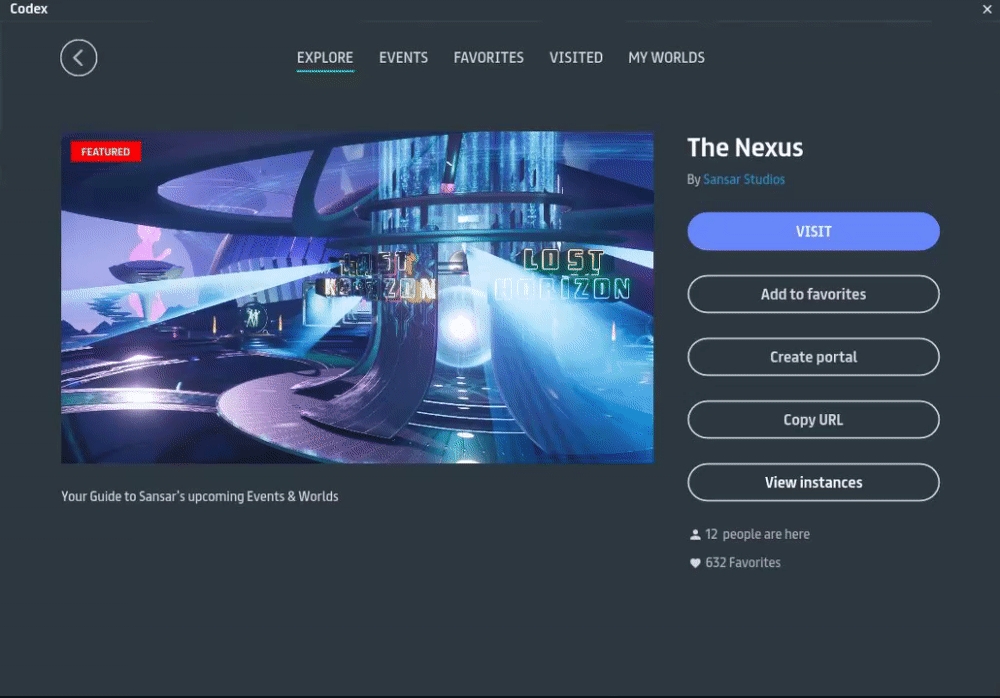


To experience Sansar on Vive, you must install and Steam VR. Steam and Steam VR is not required for Oculus Rift.
Audio
High-quality headphones recommended for an immersive spatial audio experience. Microphone required for voice chat.
Other
Compatible HDMI 1.3 video output
2x USB 3.0 ports
Optional
Xbox One or Xbox 360 game controller
High-quality headphones recommended for an immersive spatial audio experience. Microphone required for voice chat.
Optional
Xbox One or Xbox 360 game controller
High-quality headphones recommended for an immersive spatial audio experience. Microphone required for voice chat.
Optional
Xbox One or Xbox 360 game controller
Memory
8 GB+ RAM
Disk space
3 GB, plus additional disk space for VR Headset Installation
Video card
NVIDIA GTX 970 / AMD Radeon R9 290 or greater
Bandwidth
10 Mbps recommended; 5 Mbps minimum. Check your bandwidth.
VR
To experience Sansar on Vive, you must install Steam and Steam VR. Steam and Steam VR is not required for Oculus Rift.
Audio
High-quality headphones recommended for an immersive spatial audio experience. Microphone required for voice chat.
Other
Compatible HDMI 1.3 video output
2x USB 3.0 ports
Optional
Xbox One or Xbox 360 game controller
Operating system
64-bit Windows 7 SP1 or newer
DirectX
DirectX 11
CPU
Intel i3-6100 / AMD FX4350
Memory
8 GB RAM
Disk space
3 GB, plus additional disk space for VR Headset Installation
Video card
NVIDIA GTX 960 / AMD Radeon R9 290 or greater w/ 4 GB dedicated video memory
Bandwidth
10 Mbps recommended; 5 Mbps minimum. Check your bandwidth.
Operating system
64-bit Windows 7 SP1 or newer
DirectX
DirectX 11 or higher
CPU
Intel i5-4590 / AMD FX 8350 equivalent or greater
Memory
8 GB+ RAM
Disk space
3 GB
Video card
GeForce GTX 760 or greater w/ 2 GB dedicated memory
Bandwidth
10 Mbps recommended; 5 Mbps minimum. Check your bandwidth.
Operating system
64-bit Windows 7 SP1 or newer
DirectX
DirectX 11
CPU
Intel Core i3-2100 / AMD Phenom II X4 945
Memory
4 GB RAM
Disk Space
3 GB
Video card
NVIDIA GeForce GTX 450 or greater w/ 2GB dedicated video memory, AMD R9 280 or greater w/ 2GB dedicated video memory, Intel HD Graphics 5500 w/ 2GB dedicated memory
Bandwidth
10 Mbps recommended; 5 Mbps minimum. Check your bandwidth.
VR
Audio
Audio
In Sansar, you can upload avatars, animation, or attachments such as hair, rigged clothing, Marvelous Designer clothing, and accessories. You can upload items for your own use or sell them in the Sansar Store.
The import process is the same across the different avatar item types.
While in Sansar, click Create > Style my avatar from the main menu.
Select one of your looks and click the Customize button.
Click the appropriate item tab for the item you want to import: hairstyles, clothing, accessories, and animation.
If the item you are importing is an accessory, you also need to pick a sub-category based on the attachment point of your item: glasses, earrings, necklaces, watches, and rings.
Note:
See to know more about deleting, updating, or editing your inventory items.
If you wish to sell your item, see the section of
Some requirements and restrictions are imposed on importing items. Please make sure that your items follow these guidelines:
All items
Name your items well - Make sure to provide a proper name for the item These are reflected on the purchaser's inventory upon buying your accessory. This is a different name from the store name. See for information on naming rules for selling items.
Add an item thumbnail - You are required to add a thumbnail if you intend to sell the item in the Sansar store. The thumbnail asset must follow the same cited in the
Avatars
Avatar 1.0 - As of July, 2018 it is possible to create custom avatars for Sansar using standardized male and female skeletons. The skeleton released at this time is referred to as avatar 1.0 and will no longer be supported once the new avatar 2.0 system rolls out.
Avatar 2.0 - As of August 1, 2019, new male and female skeleton files replaced the older skeletons. These new files are based on the new avatar 2.0 skeleton which can be found on the page. You can also find details on
Accessories
Be mindful of the available attachment types - The type your accessory is in determines how it moves with your avatar and provides hints as to how that accessory should be handled. Straying from the available attachment types may result in accessories improperly following your avatar as you move around.
It is not necessary to specify a collision mesh - Accessories do not currently use the collision mesh.
When creating accessories, model against the reference avatar meshes - Accessories should be modeled relative to the . It is important that the transform handle for your accessory coincides with the transform handle for the reference avatar mesh. Find and download the male and female reference avatar meshes in the article:
Hair
Naming the hair material - In order to render properly, the name of the hair material must include the word "_hair_". This is a signal that lets Sansar know that this is a hair object so it can render it accordingly. If you forget this step, your hair may not render correctly.
Recommended color to use - In order to work best with the color chooser in the avatar editor, the hair's albedo map should use white or light gray. Any other colors will blend with the selected color in the hair color picker and may not appear as intended.
Have more questions? Join our

It is important to have the right tab open because it will determine where your item will be uploaded to. The category tab is not changeable in the client nor the store.
Click Import.
If the item you are importing is an animation, you need to go to the Library tab to access the Import button.
In the Import panel that appears:
Click Browse to choose the appropriate file. (.fbx or .obj or .samd).
Optionally, click Materials Settings to choose specific shaders and textures for the clothing.
Click Browse to choose a thumbnail image (.png) to represent your clothing in your Lookbook inventory.
Name the item. It is assigned a name based on the object's file name by default.
Click Import to import the clothing object to your avatar editor inventory.
You may now wear the item by clicking it in your inventory, or list it on the Sansar Store by right-clicking the thumbnail and choosing List.
Yes, if selling the item in the store
From the center point:
0.9 meters left and right, front and back
2.2 meters above the avatar feet
.05 meters below the avatar feet (to account for shoes).
Accessory
.fbx, .obj (rigged mesh)
5,000
N/A, see AABB constraints
Yes, if selling the item in the store
From the center point:
0.9 meters left and right, front and back
2.2 meters above the avatar feet
.05 meters below the avatar feet (to account for shoes).
Animation
.fbx
N/A
N/A, see AABB constraints
Yes, if selling the item in the store
From the center point:
2 meters to the left, right, front and back of the avatar
4 meters above the avatar feet
.1 meters below the avatar feet
Avatar
.fbx, .obj
40,000
Yes, if selling the item in the store
From the center point:
0.9 meters left and right, front and back
2.2 meters above the avatar feet
.05 meters below the avatar feet (to account for shoes).
Hair
.fbx, .obj (rigged mesh)
.samd (Marvelous Designer)
8,000
N/A, see AABB constraints
Yes, if selling the item in the store
From the center point:
0.9 meters left and right, front and back
2.2 meters above the avatar feet
.05 meters below the avatar feet (to account for shoes).
Clothing
.fbx, .obj (rigged mesh)
.samd (Marvelous Designer)
8,000


N/A, see AABB constraints
This article provides detailed information on the joints of the standard Sansar skeletons and provides tips on how to best skin the skeletons when creating custom avatars and rigged clothing.
Note that exporting an avatar from Blender requires non-default export settings. See Exporting custom avatars from Blender for full details.
Sansar's avatar skeleton files can be found in the article: .
The following joint information is for all the joints in the full resolution skeleton. The mid and low resolution skeletons have minimal face joints and do not contain some of the listed joints below. But for those joints that do exist in the mid and low resolution skeletons, the information is still the same.
The core animation joints. All avatar meshes should be hooked up to these joints in order for them to deform correctly when animating. Depending on the location of the mesh, only a certain subset of joints may be needed. For example, pants should only need to be skinned to all the lower body joints.
Skinning to the face joints is only a requirement if you want to have animated faces. If your avatar has a mask or helmet, all these joints can be ignored and only the only the "head" joint needs to be used.
With the limit of only 4 joint influence per vertex, it becomes very complicated to do a smooth skinning spread between all the face joints. It is easiest to only skin to a subset of all the face joints.
For example, if you want a more simplified animated face such as just a flapping mouth and darting eyes, then only the "L_eye", "R_eye", and "jaw" joints need to be used.
If you want to apply facial animations, we highly recommend using the high resolution skeleton as it contains all face joints. If you are not interested in applying facial animations, the mid and low resolutions are some alternatives with less face joints.
These joints are not used in the default animation set that exists in Sansar's avatars, so skinning to them will not yield any results. But they can be animated for custom emotes. Example: Skinning wing meshes to the "L_wing_ATTACH" and "R_wing_ATTACH", and then flapping them in a custom emote animation.
These support joints are only used to support the animation of the body and face joints. They do not need to be hooked up to any meshes since it is their child or related joints that should be getting all the skinning data.
Face Support Joints
L_eyelid_top
L_eyelid_bottom
R_eyelid_top
R_eyelid_bottom
These joints are for other purposes outside of core animation and shouldn't need to have any meshes skinned to them.
Locomotion_Vector
root
L_grip
R_grip
4 Max Influence
Linear Skinning Method
Auto-twist Arms:
One thing to keep in mind is that when the skeleton gets imported or referenced into a 3D app, the auto-twist joints are not hooked up in a way that will look correct. But if the skinning on those joints looks similar to the examples, then they will import into the engine and look good during in-game animations.
Pelvis/Thigh Area:
What makes the pelvis and thigh area a little more complex is the glute_twist1 bone that helps with maintaining volume as the legs are rotating back and forth. That particular bone should only cover a small specific area.
Like the arms, the thighs also have an auto-twist that will help maintain a smoother look as the legs are twisting. Unlike, the arms, the thighs only require 1 twist bone.
Also like the arms, the thigh auto-twist and glute_twist1 is not hooked up during import into a 3D app. So they will not look correct until imported into the engine.
Elbow and Knee:
These support joints are solely for the purpose of helping the knee and elbow maintain better volume as the lower legs and forearms are bending.
These are also not hooked up during import into a 3D app and will require import into the engine before results can be seen.
Have more questions? Join our
R_lip_upper_mid01
R_lip_upper_mid02
R_lip_lower_mid01
R_lip_lower_mid02
Nose Area Joints
nose_base
nose_bridge
All these joints can be skipped if there is no need for small details such as nostril flares.
L_nasalis
L_nostril
R_nasalis
R_nostril
Left Eye Area Joints
L_eye
L_eyelid_upper01
L_eyelid_upper02
L_eyelid_lower01
If only eyeball rotation is needed, then only skin to the "L_eye" and "R_eye" joints.
Right Eye Area Joints
R_eye
R_eyelid_upper01
R_eyelid_upper02
R_eyelid_lower01
Forehead Area Joints
forehead_center
L_forehead
R_forehead
Between Eyebrow Area Joints
The forehead and eyebrow joints cover the areas above the eyes. These joints are used when the character does expressive eyebrow motions.
Left Cheek Area Joints
L_cheek
L_levatorLabii
L_risorius02
For proper smiling animations, the cheek area joints are needed.
Right Cheek Area Joints
R_cheek
R_levatorLabii
R_risorius02
Ears
L_ear
R_ear
Tongue
tongue01
There are very few ear animations, so skipping the ear joints isn't a big deal. The tongue joints are only needed if there is a tongue in the character.
camera_ATTACH
Central body joints
pelvis
spine1
spine2
spine3
neck
head
L_clavicle
R_clavicle
Left arm joints
L_shoulder
L_elbow
L_wrist
L_shoulder_twist1
L_shoulder_twist2
L_wrist_twist1
L_wrist_twist2
L_olecranon_twist1
Right arm joints
R_shoulder
R_elbow
R_wrist
R_shoulder_twist1
R_shoulder_twist2
R_wrist_twist1
R_wrist_twist2
R_olecranon_twist1
Left leg joints
L_hip
L_knee
L_ankle
L_ball
L_hip_twist1
L_glute_twist1
L_kneecap_twist1
Right leg joints
R_hip
R_knee
R_ankle
R_ball
R_hip_twist1
R_glute_twist1
R_kneecap_twist1
Left finger joints
L_index_01
L_index_02
L_index_03
L_middle_01
L_middle_02
L_middle_03
L_pinky_00
L_pinky_01
L_pinky_02
L_pinky_03
L_ring_01
L_ring_02
L_ring_03
L_thumb_01
L_thumb_02
L_thumb_03
Right finger joints
R_index_01
R_index_02
R_index_03
R_middle_01
R_middle_02
R_middle_03
R_pinky_00
R_pinky_01
R_pinky_02
R_pinky_03
R_ring_01
R_ring_02
R_ring_03
R_thumb_01
R_thumb_02
R_thumb_03
Jaw Area Joints
jaw
For a simple flappy jaw look, only the "jaw" joint working in conjunction with the "L_lip_corner" and "R_lip_corner" joints listed below are needed.
L_jawline01
L_jawline02
R_jawline01
R_jawline02
Chin Area Joints
chin
chin_under
Only fine detail meshes would need to be skinned to the chin joints.
Mouth Area Joints
lip_upper_center
lip_lower_center
lip_under
The mouth area has the most complex setup on the face. There are fewer ways to only using a few select joints because they all depend on each other to work. If you want to forego explicit lip animation and keep to a simple flappy jaw setup, then using the "jaw" joint in conjunction with "L_lip_corner" and "R_lip_corner" should be enough.
L_lip_upper_mid01
L_lip_upper_mid02
L_lip_lower_mid01
L_lip_lower_mid02
L_lip_corner
Chest Joints
L_chest
R_chest
Not used in the default animation set, but would allow for secondary chest motion in custom emote animations.
Toe Joints
L_bigToe_01
L_indexToe_01
L_middleToe_01
L_ringToe_01
L_pinkyToe_01
R_bigToe_01
R_indexToe_01
R_middleToe_01
R_ringToe_01
R_pinkyToe_01
The toe joints aren't animated in the default animation set because it is expected that the avatars would be wearing shoes. But a custom character can be barefooted and have custom animations that makes the toes wiggle.
Attach Joints
world_ATTACH
locomotion_ATTACH
pelvis_ATTACH
L_thigh_ATTACH
R_thigh_ATTACH
head_ATTACH
L_forearm_ATTACH
R_forearm_ATTACH
L_shoulder_ATTACH
R_shoulder_ATTACH
spine3_ATTACH
L_wing_ATTACH
R_wing_ATTACH
Accessories would be a good use of ATTACH joints. Example: Hook up a halo to the "head_ATTACH" joint. Then during a custom emote animation, spin the halo around.
In the future these ATTACH joints will be even more useful when all animations for the characters can be overwritten.


R_lip_corner
L_eyelid_lower02
L_eyelid_corner_inner
L_eyelid_corner_outer
L_eye_upper
L_eye_lower
L_eye_lateral
R_eyelid_lower02
R_eyelid_corner_inner
R_eyelid_corner_outer
R_eye_upper
R_eye_lower
R_eye_latera
procerus
Left Eyebrow Area Joints
L_brow_inner
L_brow_mid
L_brow_outer
Right Eyebrow Area Joints
R_brow_inner
R_brow_mid
R_brow_outer
tongue03


| | | |

Audio now works correctly with 4 channel microphones.,
Leak issue that caused frame-rate to tank after playing many impact sound events.
An issue where VATs imported since the update have their displacement scales set to zero.,
Avatar VATs should now scale correctly in both lookbook and in the world.,
VAT animations set to play once would loop back to the first frame when stopping now stops on last frame.
Shader updates
Audio reactive shader (Emissive + UV Animation) More variants in future. Toggle to apply volume to brightness. Toggle to apply volume to displacement strength. Toggle to apply RGB colors based on audio analysis. Toggle to advance flipbook frame to the beat of the music. (You can leave step-rate on 0 for this to work right). Toggle to flash on the beat (plus individual low/med/high band toggles) You can mix and match options for varying effects.
VAT and Displacement animations now behave correctly when worn on an avatar There is a visual issue in lookbook when scaled to the large and small extremes but is fine once you save and join a world.
Fixed UI scaling issue when switching from VR to desktop and back
Crash fix when minimizing the client window (thank beans)
Removed erroneous scrollbar from VR mode profile UI
Fixed Giant scaling issue for the hair color picker but still may present a issue on some screen resolutions missing the HUE slider (scaling your window can make it show)
Corrected desktop snapshot behaviour
Fixed audio issues with some objects occluding sound when the camera was behind them.
No Shadow: Standard + Emissive
No Shadow: Standard + Alpha Mask
No Shadow: Standard Two Sided + Alpha Mask
There are two modes, Reference and Enhanced: Reference is the preferred if you wish to perform colour accurate work within Sansar. Enhanced provides more precision so will achieve the best look and low-level contrast using current OLED monitors set to 10bpc (Deep Colour) mode.
Fix for an issue with the VAT Standard+Emissive skinned shader that can cause flickering while in motion.
Reflections will now be disabled by default for Transparent shaders. They do not output motion vectors so can cause reflections to flicker and become noisy.
The provided compatibility checkboxes can mitigate the issues in specific instances, the creator can now choose which works best for their creation.
Fix for an issue that caused the 'UV Rotate' and 'Flipbook - Loop' properties to behave as if they contained default values for existing objects.
Fix for an issue where VAT shaders could send incorrect roughness values to the reflections.
Further enhancements for reflections.
Default color button functionality changed to send out a 1-time event that changes the colors to default
Multiple transparent panels now display proper colors
Fixed an issue with the character camera spinning around the character on WASD input after exiting a script camera when certain circumstances were met.
Updated UI handling for interaction prompts on objects with sit points.
New VAT shader variant "VAT: Standard + Emissive"
Expose VAT properties 'VAT - Frame' and 'VAT - Step Rate' to the scripting system.
Shadows now work correctly for the remaining displacement textures.
Added toggle to blend/snap displacement animations when looping back from the last frame to first.
Added option to flipbook shaders to either 'ping-pong', loop or play once.
Added option to displacement shaders to either loop or play once.
Increase range for Displacement scale.
Added UV Offset property for the basic Media shader.
Update the UV Rotate shader property to now use degrees instead of radians.
Fix for misaligned add pass rendering for Transparent+Multibump shader variants.
Shadows now work correctly for the remaining displacement textures.
Surface Snap and world-space adjustment Icons now correctly sync with hotkey use.
Color picker UI snapping behind other panels when clicked fixed.
Avatar Scale slider being unresponsive fixed.
Featured Events on codex not working fixed.
Fixed a crash when pressing F7 while using the '-enableVR false' start parameter.
Able to now convert USD's back to Sansar$ from the Process Payment wallet.
Many broken docs links fixed, Still more to go to update missing images and pages.
Fix for non-functional uv scale slider in screenspace shaders.
Sampler change for displacement textures.
Resized + relocated VR diagnostics button.
Bugfix: VR keyboard double typing fixed.
New Screenspace + UV Anim shader. Note: Screenspace shaders are in testing expect changes to be made and any items made with them to need tweaks.
"Standard + Diffraction + Alpha Mask + UV Animation"
"Standard Two Sided + Diffraction + Alpha Mask + UV Animation"
Added 'ClampUVs' toggle to the alpha UV shaders.
Fix for an issue that caused coloured lines to erroneously appear around the edges of many existing alpha emissive materials.
Fluid distortion effect added to UV anim shaders (wiggly textures)
Selectable max texture VRAM usage per avatar. For crisper avatars, or reduced VRAM usage.
Experimental HDR support. Togglable in settings. You must own an HDR monitor, and HDR must be enabled in Windows
A fix for the audio crackling and distortion that still occurs when minimizing on some machines
Many other small crash fixes many removed gremlins.
Remove keyboard shortcut for diag panel in production builds
Speech graphics scaling fixed at smaller avatar scales
Crash when displaying a large amount of personal worlds
Crash when de-serializing an invalid object
Updated logo for spinning perfection
Prevent media screen connections to [try.sansar.com]
Force v4 sockets by default
Prevent usage of F1 shortcut while in Cinema Mode
Improve Xbox controller functionality
Support for non-parallel projection VR lenses
Create a keyboard shortcut to hide UI
CTRL+H hides/unhides UI
UI Scaling for large resolutions


