# Buying Items From The Store

### Buying items from the Sansar Store

When creating or editing a scene or customizing your avatar you don't need to create all of your assets from scratch. Instead, you can buy items from the [Sansar Store](https://www.sansar.com/store). Once you purchase an item from the store, the item is automatically added to your inventory in Sansar.

### The Store panel

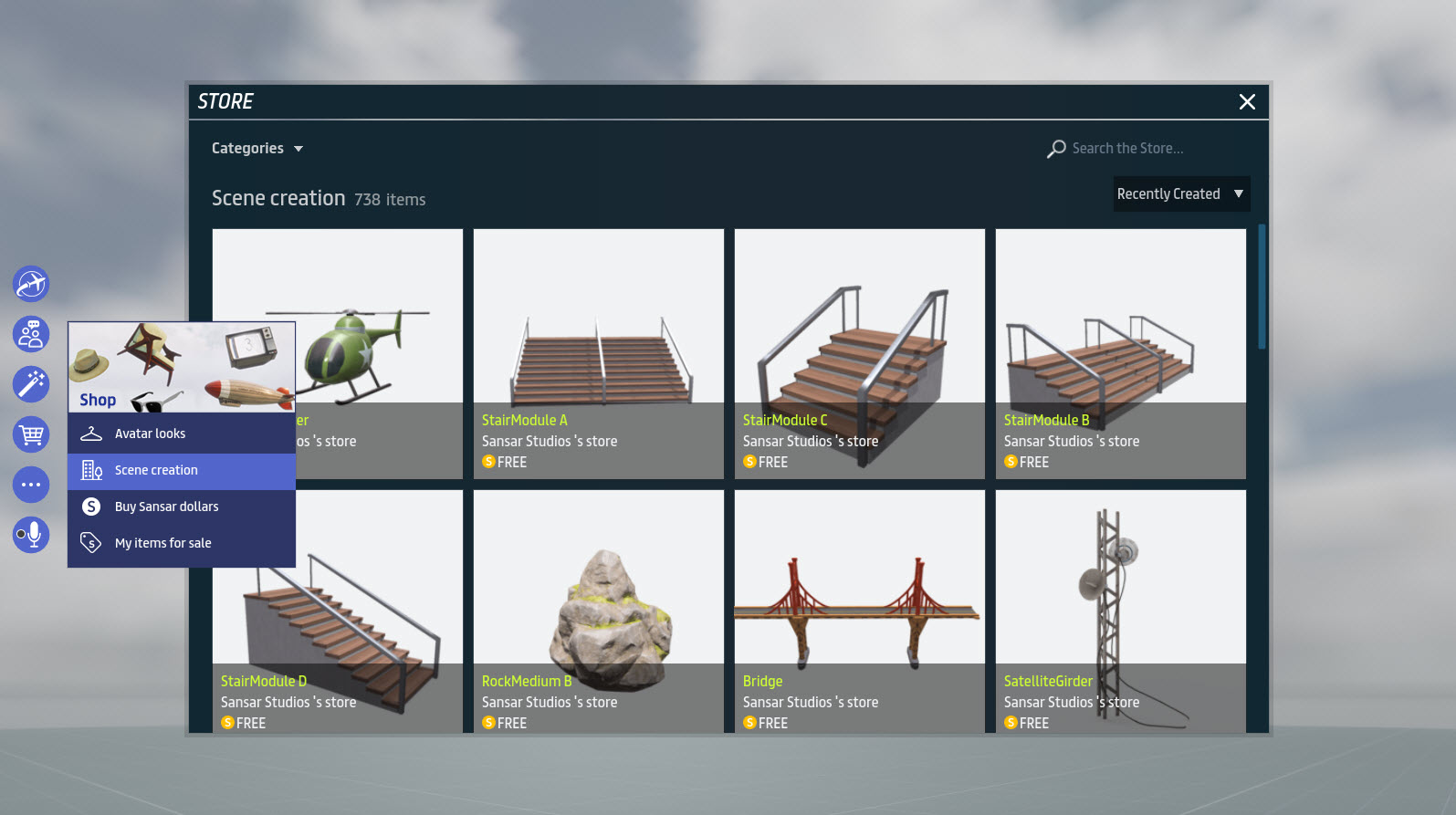
You can access the Sansar Store from within Sansar by opening the Store panel from the main menu:

1. Open the Store panel by clicking the **Shop** button on the main menu and selecting either **Avatar looks** or **Scene creation**.
   * If you are in VR, press **Y** on Oculus Rift or **Left menu** on Vive to open the main menu, then choose **Shop the store** to open the Store panel.
2. In the Store panel, find an item you'd like to purchase. Click the **Categories** dropdown or enter search terms in **Search the Store** to narrow your search.
3. Click the item to open its listing, which contains additional information and photos of the item (if available).
4. Click **Buy** (or **Get**, for free items) to instantly purchase the item. Once you have successfully purchased the item, the item is automatically added to your inventory.
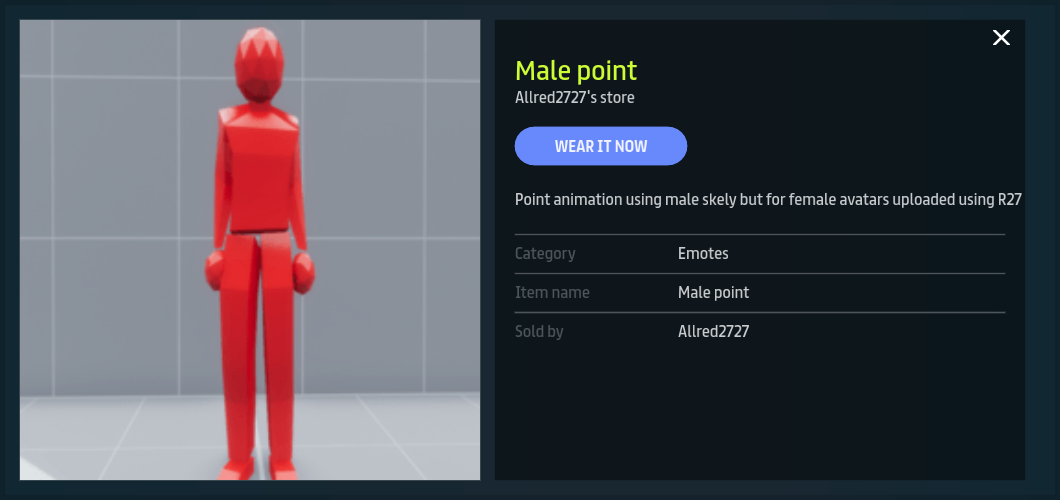
   * For items under avatar looks such as avatars, clothing and emotes, the **Buy** button becomes a **Wear it now** button. You can click **Wear it now** to immediately open the avatar editor and wear the item.
5. Depending upon the type of item you purchased, you can find it either in the Inventory panel when editing a scene, or in one of the tabs of the avatar editor when editing one of your avatar looks.

**Note:** The shopping cart is not available in the Store panel at this time.

***

<figure><img src="https://1251409636-files.gitbook.io/~/files/v0/b/gitbook-x-prod.appspot.com/o/spaces%2FeFXiTZShM8YWMV94n1eV%2Fuploads%2Fgit-blob-d95b9f06568a380a94a96ca9ce2b747c59615637%2Fsansar-store-01.jpeg?alt=media" alt=""><figcaption><p>You can access the Sansar Store inside Sansar by using the Store panel.</p></figcaption></figure>

***

<figure><img src="https://1251409636-files.gitbook.io/~/files/v0/b/gitbook-x-prod.appspot.com/o/spaces%2FeFXiTZShM8YWMV94n1eV%2Fuploads%2Fgit-blob-d40853133254938385f92e55d7d3f96e0e1c2634%2Fsansar-store-02.png?alt=media" alt=""><figcaption><p>After purchasing an avatar-related item, you can click <strong>Wear it now</strong> to immediately open the avatar editor and wear the purchased item.</p></figcaption></figure>

***

### Buying an item from the Store on the web

To find and buy an object from the Sansar Store:

1. Visit the Sansar Store at <https://www.sansar.com/store>.
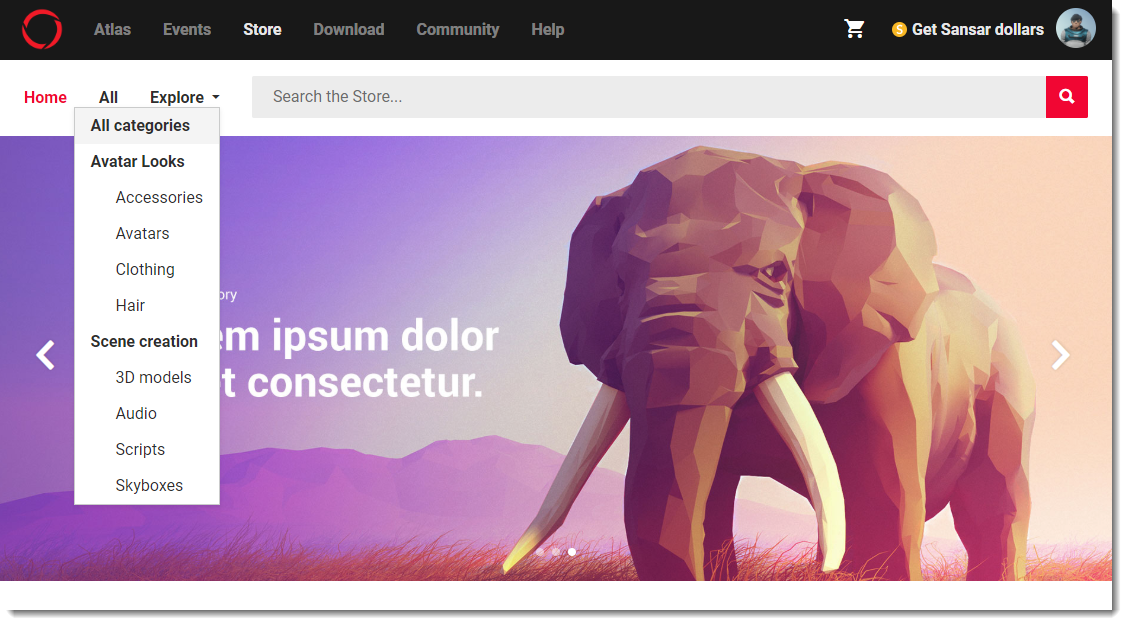
2. Find an item you'd like to purchase. Click the search ![search.png](https://i3.wp.com/help.sansar.com/hc/article_attachments/115012483083/search.png) icon at the top of the page, enter your search terms, then press **Enter**. Alternately, you may browse various categories by choosing from the **Explore** dropdown menu.
3. Click the item to open its listing page, which contains additional information and photos of the item (if available).
4. Click **Buy** to buy the item instantly, or click **Add to cart** to add the item to your shopping cart and continue shopping.
   * To view your shopping cart, click the shopping cart icon ![Shopping\_cart\_icon.png](https://i3.wp.com/help.sansar.com/hc/article_attachments/360002678466/Shopping_cart_icon.png) at the top right of the page. You can buy all items in your cart by clicking the **Buy Items** button at the bottom of the cart. To remove items, click the **X** next to each item you would like to remove.
5. Depending upon the type of items you purchased, you can find it either in the Inventory panel when editing a scene, or in one of the tabs of the avatar editor when editing one of your avatar looks.

<figure><img src="https://1251409636-files.gitbook.io/~/files/v0/b/gitbook-x-prod.appspot.com/o/spaces%2FeFXiTZShM8YWMV94n1eV%2Fuploads%2Fgit-blob-de4eb1534de81fb711ba37dbea525fa72e0d0a58%2Fsansar-store-03.png?alt=media" alt=""><figcaption><p>Enter search terms in <strong>Search the Store</strong> or click a category from the <strong>Explore</strong> dropdown to find items for your avatar or scene.</p></figcaption></figure>

***

**Note:** If you ever lose or delete a purchased item, you can redeliver it from its listing page. In place of the **Buy** or **Free** button, there is a **Purchased** button that opens a dialog allowing you to redeliver the item.

***

### Filtering wearables

You can apply several filters to browsing and search results in the **Avatar Looks** category of the Sansar store on the web. This can help you narrow your results and find items that are likely to fit your avatar's shape.

To filter wearables in the Sansar Store:

1. Choose **Explore > Avatar Looks** (or one of the subcategories under Avatar Looks) from the dropdown next to the search field to show all wearables in the Store.
2. Click the **Filters** dropdown and choose some of the following:
   * **Gender**
     * **Male** - Show only wearables designed for the male avatar shape.
     * **Female** - Show only wearables designed for the female avatar shape.
   * **Asset Type**
     * **Marvelous Designer** - Show only wearables that have been created and imported using [Marvelous Desinger integration](https://help.sansar.com/hc/en-us/articles/115005506423).
     * **Rigged mesh -** Show only [wearables that are rigged](https://help.sansar.com/hc/en-us/articles/115005693283-Rigged-clothing) to move as your avatar moves. Many clothing items fall into this category.
     * **Static mesh** - Show only wearables that are made of static (non-moving) mesh. Many accessories fall into this category.
3. Once you have filtered your results, you may continue to shop normally.

To stop filtering your results, simply un-check the filters you selected during this process

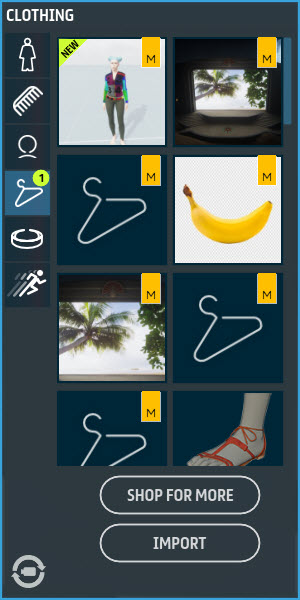
<figure><img src="https://1251409636-files.gitbook.io/~/files/v0/b/gitbook-x-prod.appspot.com/o/spaces%2FeFXiTZShM8YWMV94n1eV%2Fuploads%2Fgit-blob-c0964cdd8833b25e5153d7b0cc9cbee0a8fbc935%2Fsansar-store-03.jpeg?alt=media" alt=""><figcaption><p>New wearables are indicated by the word <strong>New</strong> in the thumbnail. A numbered badge indicates the number of new wearables on each tab of the appearance editor.</p></figcaption></figure>

***