> For the complete documentation index, see [llms.txt](https://docs.sansar.com/latest/llms.txt). Markdown versions of documentation pages are available by appending `.md` to page URLs; this page is available as [Markdown](https://docs.sansar.com/latest/sansarstore/selling-your-content/selling-different-asset-types/world-based-items/materials.md).
# Selling Materials
## What This Guide Covers
This guide explains how to prepare and list materials for the Sansar Store.
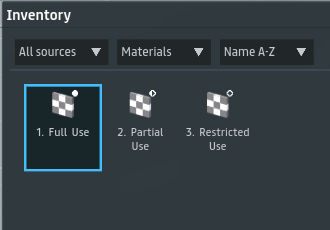
Material assets have three main permission states. These are shown by circles next to the asset icon in your inventory. The state may be inherited from the object the material was saved from, or set by the original creator.
* Full Use
* These materials can be edited, copied, pasted, and resold.
* Resale may include a commission cost to the original creator.
* If you are the owner, this state is commonly shown because you have full permission.
* Partial Use
* Some restrictions apply.
* These materials may be unsellable or uneditable when added to objects.
* This can also affect the settings of objects they are applied to.
* Restricted Use
* These materials cannot be edited or resold.
* You cannot copy or paste these materials, only add them to an object.
* They can block objects from being uploaded to the store.
* They can lock the entire materials editing window so add carefully.
## Permissions and Resale
When selling any asset, your permissions choice matters:
* Buyer's permissions affect what buyers can edit after purchase.
* If you want to support resale with commission behavior, review resale requirements before publishing.
See:
* [Buyers Permissions](/latest/sansarstore/selling-your-content/buyers-permissions.md)
* [Allowing Resale Of Items](/latest/sansarstore/selling-your-content/allowing-resale-of-items.md)
## Legacy Caveats
If your materials or source content come from older uploads or items bought before the update on March 3, 2026, keep these caveats in mind:
* Saving a material from an object copies the license and settings of that object.
* Example: if an object has a forced resale price of S$50, the textures and material slots can inherit that when reused on another object or a new listing.
* If an object's materials are locked, you cannot save, copy, or paste those materials from or into the object.
* Items created before 10 September 2018 may be treated as unlicensed legacy content.
* Legacy unlicensed content cannot be resold by buyers in the Sansar Store.
* If any part of a product depends on unlicensed legacy content, resale options may not be available.
* You may need to rebuild and re-upload content as a newer listing if you want modern permissions and resale behavior.
## Listing Tips for Materials
In your listing description, clearly state:
* What map types are included in each material.
* What kind of material or shader workflow the material is intended for.
* Texture size (for example: 512, 1K, 2K, 4K).
* Any important setup notes (for example, map intensity tuning or settings adjustments).
* Whether the material is tileable and what it is intended for.
* Make sure preview images reflect the actual in-scene material result. Follow:
* [Store Listing Guidelines](/latest/guidelinesmoderation/guidelines-and-policies/store-listing-guidelines.md)
## Common Mistakes to Avoid
* Unclear material naming that makes maps hard to identify.
* Missing notes about included maps, channel packing, or intended map usage.
* Overpromising quality that does not match the delivered material.
* Uploading very large textures without a practical reason.
* Skipping policy and permissions checks before listing.
## Importing This Asset Type
To import this asset type, follow this guide: [Importing Materials](/latest/creating-in-sansar/importing-things-to-sansar/importing-accessories/importing-materials.md).
## Related Guides
* [Selling items in the store](/latest/sansarstore/selling-your-content/selling-items-in-store.md)
* [Supported file types - Texture Maps](/latest/creating-in-sansar/importing-things-to-sansar/supported-file-types.md)
* [Materials Editing and Shaders](/latest/creating-in-sansar/materials-editing-and-shaders.md)
* [Buyers Permissions](/latest/sansarstore/selling-your-content/buyers-permissions.md)
* [Allowing Resale Of Items](/latest/sansarstore/selling-your-content/allowing-resale-of-items.md)
* [Store Listing Guidelines](/latest/guidelinesmoderation/guidelines-and-policies/store-listing-guidelines.md)
---
# Agent Instructions
This documentation is published with GitBook. GitBook is the documentation platform designed so that both humans and AI agents can read, navigate, and reason over technical content effectively. Learn more at gitbook.com.
## Querying This Documentation
If you need additional information that is not directly available in this page, you can query the documentation dynamically by asking a question.
Perform an HTTP GET request on the current page URL with the `ask` query parameter, and the optional `goal` query parameter:
```
GET https://docs.sansar.com/latest/sansarstore/selling-your-content/selling-different-asset-types/world-based-items/materials.md?ask=&goal=
```
`ask` is the immediate question: it should be specific, self-contained, and written in natural language.
`goal` is optional and describes the broader end goal you are ultimately trying to accomplish on behalf of the user. GitBook uses it to tailor the answer towards what is most useful for that goal.
The response will contain a direct answer to the question and relevant excerpts and sources from the documentation.
Use this mechanism when the answer is not explicitly present in the current page, you need clarification or additional context, or you want to retrieve related documentation sections.