# Hidden Store Listings

### Hidden store listings

*Hidden* listings in the Sansar Store are listings that are deliberately hidden from browsing and search results, and can only be accessed if someone ([or a script](https://docs.sansar.com/latest/sansarstore/selling-your-content/selling-items-in-experience)) has the listing's direct URL. Hidden listings can be used to distribute items to select individuals without making the items publicly available in the store.

For example, an interactive scripted object might use a hidden listing to sell or distribute items to visitors, or a content creator might use hidden listings to provide exclusive access to certain items.

### Creating a hidden listing

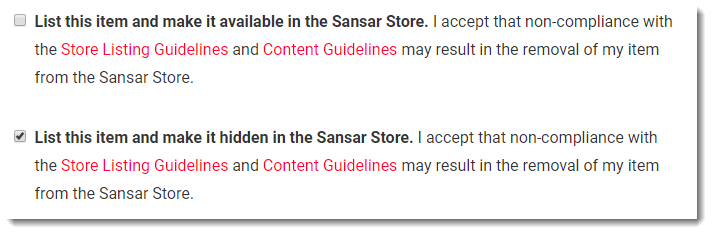
The process of creating a hidden listing is exactly the same as creating any other listing, except for the final step. When you would normally click the checkbox for **List this item and make it available in the Sansar Store**, you can instead click the checkbox for **List this item and make it hidden in the Sansar Store**.

For step-by-step instructions on how to create a listing in the Sansar Store, see [Selling items in the Sansar Store](https://docs.sansar.com/latest/sansarstore/selling-your-content/selling-items-in-store), which includes instructions on creating a hidden listing.

<figure><img src="https://1251409636-files.gitbook.io/~/files/v0/b/gitbook-x-prod.appspot.com/o/spaces%2FeFXiTZShM8YWMV94n1eV%2Fuploads%2Fgit-blob-9fe8c395cc28471428ebcba08b6863730f9d4cf5%2FList%20this%20item%20and%20make%20it%20hidden%20in%20the%20Sansar%20Store.png?alt=media" alt=""><figcaption><p>To create a hidden listing, choose <strong>List this item and make it hidden in the Sansar Store</strong> when editing your listing.</p></figcaption></figure>

***

### Getting the hidden listing's URL

Because hidden listings do not appear in browsing or search results, customers may only access a hidden listing's page in the store if they possess the listing's URL. As the store's manager, you can distribute the URL to as few or as many people as you see fit.

To obtain the hidden listing's URL:

1. Visit <https://www.sansar.com/store/dashboard> while logged into the Sansar website to manage your listings.
2. Find the hidden listing and click **... > Edit** to the right of the listing.
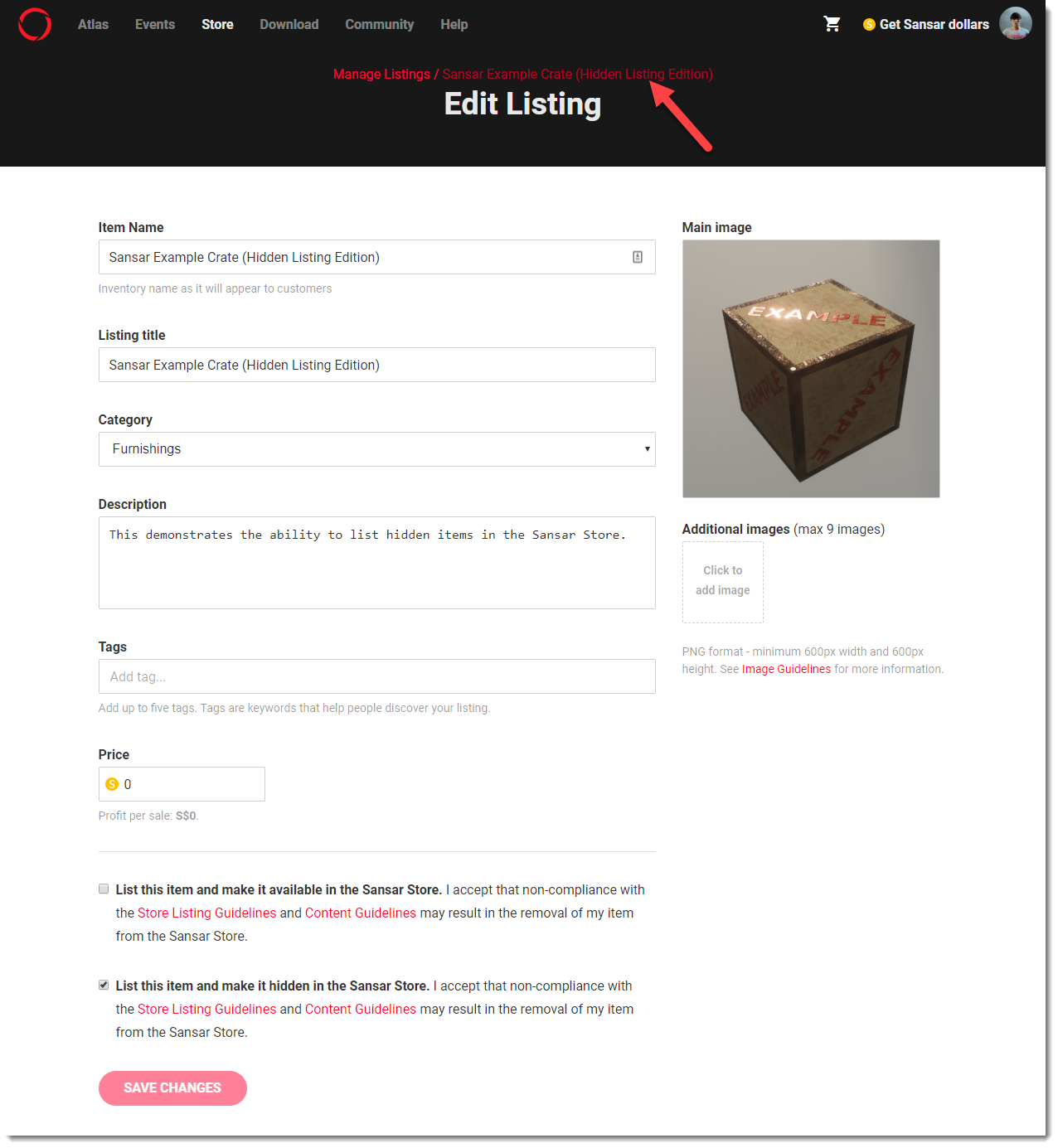
3. At the top of the Edit Listing page, above the words "Edit Listing", **right-click** the listing's title and choose **Copy link address** to copy the URL.

<figure><img src="https://1251409636-files.gitbook.io/~/files/v0/b/gitbook-x-prod.appspot.com/o/spaces%2FeFXiTZShM8YWMV94n1eV%2Fuploads%2Fgit-blob-66109c5b5c40d7bbeedf0d7e862c5bc5e0e8055e%2FGet%20hidden%20listing%20link.png?alt=media" alt=""><figcaption><p>Right-click the listing's title and choose <strong>Copy link address</strong>.</p></figcaption></figure>

***

### Using interactive objects to distribute items from hidden listings

Once you have the listing's URL, the process of using an interactive object to distribute items from a hidden listing is identical to the process for distributing items from publicly-visible listings. Please see [Selling items inside an experience](https://docs.sansar.com/latest/sansarstore/selling-your-content/selling-items-in-experience) for full details on using pre-made Library scripts for this purpose.