# Buyers Permissions

### Buyer's Permissions

### Overview

*Permissions* allow you to set limits on what other people can do with the items you create. For example, if you plan to [sell an item in the Sansar Store](https://docs.sansar.com/latest/sansarstore/selling-your-content/selling-items-in-store), you can set some limits on the ways in which buyers can change the item.

You can grant buyers *full permission* to edit your item, which allows them to change everything about it, including its behavior, structure, and appearance. Alternately, you can grant buyers access to edit *property changes only*, which allows buyers to change only the properties you permit.

**Note:** In order to [set a resale price](https://docs.sansar.com/latest/sansarstore/selling-your-content/allowing-resale-of-items) for your item in the store and receive a commission when someone else sells it (or creations based on it), you must limit the item's permissions to *property changes only*.

If you sell an item with *full permission*, you receive no commission from other peoples' sale of your item, or from any sales of creations based on your item.

### Setting Buyer's Permissions on an item

While editing a scene:

* Make sure the Inventory panel is open. You can toggle it by choosing **Tools > Inventory** from the menu bar.
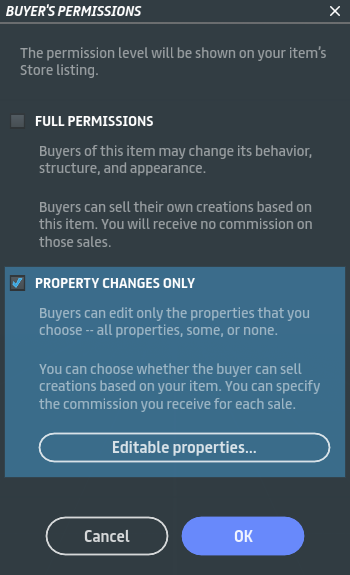
* In the Inventory panel, right-click the object whose permissions you would like to set and choose **Buyer's permissions**.

<figure><img src="https://1251409636-files.gitbook.io/~/files/v0/b/gitbook-x-prod.appspot.com/o/spaces%2FeFXiTZShM8YWMV94n1eV%2Fuploads%2Fgit-blob-6396ad4630bd5837a429dd8e6fab245b1f59cba6%2FBuyer%20Permissions%20001.png?alt=media" alt=""><figcaption><p>Right-click the item in your inventory and choose <strong>Buyer's permissions</strong>.</p></figcaption></figure>

***

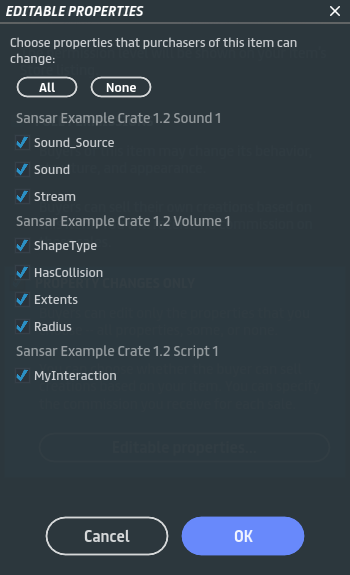
* In the Buyer's Permissions panel, check the box next to either **Full Permissions** or **Property Changes Only**.

<figure><img src="https://1251409636-files.gitbook.io/~/files/v0/b/gitbook-x-prod.appspot.com/o/spaces%2FeFXiTZShM8YWMV94n1eV%2Fuploads%2Fgit-blob-e47a9e3cf3e166837ef50304f7dd9d3cc88236bb%2FBuyer%20Permissions%20Panel%20002.png?alt=media" alt=""><figcaption><p>Check the box next to either <strong>Full Permissions</strong> or <strong>Property Changes Only</strong>.</p></figcaption></figure>

***

* If you chose **Property Changes Only**, click the **Editable Properties** button:
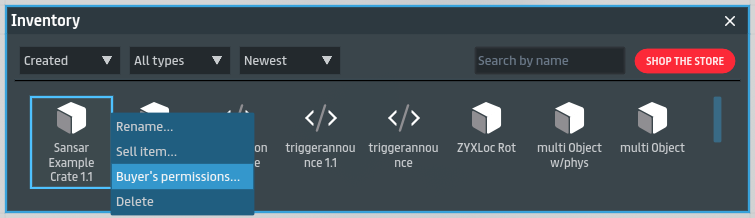
  * For each sound, collision volume, or script [component](https://docs.sansar.com/latest/creating-in-sansar/partoftheworldeditor/object-components) of the item, check the boxes next to the properties you would like to allow buyers to edit. For a list of editable properties for each type of component, see [Object Components](https://docs.sansar.com/latest/creating-in-sansar/partoftheworldeditor/object-components).
  * You may click **All** or **None** to check or uncheck all the boxes, respectively.
  * Note that if your item does not contain any components (for example, a 3D model with no collision volume), it may have no editable properties and therefore no checkboxes appear.
  * Click **Ok** to return to the Buyer's Permissions panel.

<figure><img src="https://1251409636-files.gitbook.io/~/files/v0/b/gitbook-x-prod.appspot.com/o/spaces%2FeFXiTZShM8YWMV94n1eV%2Fuploads%2Fgit-blob-2944969b5459126d46e7dfa4f6697c147f9e95b3%2FBuyer%20Permissions%20editable%20properties%20003.png?alt=media" alt=""><figcaption><p>The item in this example contains a sound, collision volume, and script component. If the item is sold in the store, buyers will be able to edit the properties whose boxes are checked but they cannot otherwise change the item.</p></figcaption></figure>

***

* Click **Ok** to confirm the permissions you have set.