> For the complete documentation index, see [llms.txt](https://docs.sansar.com/latest/llms.txt). Markdown versions of documentation pages are available by appending `.md` to page URLs; this page is available as [Markdown](https://docs.sansar.com/latest/sansarbasics/controls/htc-vive-controls.md).
# HTC VIVE controls
### HTC Vive controls
This article covers the usage of the HTC Vive controllers in Sansar. For information about other control methods, see [Sansar controls.](/latest/sansarbasics/controls.md)
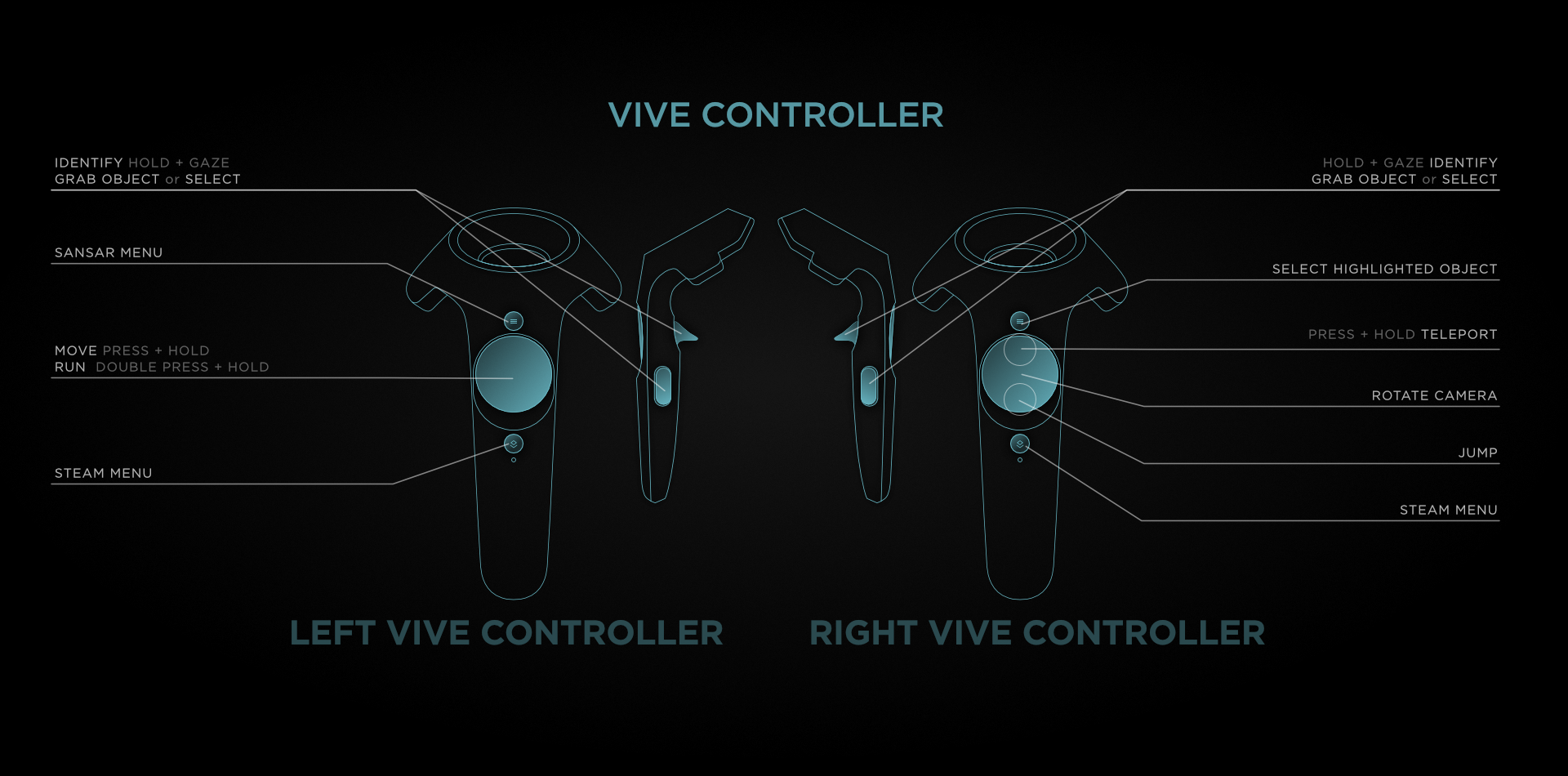
| Controls for the HTC Vive when visiting worlds. |
| ----------------------------------------------- |
### World controls
Use these controls while visiting a world:
* **Right trackpad:** Rotates the camera.
* **Left trackpad:** Move forward, back, left, or right.
* **Double-press left trackpad:** Run forward, backward, left, or right.
* **Hold Forward/Up (Right trackpad):** Bring up the teleport beam.
* **While holding down, rotate your finger on the right trackpad:** Change the direction the avatar faces upon teleport.
* **Release right trackpad:** Teleport to targeted location.
* **Press Backward/Down (Right trackpad):** Jump. Hold longer to jump higher.
* **Left menu button:** Open or close the VR app launcher. Navigate the app launcher using the Vive wands; press any button on the inactive wand to switch hands.
* **Right menu button:** Selects the highlighted option.
* **Trigger buttons:** Grab dynamic unconstrained objects or the chat app (if open); selects the highlighted option in menu.
* **Gaze on an avatar and hold the trigger button:** To gaze on something, move your head and hover the circular bubble within your line of sight over the avatar. See the avatar's name and ID and have access to the mute/unmute and add/remove friend buttons.
* **F5 (keyboard):** Toggle between simple and advanced controls.
* **F3 (keyboard):** Toggle between first person and third person mode.
* **Crouch:** If you crouch low enough, your avatar enters a crouching/sneaking stance and moves slower.
**Simple controls:**
* **Right trackpad** - Disabled.
* **Left trackpad** - Move forward, back, left, or right.
* **Double-press left trackpad:** Run forward, backward, left, or right.
**Advanced controls:**
* **Right trackpad** - Rotates the camera.
* **Left trackpad** - Moves avatar forward, back, left, or right.
* **Double-press left trackpad:** Run forward, backward, left, or right.
**In third person mode:**
* **Right trackpad** - Moves camera around your avatar.
* **Left trackpad** - Moves avatar forward, back, left, or right.
* **Double-press left trackpad:** Run forward, backward, left, or right.
### Edit mode controls
Use these controls while editing a scene in VR:
* **Right trackpad** - Rotate the camera left and right.
* **Left trackpad** - Move the camera forward, back, left, and right.
* **Hold Forward/Up (Right trackpad):** Bring up the teleport beam.
* **While holding down, rotate your finger on the right trackpad:** Change the direction the camera faces upon teleport.
* **Release right trackpad:** Teleport to targeted location.
**Note:** While in edit mode, the teleport beam will only adjust the camera location point, and not a physical avatar. You can teleport to anywhere the targeting beam touches. You do not need to land on a flat surface.
* **Trigger buttons** - Select/Deselect currently targeted object.
**Note:** Select an object again to deselect it. Alternatively, you can also point and select the skybox in order to deselect all selected objects when in multiselect mode (you must have a visible line of sight to the skybox).
* **Rotate controller 180 degrees (look at the palm of your hand)** - Opens the tool palette. If you have selected objects, you also gain access to **Duplicate**, **Delete**, and **Lock** functions. You can make selections from the palette by targeting it with the other controller and pressing the trigger.
* **Trigger buttons** - Grab and move all currently selected objects.
* **Hold both grip buttons while targeting an object with both controllers** - Rotate all currently selected objects.
* **Thumbstick while targeting an object with the grip button held** - Move the object closer to or farther from the controller.
* **Hold both grip buttons and one trigger while targeting an object with both controllers** - Scale the object's size by moving the controllers together or apart.
***
Have more questions? Join our [Discord!](https://discord.gg/sansarofficial)
---
# Agent Instructions
This documentation is published with GitBook. GitBook is the documentation platform designed so that both humans and AI agents can read, navigate, and reason over technical content effectively. Learn more at gitbook.com.
## Querying This Documentation
If you need additional information that is not directly available in this page, you can query the documentation dynamically by asking a question.
Perform an HTTP GET request on the current page URL with the `ask` query parameter, and the optional `goal` query parameter:
```
GET https://docs.sansar.com/latest/sansarbasics/controls/htc-vive-controls.md?ask=&goal=
```
`ask` is the immediate question: it should be specific, self-contained, and written in natural language.
`goal` is optional and describes the broader end goal you are ultimately trying to accomplish on behalf of the user. GitBook uses it to tailor the answer towards what is most useful for that goal.
The response will contain a direct answer to the question and relevant excerpts and sources from the documentation.
Use this mechanism when the answer is not explicitly present in the current page, you need clarification or additional context, or you want to retrieve related documentation sections.