# Muting Avatars

### Muting avatars

If another person is acting belligerent, annoying, or otherwise disruptive in chat, you can choose to temporarily *mute* that person, effectively silencing their voice chat for you personally. Others can still see and hear someone you have muted (and the muted person can still hear *you*) unless they have also chosen to mute that person. Muted avatars remain visible to everyone.

Muting currently persists as long as you stay logged into the Sansar client; once you close Sansar and log back in, you must mute the same people again.

**Note:** To more permanently ignore another person, see the article [Blocking avatars](https://docs.sansar.com/latest/guidelinesmoderation/moderation-and-reporting/blocking-avatars). *Blocking* mutes voice chat and hides someone's avatar until you remove the block.

### Using the People panel

Take the following steps to mute an avatar:

1. Open the People panel by choosing **Socialize > Friends & People** from the main menu.
2. Find the person you would like to mute; if they are nearby they appear in the **Nearby** tab of the People panel. Otherwise, you can search for them by name in the **Search** tab or on your **Friends** tab.
3. Click the person's name to open their user profile.
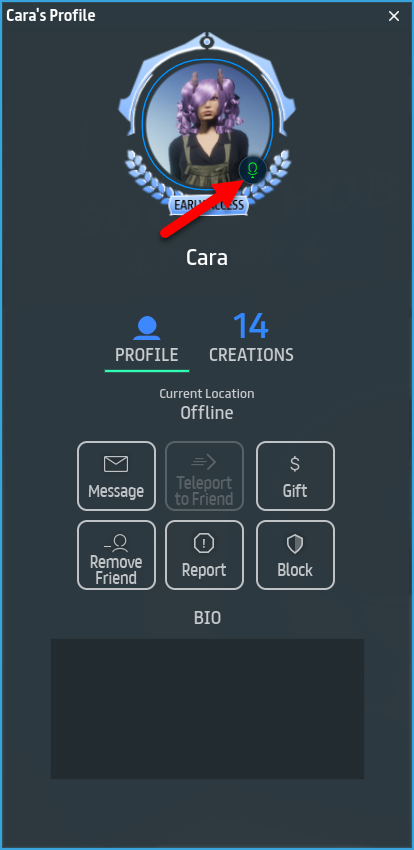
4. In the user profile, click the **Microphone icon** on their profile portrait. When the icon turns red, you will no longer receive their voice chat.

You can click the **Microphone icon** again to unmute the person and resume hearing their voice chat.

<figure><img src="https://1251409636-files.gitbook.io/~/files/v0/b/gitbook-x-prod.appspot.com/o/spaces%2FeFXiTZShM8YWMV94n1eV%2Fuploads%2Fgit-blob-d64952292e059c9e029e4daf4700824db117a58b%2FProfile%20panel%20-%20Mute%20001.png?alt=media" alt=""><figcaption><p>Click the <strong>Microphone icon</strong> on someone's user profile to silence all voice chat from the selected person.</p></figcaption></figure>

***

### Muting an avatar directly

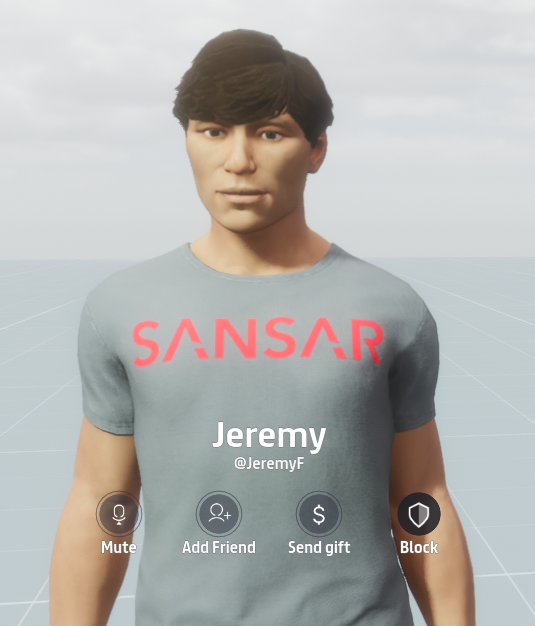
Take the following steps in VR or desktop mode to mute an avatar:

1. Look at the avatar and **left-click** or hold one of the **grip buttons** to view their identity and interaction options.
2. Press **Mute** to silence that person's voice chat.

You can unmute an avatar directly by clicking the **Unmute** button that replaces the Mute button when you have muted the avatar.

<figure><img src="https://1251409636-files.gitbook.io/~/files/v0/b/gitbook-x-prod.appspot.com/o/spaces%2FeFXiTZShM8YWMV94n1eV%2Fuploads%2Fgit-blob-635812b740ac3787b07b4bf8a120dc3cbee794f5%2FBlock%20avatar%202.png?alt=media" alt=""><figcaption><p>Press <strong>Mute</strong> when looking at an avatar and <strong>left-clicking</strong> or holding a <strong>grip button</strong> to silence all voice chat from that person.</p></figcaption></figure>

***