# The Main Menu

### The Main Menu

The *main menu* provides access to most of Sansar's panels and features, including the [Codex](https://docs.sansar.com/latest/exploring-in-sansar/navigateandexplore/codex), avatar customization, chat, and settings.

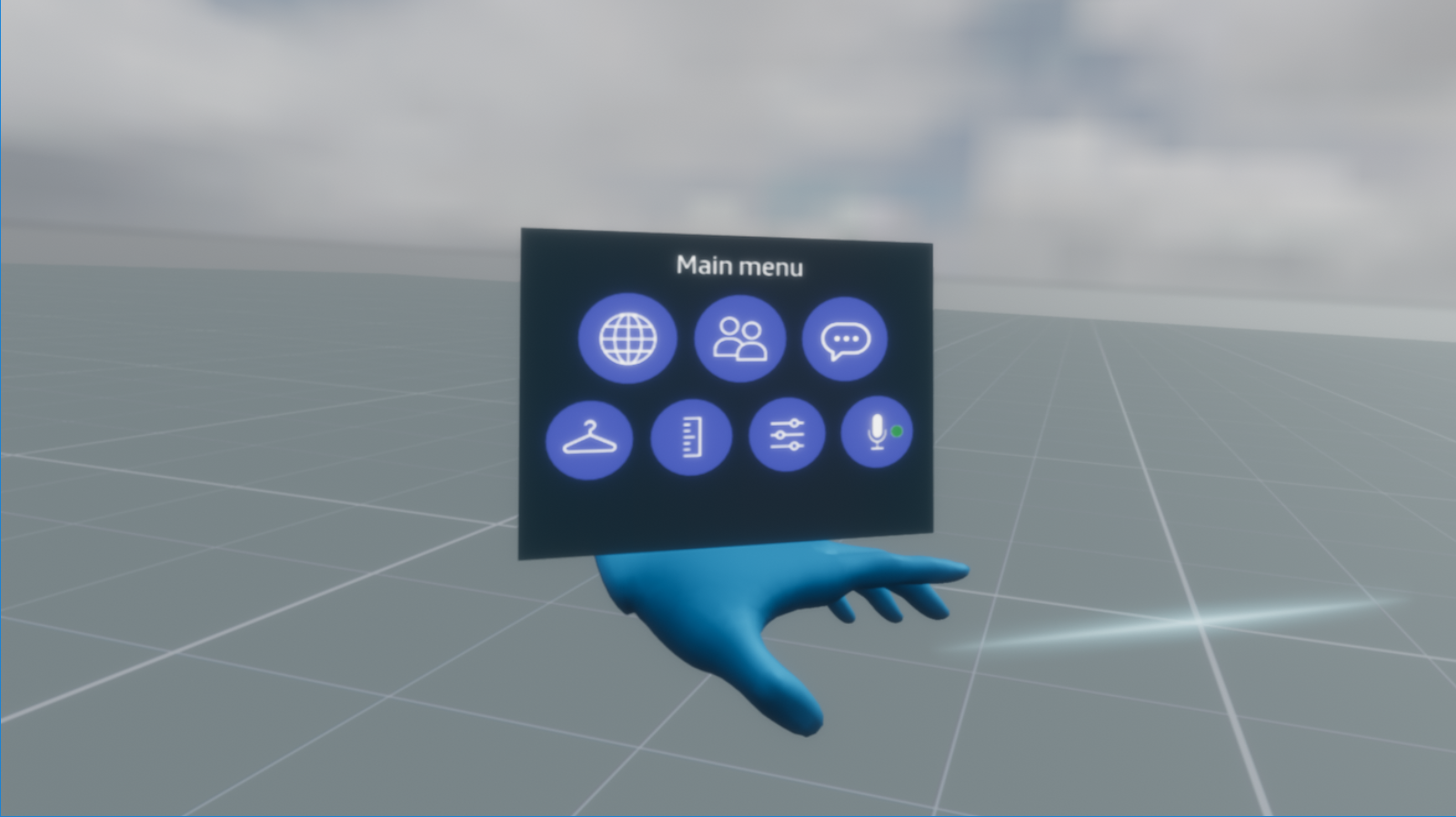
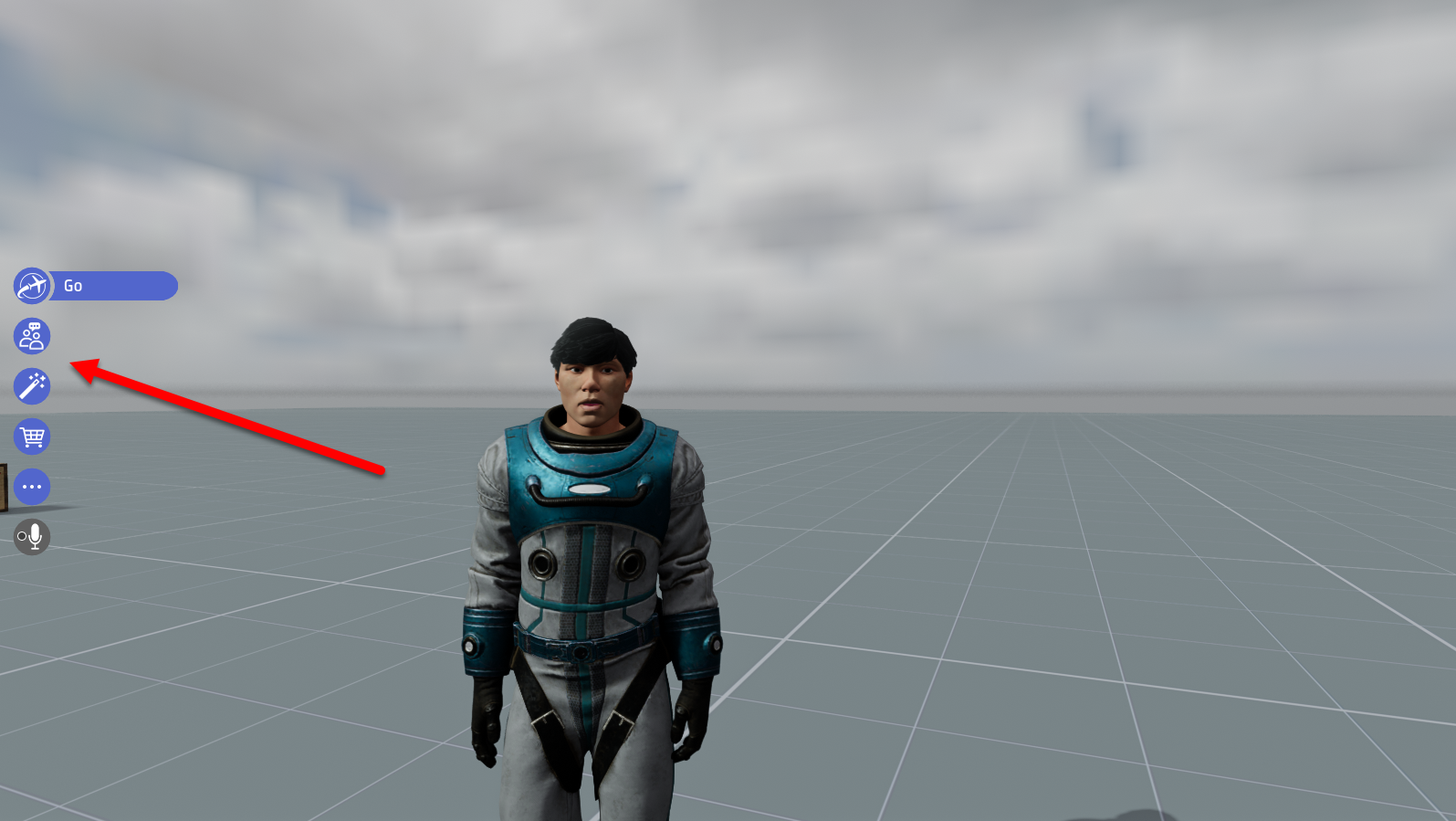
In desktop mode, the main menu appears as a set of icons at the left side of the screen. In VR mode, you can press the **Y button** (Oculus Rift) or **Left Menu button** (HTC Vive) on your VR controller to access the main menu on your left wrist.

**Note:** The available functions in the main menu may vary depending upon whether you are in VR or Desktop mode, and whether you are visiting or editing a scene.

<figure><img src="https://1251409636-files.gitbook.io/~/files/v0/b/gitbook-x-prod.appspot.com/o/spaces%2FeFXiTZShM8YWMV94n1eV%2Fuploads%2Fgit-blob-b2f26cd006b5a04ca3976e915279d3b6c22f1d51%2Fdesktop-main-menu-01.png?alt=media" alt=""><figcaption><p>In desktop mode, the main menu can be found on the right hand side of the screen while visiting a world or editing a scene.</p></figcaption></figure>

<figure><img src="https://1251409636-files.gitbook.io/~/files/v0/b/gitbook-x-prod.appspot.com/o/spaces%2FeFXiTZShM8YWMV94n1eV%2Fuploads%2Fgit-blob-c50f017e149b7a9a772f0ecca5bafde3405d6165%2Fvr-main-menu-02.png?alt=media" alt=""><figcaption><p>In VR, the main menu appears on your left wrist when you press <strong>Y</strong> or the left <strong>Menu button</strong>, depending upon your VR controller setup</p></figcaption></figure>

The main menu is divided into five categories, each containing several functions:

## Go

* **Codex** - Opens your [Codex](https://docs.sansar.com/latest/exploring-in-sansar/navigateandexplore/codex), a directory of worlds you have visited.
* **Quests** - Opens the [Quests](https://docs.sansar.com/latest/exploring-in-sansar/navigateandexplore/quests) panel, which lists your current quests and objectives.
* **Events** - Opens your [Codex](https://docs.sansar.com/latest/exploring-in-sansar/navigateandexplore/codex) to the Events section, allowing you to browse current and upcoming events in Sansar.
* **My event calendar** - Opens your Codex directly to your calendar, which contains events you have previously saved.
* **Favorite places** - Opens your Codex directly to the Favorites tab, which contains worlds you have bookmarked as favorites.
* **Home** - Immediately transports you to your private Home space.

## Socialize

* **Chat** - Opens the [Chat panel](https://docs.sansar.com/latest/exploring-in-sansar/socializeandconnect/chat-panel), which allows you to send chat messages to friends and nearby people in your current world.
* **Emotes** - Opens the Emotes interface, which allows your avatar to play brief animations.
* **Friends & people** - Opens the [People panel](https://docs.sansar.com/latest/exploring-in-sansar/socializeandconnect/people-panel), which displays your friends list and nearby people in your current world.
* **My profile** - Allows you to edit your publicly visible [user profile](https://docs.sansar.com/latest/exploring-in-sansar/socializeandconnect/user-profiles).
* **Take a photo** - Allows you to [take a screenshot](https://docs.sansar.com/latest/exploring-in-sansar/sharecontent/taking-a-photo). Includes specific tools for taking screenshots for the Codex and the Sansar Store.

## Create

* **Style my avatar** - Opens your collection of avatar looks and customizations. From here you can [customize your existing avatars](https://docs.sansar.com/latest/avatar-creation/avatar-basics/customizing-avatar) or [import a new one.](https://docs.sansar.com/latest/avatar-creation/managingavataritems/importing-avatar-related-items)
* **Host an event** - Opens the Events panel and automatically opens the Create Event panel to allow you to [create your own event.](https://docs.sansar.com/latest/exploring-in-sansar/attending-events/creating-your-own-events)
* **Build worlds** - Opens the [My Worlds panel](https://docs.sansar.com/latest/creating-in-sansar/creatortools/my-worlds-panel), which lists the worlds you have created and allows you to create new ones.
* **Create Quests** - Opens the Quest Creator panel, which allows you to begin [creating your own quests.](https://docs.sansar.com/latest/creating-in-sansar/creatortools/creating-quests)
* **Learn to build** - Opens your web browser to this knowledge base, specifically to the [Creating in Sansar category.](https://docs.sansar.com/latest/creating-in-sansar)
* **Edit this scene** - If you own the scene you are visiting, you can choose this option to enter edit mode and begin editing the scene.

## Shop

* **Avatar looks** - Opens the [Sansar Store](https://www.sansar.com/store/all?category=avatar-looks) to the [Avatar Looks category.](https://docs.sansar.com/latest/avatar-creation/managingavataritems/managing-avatar-looks-inventory-items)
* **Scene creation** - Opens the Sansar Store to the Scene creation category.
* **Buy Sansar dollars** - Opens the Buy Sansar Dollars panel, which offers Sansar dollar bundles for US dollars.
* **My items for sale** - Opens your web browser to the [Manage Listings page](https://www.sansar.com/store/dashboard), which shows all items you are currently selling in the Sansar Store.

## More options

* **Full screen/Exit full screen** - Enter and exit full screen mode.
* **Settings** - Opens the [Settings panel](https://github.com/Wookey-Technologies/sansar-client-docs/blob/main/sansarbasics/managevrsettings/settings.md), which allows you to tweak and troubleshoot various options in the Sansar client.
* **Desktop controls** - Shows a diagram of keyboard and mouse controls for using and navigating Sansar.
* **VR controls** - Shows a diagram of VR controls for using and navigating Sansar.
* **Diagnostics** - Overlays the [diagnostics toolbar](https://docs.sansar.com/latest/creating-in-sansar/creatortools/diagnostics-toolbar) at the top of the screen.
* **Help & Reporting** - Provides specific version information about Sansar and provides links for finding help and reporting abuse.
* **Log out** - Log out of Sansar.

## Turn mic on/off

Toggle your microphone for voice chat. This menu object does not have any additional functions.

***

Have more questions? Join our [Discord!](https://discord.gg/sansarofficial)