# Adding Events to Your Calendar

## Adding events to your calendar

While browsing events you might want to attend, you can save them to your calendar for easy reference later.

## Adding events to your calendar using the Codex

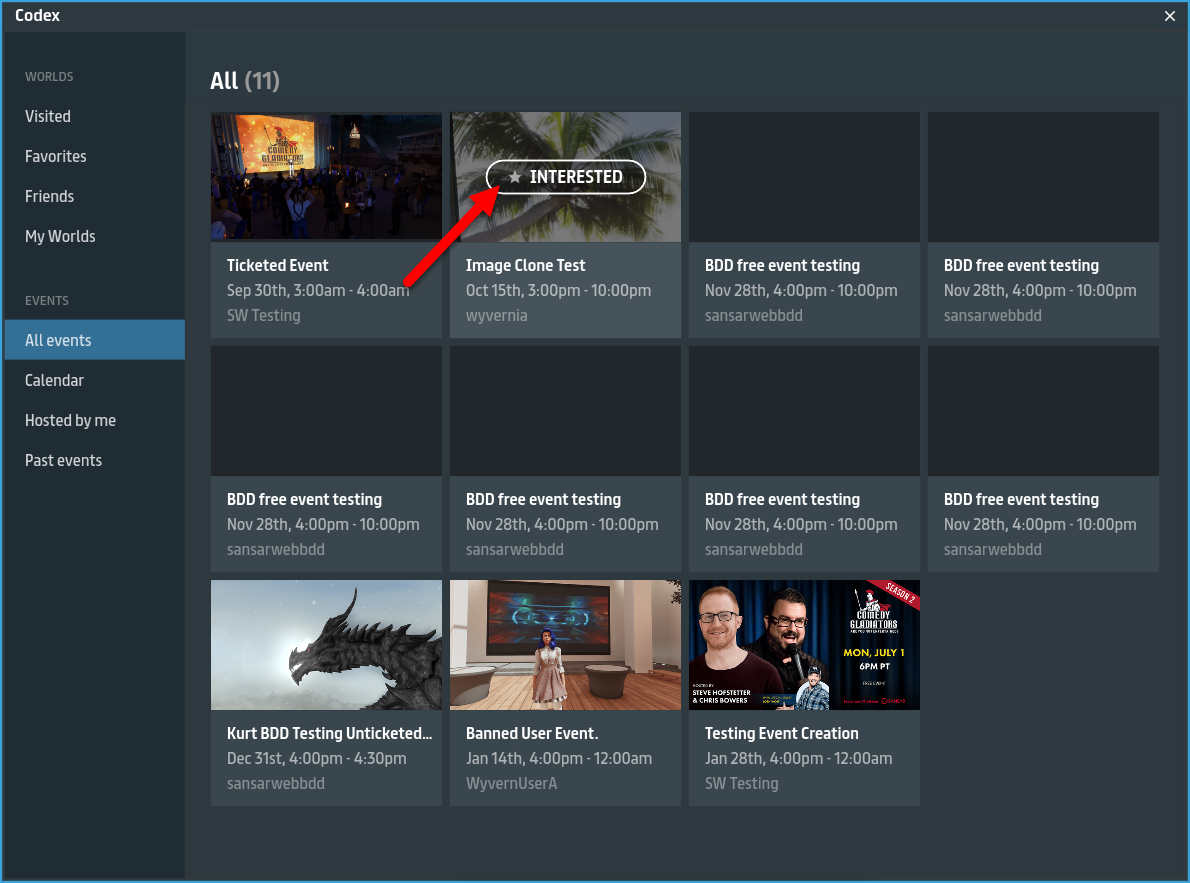
While browsing the Events section of the [Codex](https://docs.sansar.com/latest/exploring-in-sansar/navigateandexplore/codex), you can add events to your calendar by clicking the **Interested** button that appears when you move your mouse cursor over the event's image:

1. Open the Codex to the Events section by choosing **Go > Events** from the main menu.
2. Browse through the **All events** tab until you find an event you would like to add to your calendar.
3. Move your mouse cursor over the event's image and click the **Interested** button that appears. If the event is currently live, the button says **Join event** instead, and will take you directly to the event.

You can view and remove events on your calendar by clicking the **Calendar** tab of the Codex.

<figure><img src="https://1251409636-files.gitbook.io/~/files/v0/b/gitbook-x-prod.appspot.com/o/spaces%2FeFXiTZShM8YWMV94n1eV%2Fuploads%2Fgit-blob-7bfbffef719206788f759bf30cdbf10fe5eb8e34%2Fadding-event-01.png?alt=media" alt=""><figcaption><p>The All events tab of the Codex. Click <strong>Interested</strong> on an event to add it to your calendar.</p></figcaption></figure>

Adding events to your calendar from the Sansar website

While browsing [events on the Sansar website](https://www.sansar.com/events), you can add them to your personal calendar for later reference by clicking the **Add to calendar** button on the event listing. You can also add events to your third-party calendars, such as Google, Apple, Outlook, or Yahoo.

## Adding events to a third-party calendar

To add an event to one of your third-party calendars:

1. [Browse events on the Sansar website](https://www.sansar.com/events) until you find one you would like to save to your calendar.
2. Click the event's image to open the full event listing.
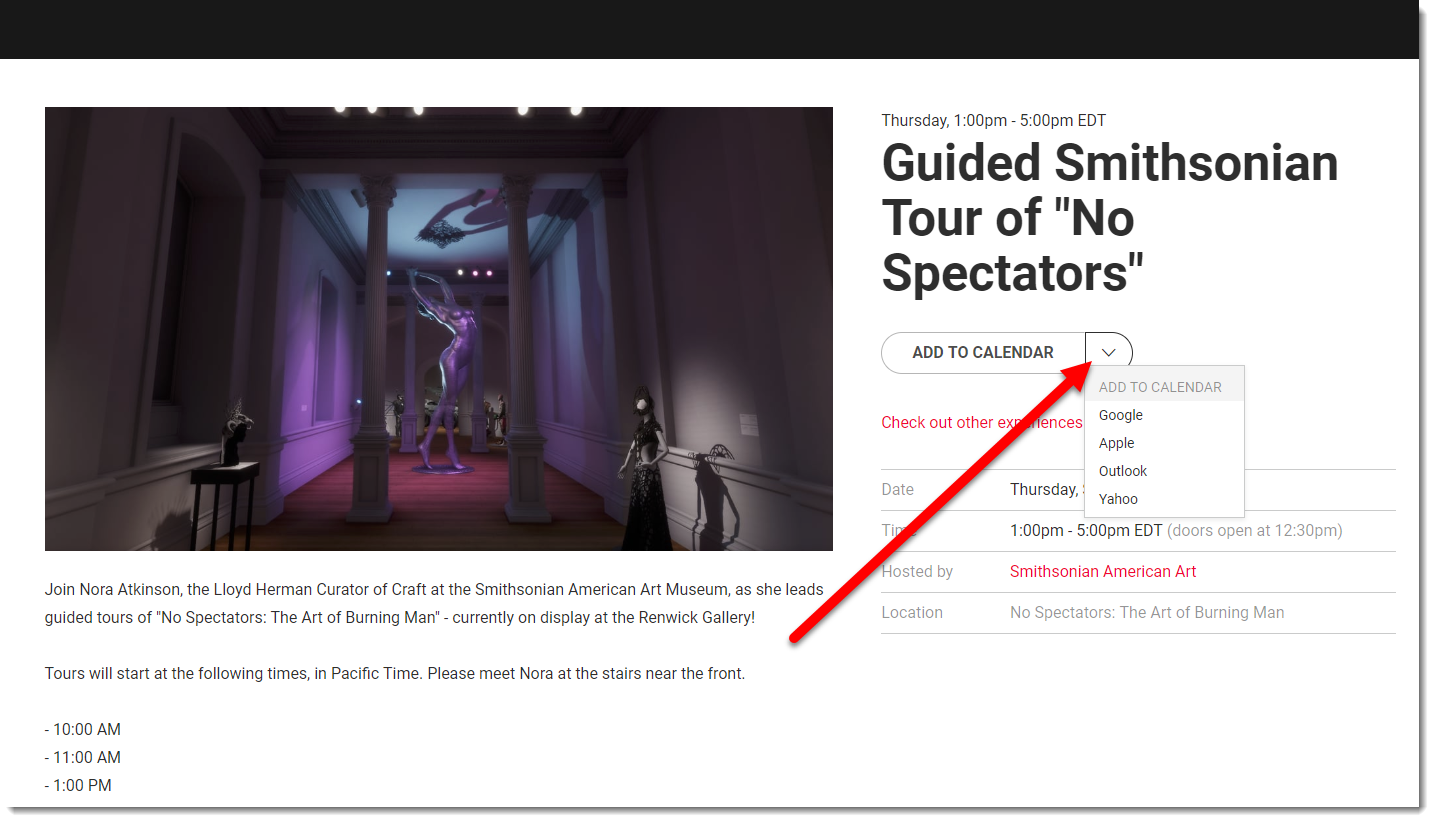
3. Next to the **Add to calendar** button, click the **down arrow** and select your third-party calendar service.
   * **Google** - Make sure you are logged into your account before clicking. This option opens your Google calendar with all event details pre-filled.
   * **Apple** - Downloads a *.ics* file containing the event's details. This file can be used by a compatible calendar of your choice on your computer, such as Apple Calendar.
   * **Outlook** - Downloads a *.ics* file containing the event's details. This file can be used by a compatible calendar of your choice on your computer, such as Microsoft Outlook.
   * **Yahoo** - Make sure you are logged into your account before clicking. This option opens your Google calendar with all events pre-filled.

<figure><img src="https://1251409636-files.gitbook.io/~/files/v0/b/gitbook-x-prod.appspot.com/o/spaces%2FeFXiTZShM8YWMV94n1eV%2Fuploads%2Fgit-blob-f21c44e158dab07dcdeaa475fd505c33d8509d29%2Fadding-events-02.png?alt=media" alt=""><figcaption><p>You can add events to your persona calendar by clicking <strong>Add to calendar</strong>. To add an event to one of your third-party calendars, click the <strong>down arrow</strong> to choose a third-party calendar from the dropdown.</p></figcaption></figure>

***

Have more questions? Join our [Discord!](https://discord.gg/sansarofficial)