> For the complete documentation index, see [llms.txt](https://docs.sansar.com/latest/llms.txt). Markdown versions of documentation pages are available by appending `.md` to page URLs; this page is available as [Markdown](https://docs.sansar.com/latest/creating-in-sansar/working-with-audio-and-video/creating-media-surface.md).
# Creating Media surface
### Creating Media Surface
Media surfaces allow you to play web content in your scene using [Chromium Embedded Framework](https://bitbucket.org/chromiumembedded/cef), meaning that you can display most content that could normally be displayed in a web browser. Each scene can support one media URL at a time, but can be displayed on multiple objects.
Web content is currently not interactive; visual media playback, such as an embedded YouTube video, is shown on objects that are uploaded with the [**Media Surface** shader](/latest/creating-in-sansar/shaders-and-materials/shaders-information.md). Audio from the media plays back separately, from a position designated in [media surface scene settings](https://help.sansar.com/hc/en-us/articles/115003259666).
You can create media surfaces yourself, or you can purchase one from another creator on the [Sansar Store](https://www.sansar.com/store).
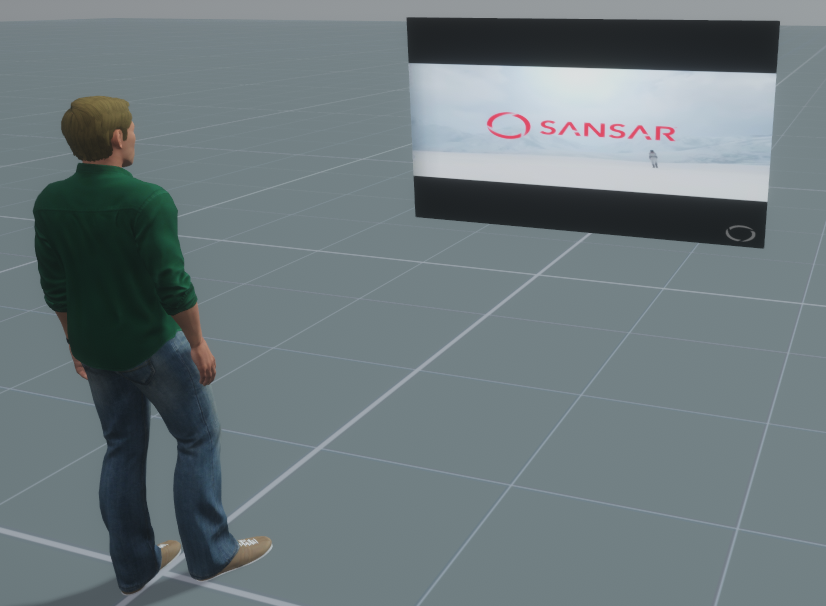
An avatar watching a YouTube video on a media surface.
***
**Creating a media surface**
Any object can be used as a media surface, but flat planes are typically most suitable for video and web playback. To upload an object as a media surface while in edit mode:
1. Click **Import > 3D Model**.
2. Click **Browse** under **3D model file** and choose a suitable model (.fbx) from your computer. [Here is a 16x9 screen that we have provided](https://help.sansar.com/hc/article_attachments/360000304063/16x9.fbx).
3. Click **Materials Settings** to open the Materials Settings panel.
4. From the **Use shader** dropdown, choose **Media Surface**.
5. (Optional) Choose an **Albedo Map**, **Normal Map**, **Roughness Map**, **Metalness Map**, and/or **Emissive Map** to apply to your media surface. Note that these maps can potentially interfere with media playback if they are not designed to look like part of a media screen.
6. Click **Save Settings** to close the Materials Settings panel.
7. Click **Upload** to upload your media surface.
8. Drag your media surface from your inventory to the scene in order to place it in your scene.
To set a media stream for your media surface, see [using and previewing media streams](/latest/creating-in-sansar/working-with-audio-and-video/using-media-streams.md).
**Note:** To display side-by-side 3D content, choose the **Media Surface + Stereographic** shader. For more details on this shader and how to properly align side-by-side 3D content using the Media Surface + Stereographic shader, see [Materials editing and shaders](/latest/creating-in-sansar/shaders-and-materials/shaders-information.md).
Tips
Here are some suggested settings for setting up a media surface:
* In the Materials Settings panel, under the **Media Surface** shader:
* Set **Emissive intensity** to 0.25 for optimal results. The higher this scale, the more "glowy" the media surface becomes. Try to keep this setting below 1.0.
* Set **UV scale** to 1.0, unless you want the video to be duplicated across the surface.
* Set **Tint** to white (255, 255, 255) or gray (127, 127, 127).
Download links
* [16x9 media surface screen](https://help.sansar.com/hc/article_attachments/360000304063/16x9.fbx)
#### Have more questions? Ask in our [Discord!](http://discord.gg/sansarofficial)
---
# Agent Instructions
This documentation is published with GitBook. GitBook is the documentation platform designed so that both humans and AI agents can read, navigate, and reason over technical content effectively. Learn more at gitbook.com.
## Querying This Documentation
If you need additional information that is not directly available in this page, you can query the documentation dynamically by asking a question.
Perform an HTTP GET request on the current page URL with the `ask` query parameter, and the optional `goal` query parameter:
```
GET https://docs.sansar.com/latest/creating-in-sansar/working-with-audio-and-video/creating-media-surface.md?ask=&goal=
```
`ask` is the immediate question: it should be specific, self-contained, and written in natural language.
`goal` is optional and describes the broader end goal you are ultimately trying to accomplish on behalf of the user. GitBook uses it to tailor the answer towards what is most useful for that goal.
The response will contain a direct answer to the question and relevant excerpts and sources from the documentation.
Use this mechanism when the answer is not explicitly present in the current page, you need clarification or additional context, or you want to retrieve related documentation sections.