> For the complete documentation index, see [llms.txt](https://docs.sansar.com/latest/llms.txt). Markdown versions of documentation pages are available by appending `.md` to page URLs; this page is available as [Markdown](https://docs.sansar.com/latest/creating-in-sansar/shaders-and-materials/automating-shader-setup.md).
# Automating Shader Setup
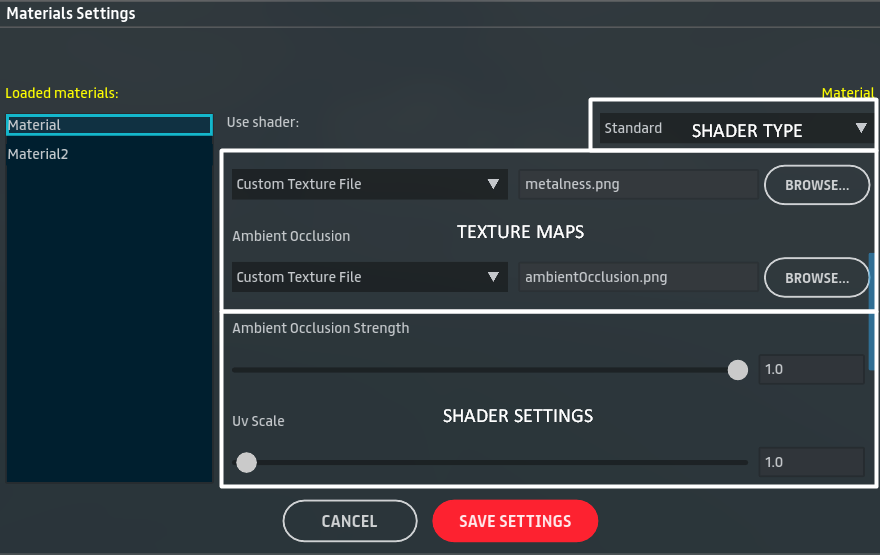
Using Blender, you can automate the import of certain texture maps and most shader settings by saving them directly into the FBX file. This setup works on a per-material-slot basis.
After the initial setup, this can significantly reduce import time, especially if you plan to upload the asset multiple times, places or if it requires a lot of configuration.
This is completely optional. All materials and settings can still be adjusted manually when importing or editing the asset in-game.
## Import Texture Maps Guide
Some PBR texture maps can be automatically imported if they are set up correctly in Blender. Currently, only a limited number of maps support auto-import; any others must be assigned manually during the import process.
### Supported Auto-Import Maps
The following texture maps can be automatically imported:
* Albedo
* Normal
* Roughness
* Metalness
* Emissive Map
### How Auto-Import Works
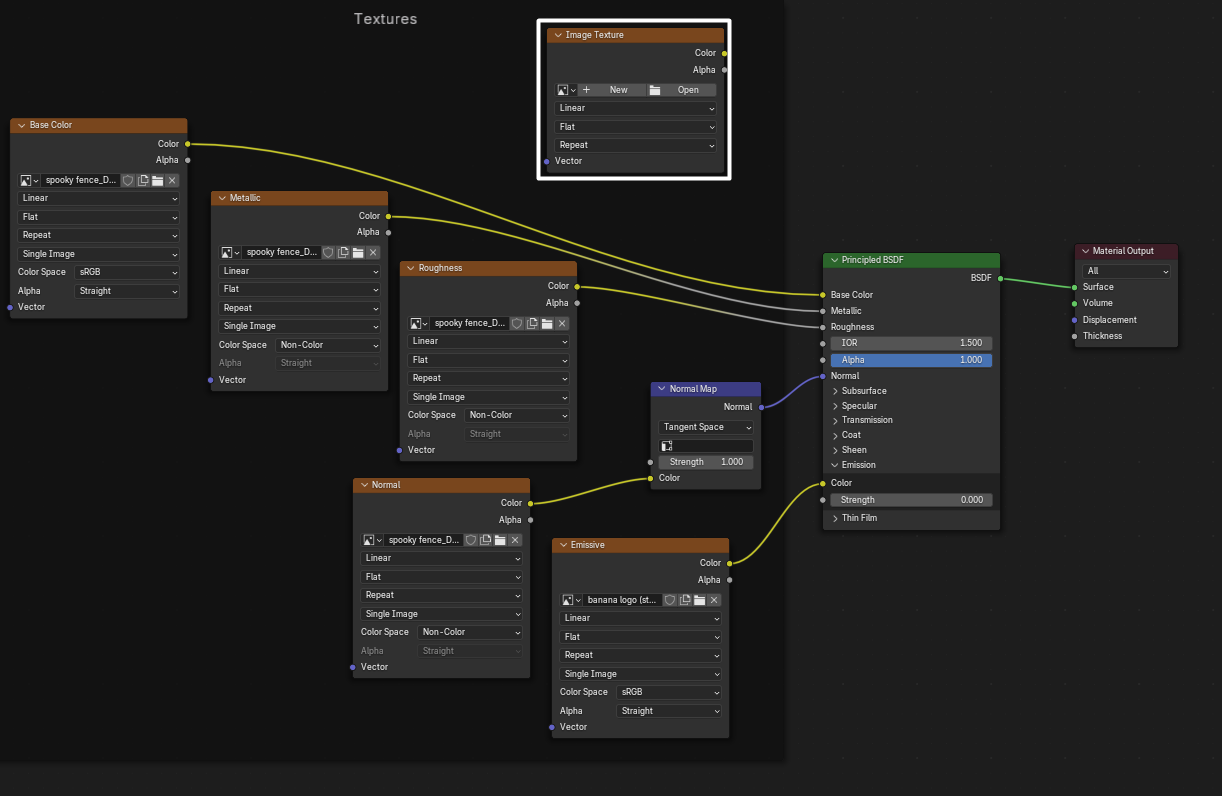
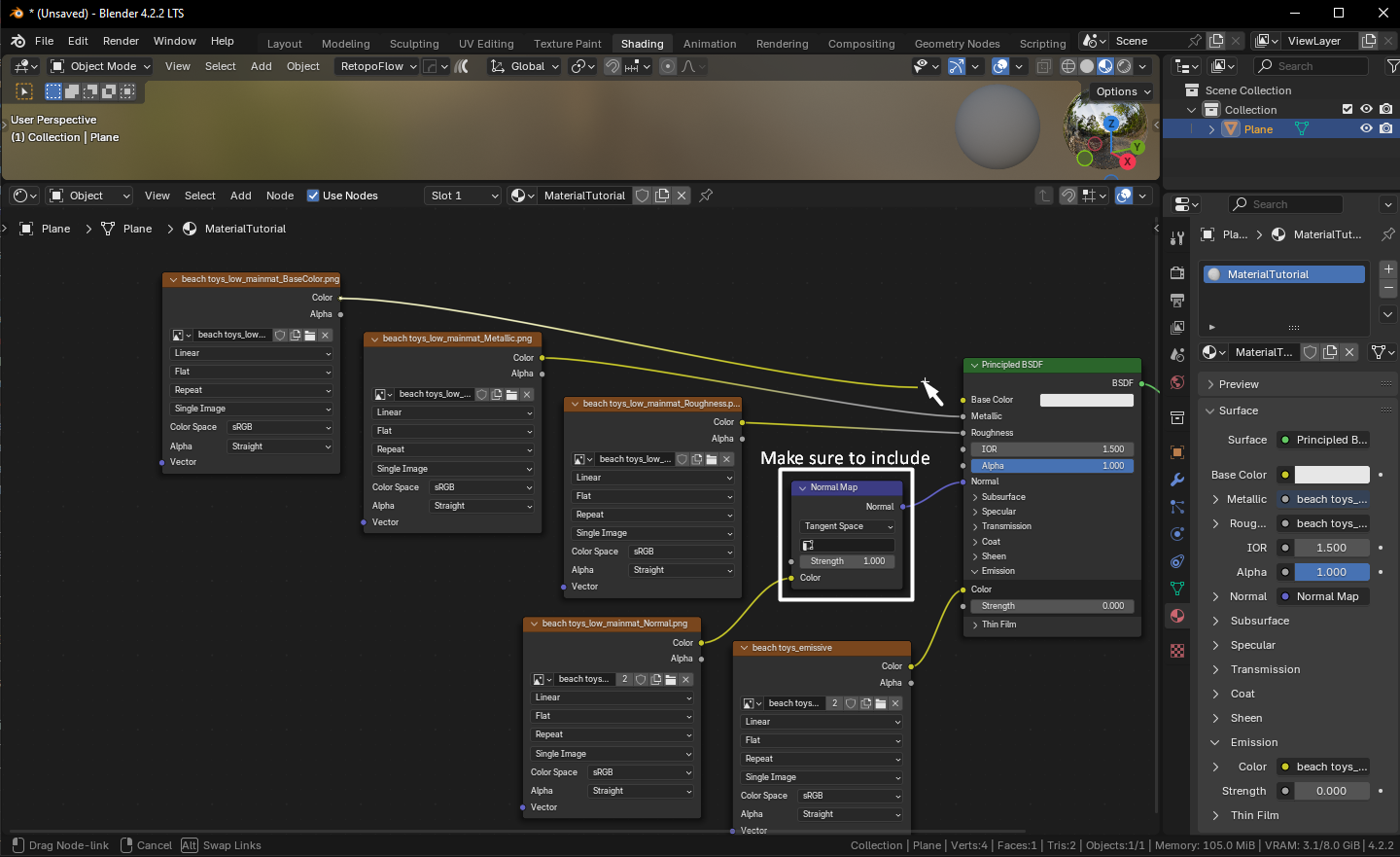
To enable auto-import, connect your texture files to the correct inputs on the **Principled BSDF** shader in Blender. When the material is imported, Sansar will automatically assign these textures to their corresponding map slots, if they are supported by the shader.
You can use the **Node Wrangler** Blender add-on to set this up automatically when proper texture naming is used. Alternatively, you can connect the textures manually by following this guide.
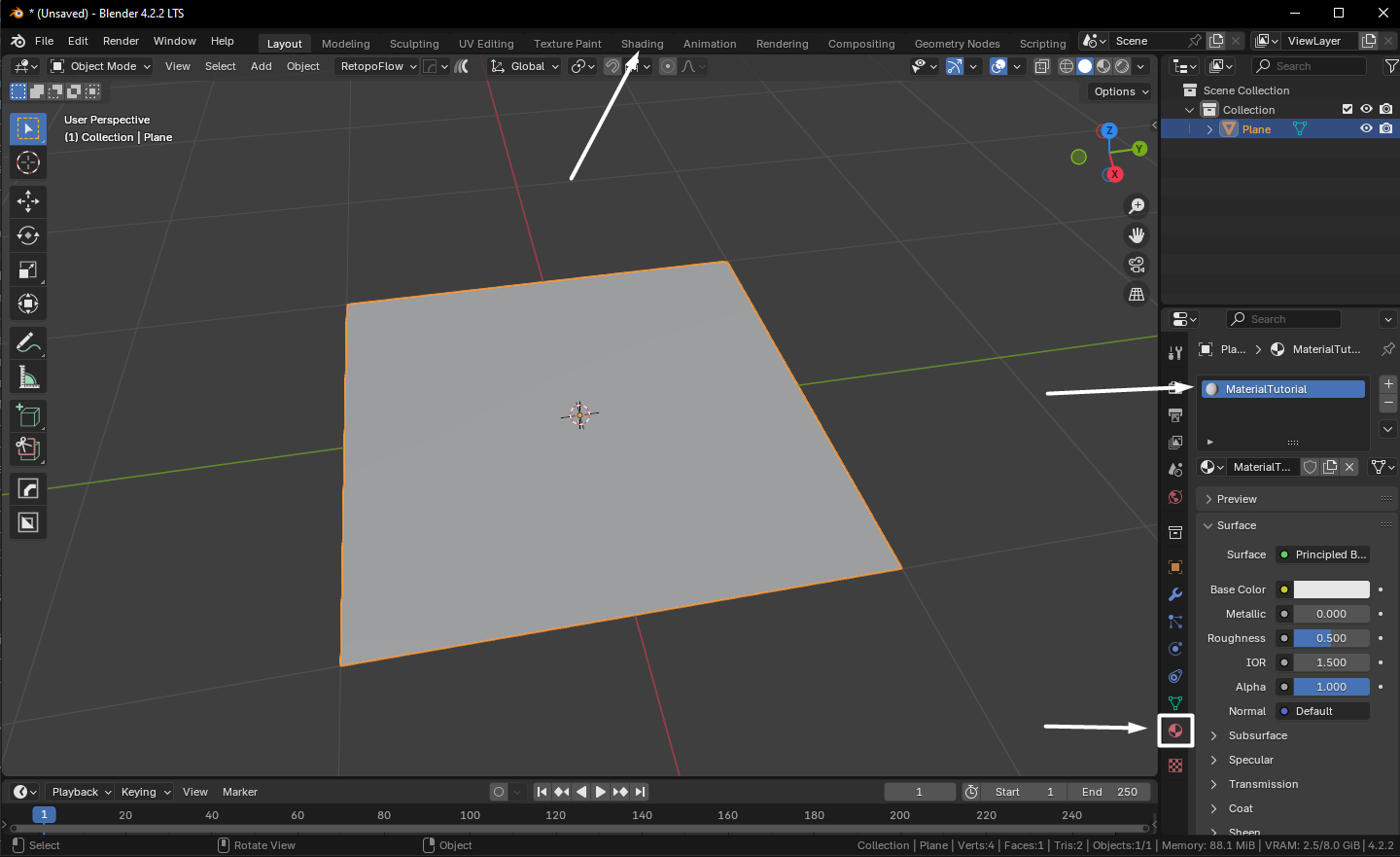
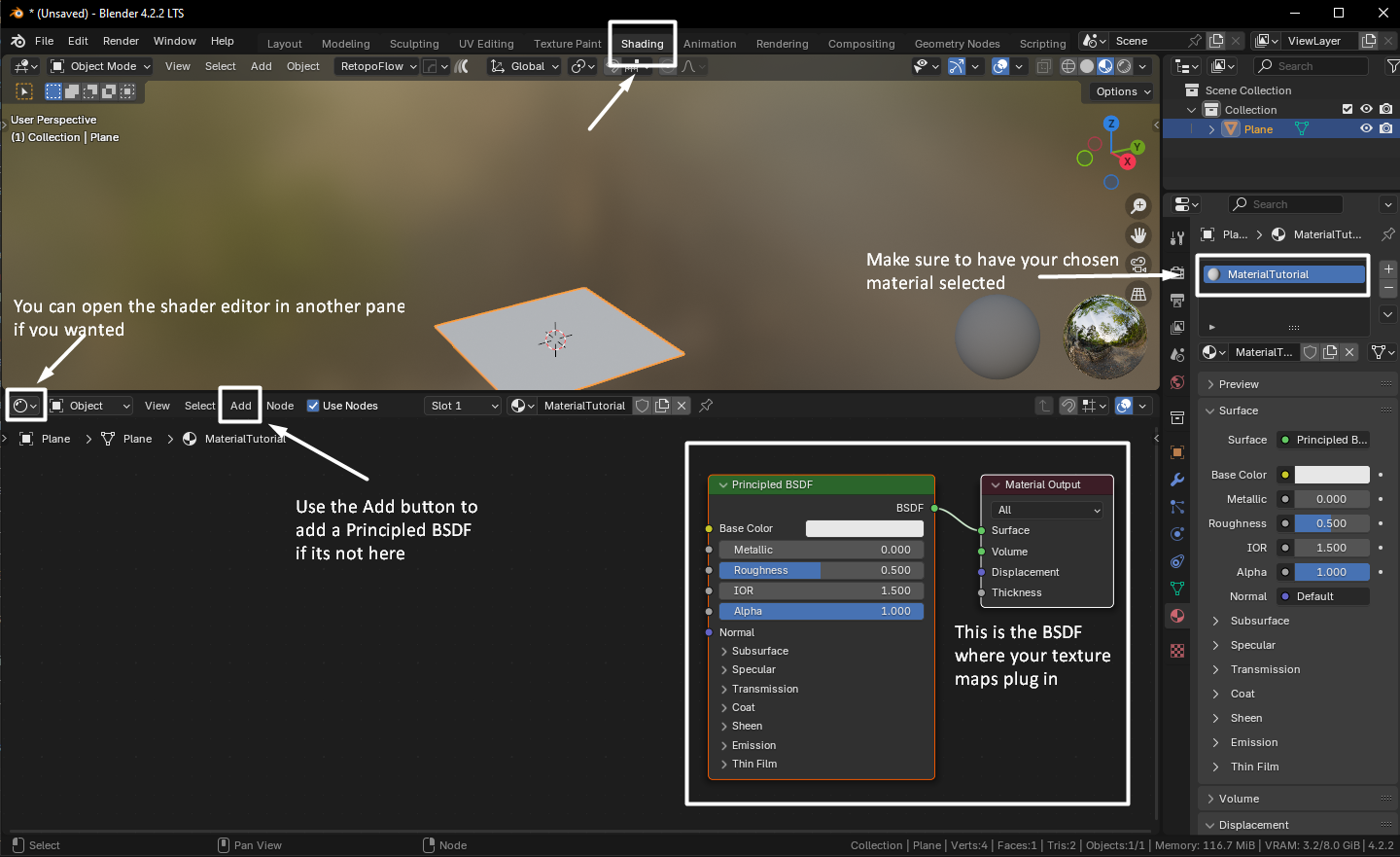
1. In blender, make sure you have at least one material slot assigned to your model, additional materials will need setting up also in the same way. Click on the Shading tab at the top (you can open additional windows)
2. In the Shading window, you will need a principled BSDF, this should be added by default but if not you can add one.
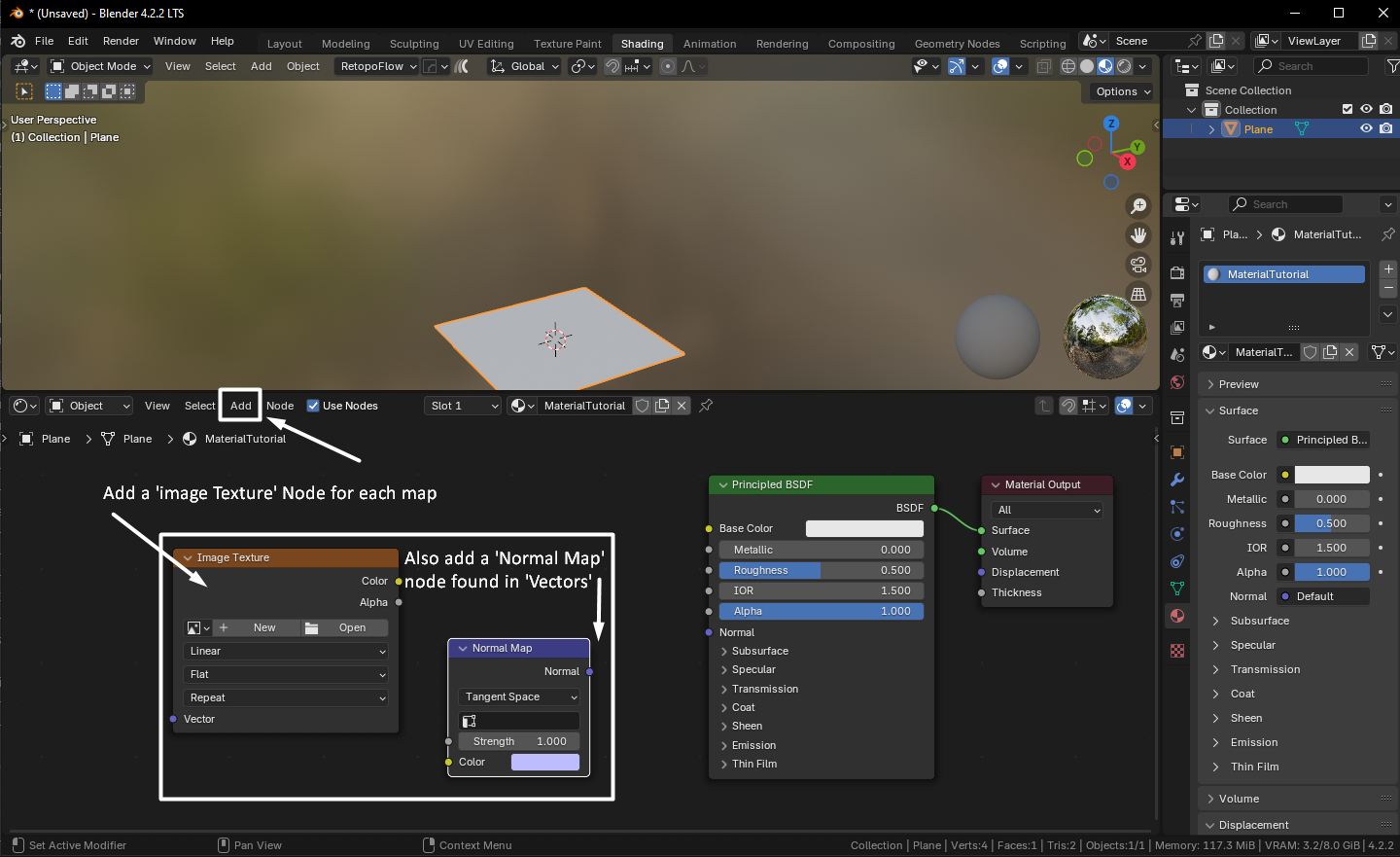
3. In the shader node window add a `Image Texture` node for each map and a `Normal Map` node.
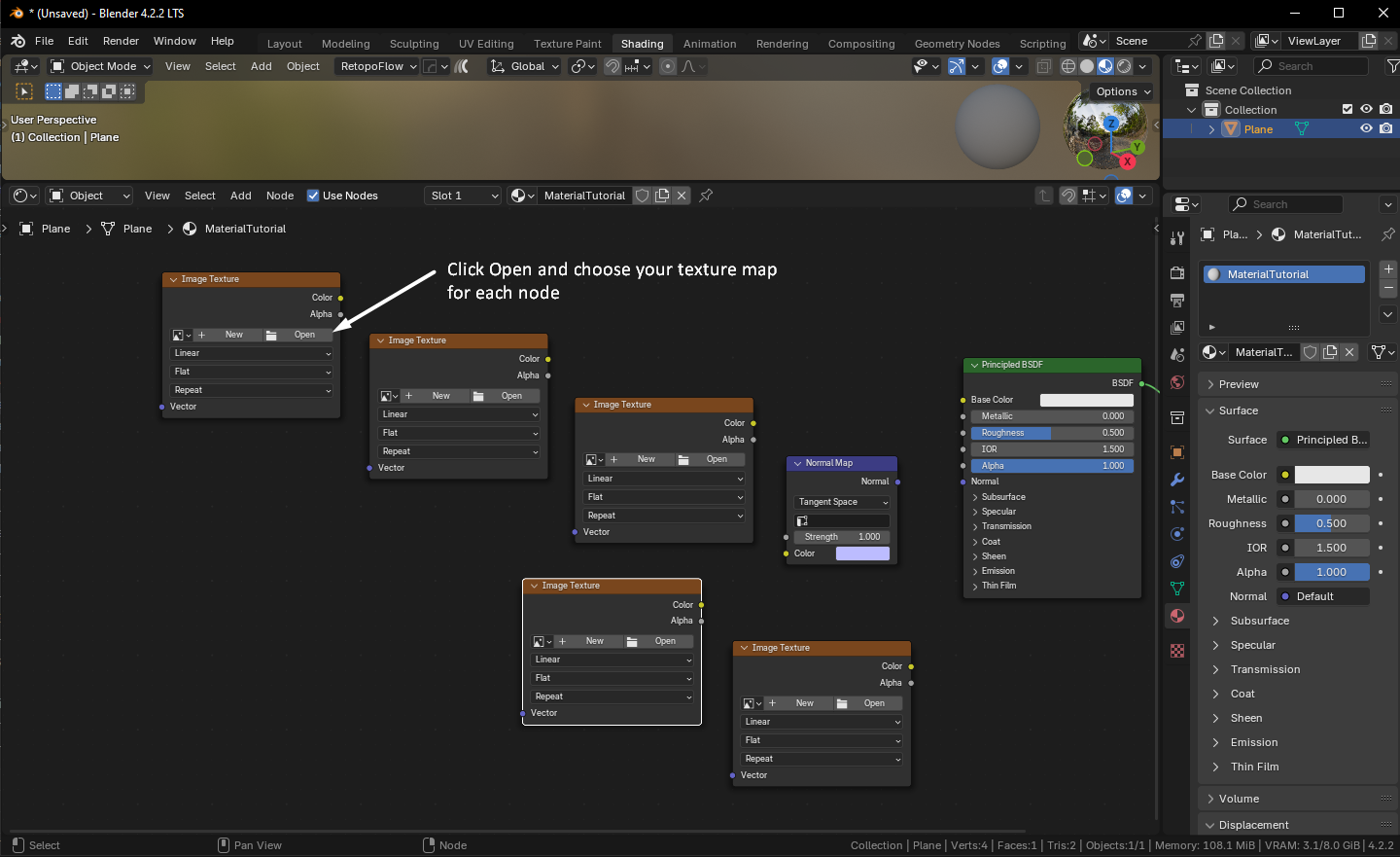
4. With your nodes added, now add your maps to each node, naming doesn't matter as it uses the BSDF connection to determine the maps use.
5. Once your maps are added, connect the nodes to the BSDF by clicking and dragging the sockets to each slot, make sure to include the `Normal Map` node.
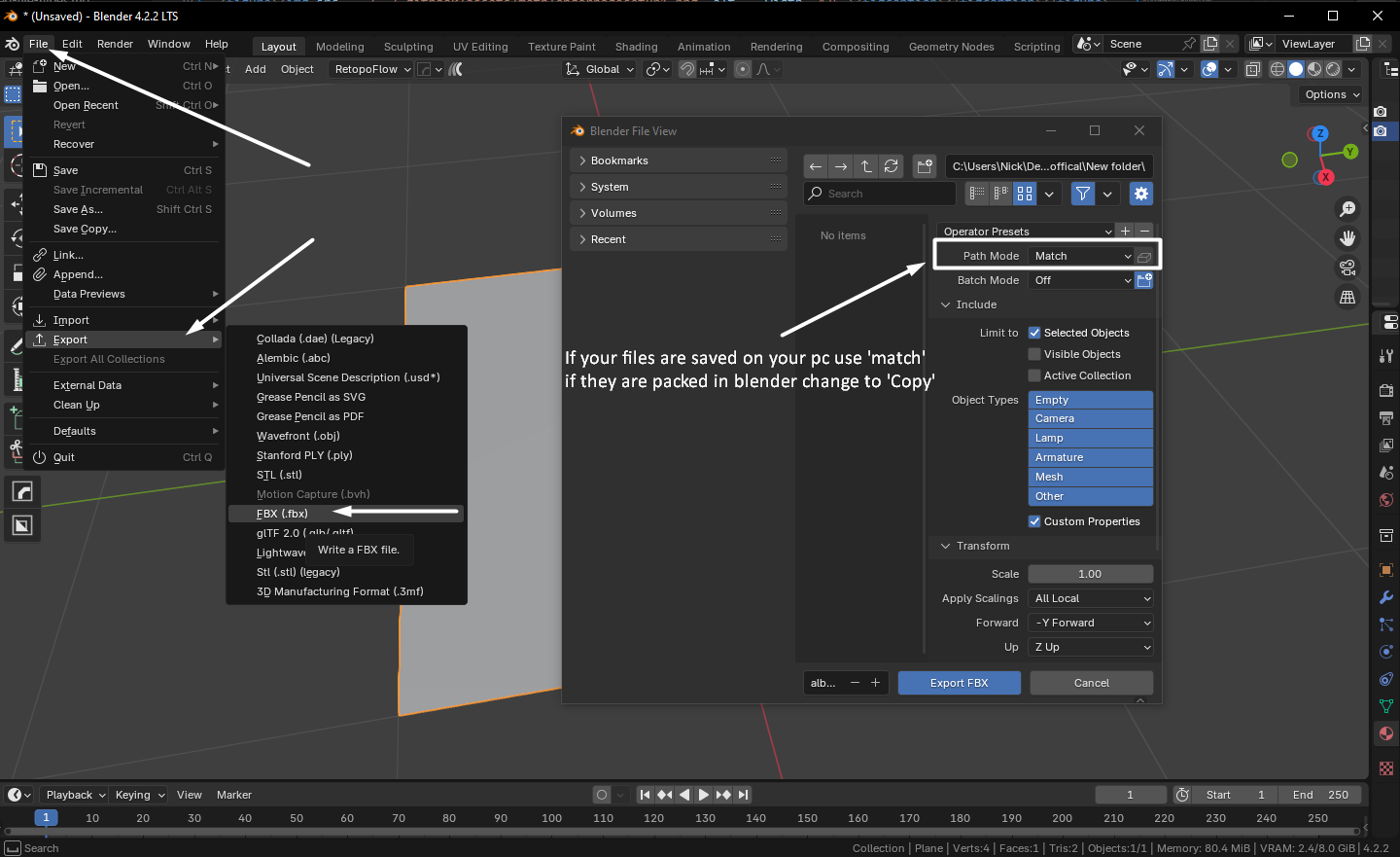
6. When you export your model, the texture file paths will be embedded into the FBX so Sansar can locate and import them automatically.
Your texture maps must be saved somewhere on your computer. During export, choose one of the following options:
* **Match** – Use this if the textures are already saved in the correct location.
* **Copy** – Use this if the textures are packed inside the Blender file and need to be extracted during export.
## Import Settings Guide
### Assigning The Shader
This section covers assigning the selected shader associated with the material slot.
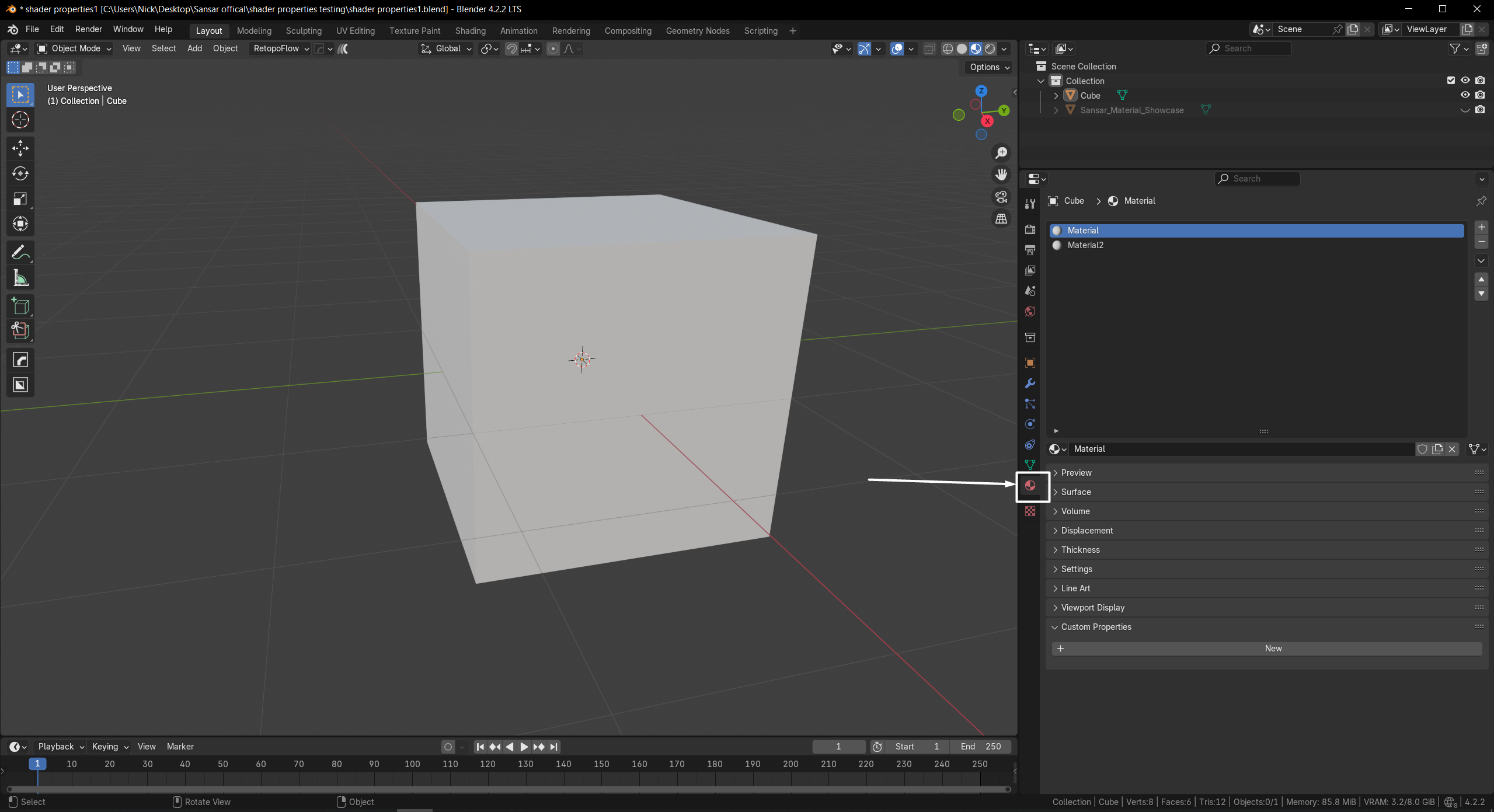
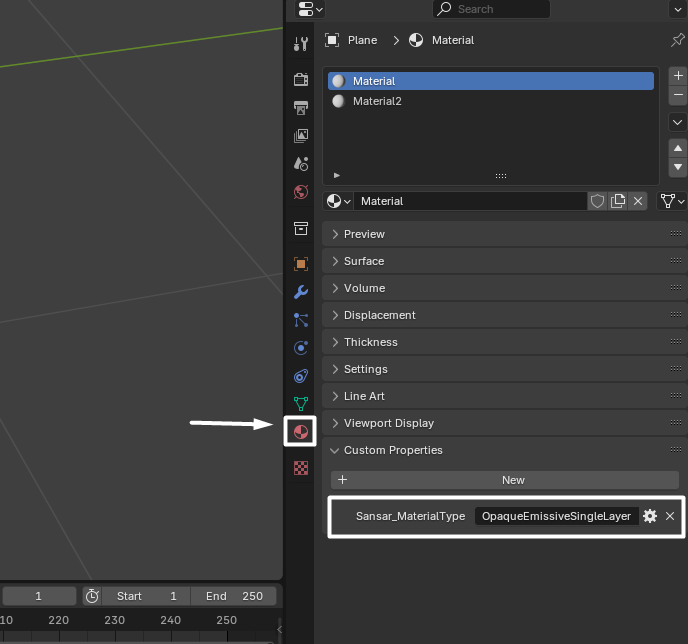
1. In Blender, open the material Properties Panel
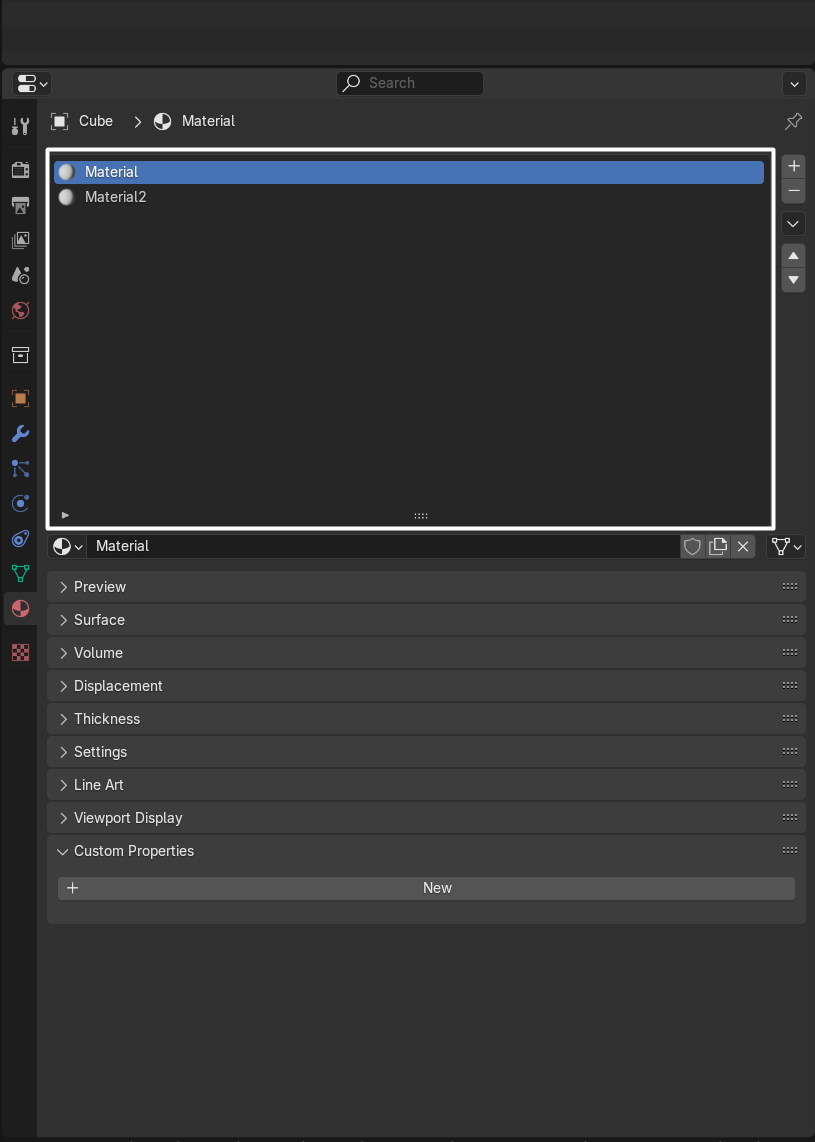
2. Choose the material slot you want to set up. Each slot is configured individually, so you’ll need to set up each one you want to control. Any options you leave unchanged will fall back to Sansar’s defaults, and can still be modified during import.
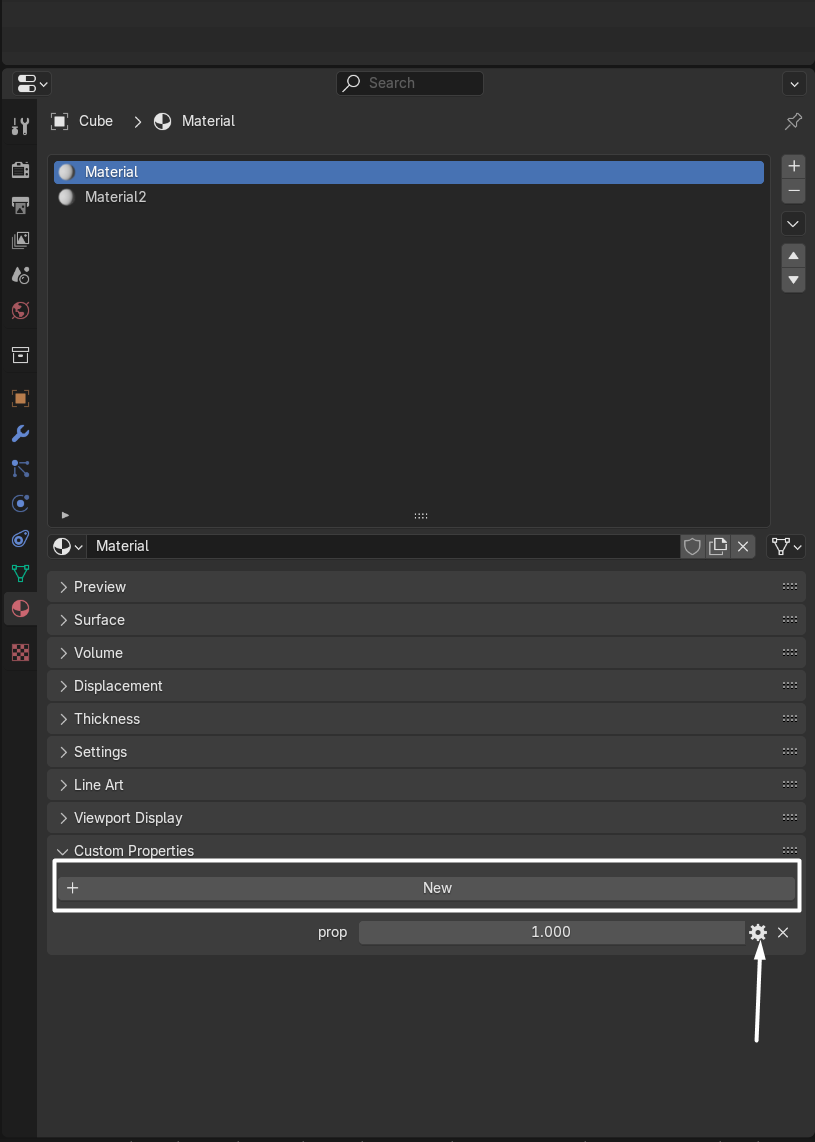
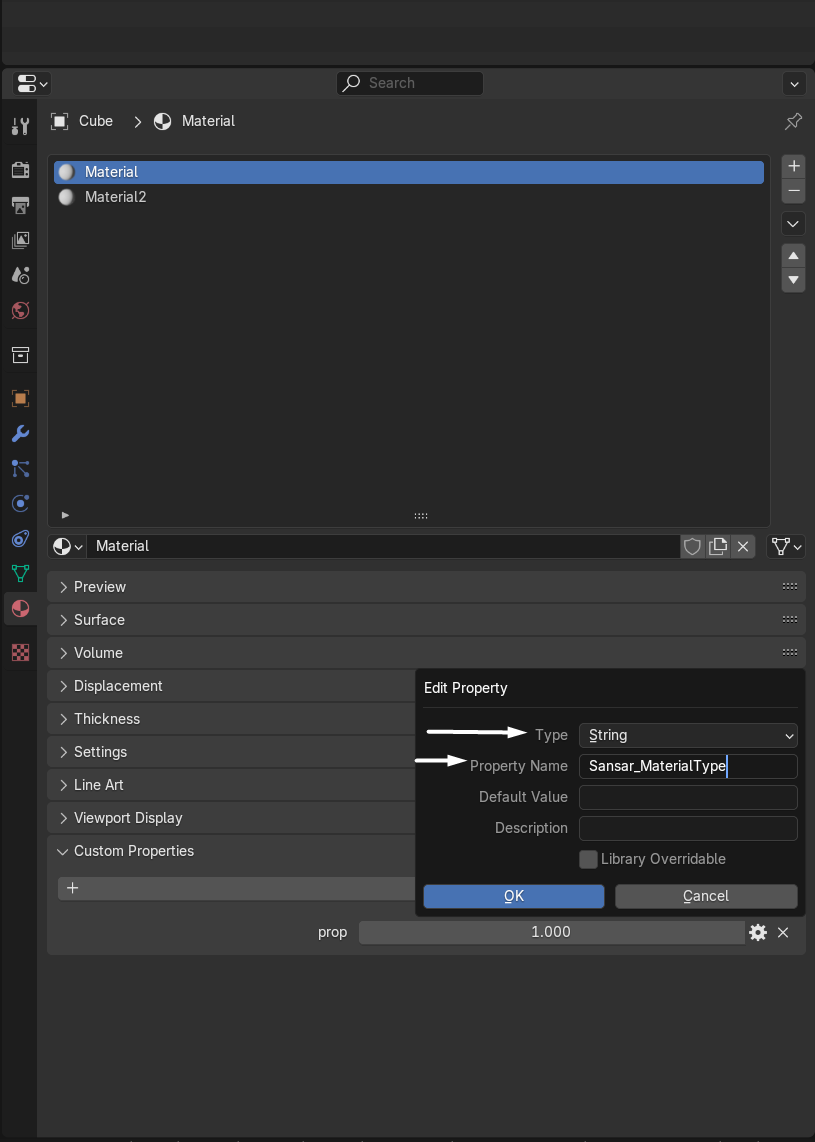
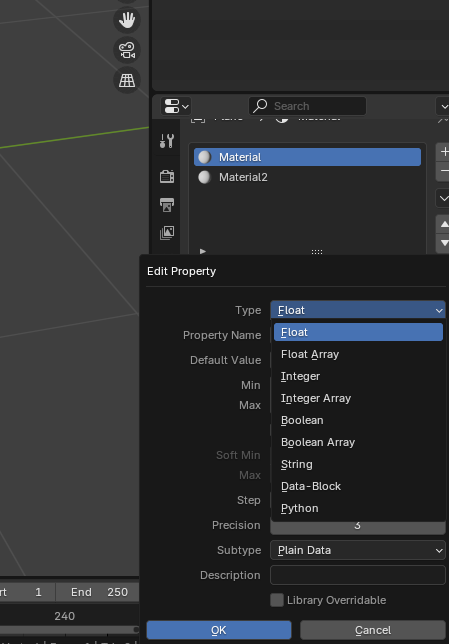
3. In the **Custom Properties** Tab of the material select **New** and then open the **Edit Property** panel by pressing the cog icon.
4. Change the type to **String** and change the Property name to be **Sansar\_MaterialType** then click OK make sure to include the capitals.
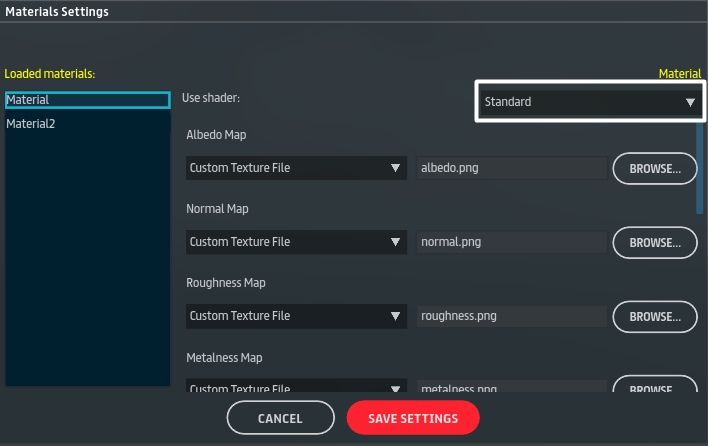
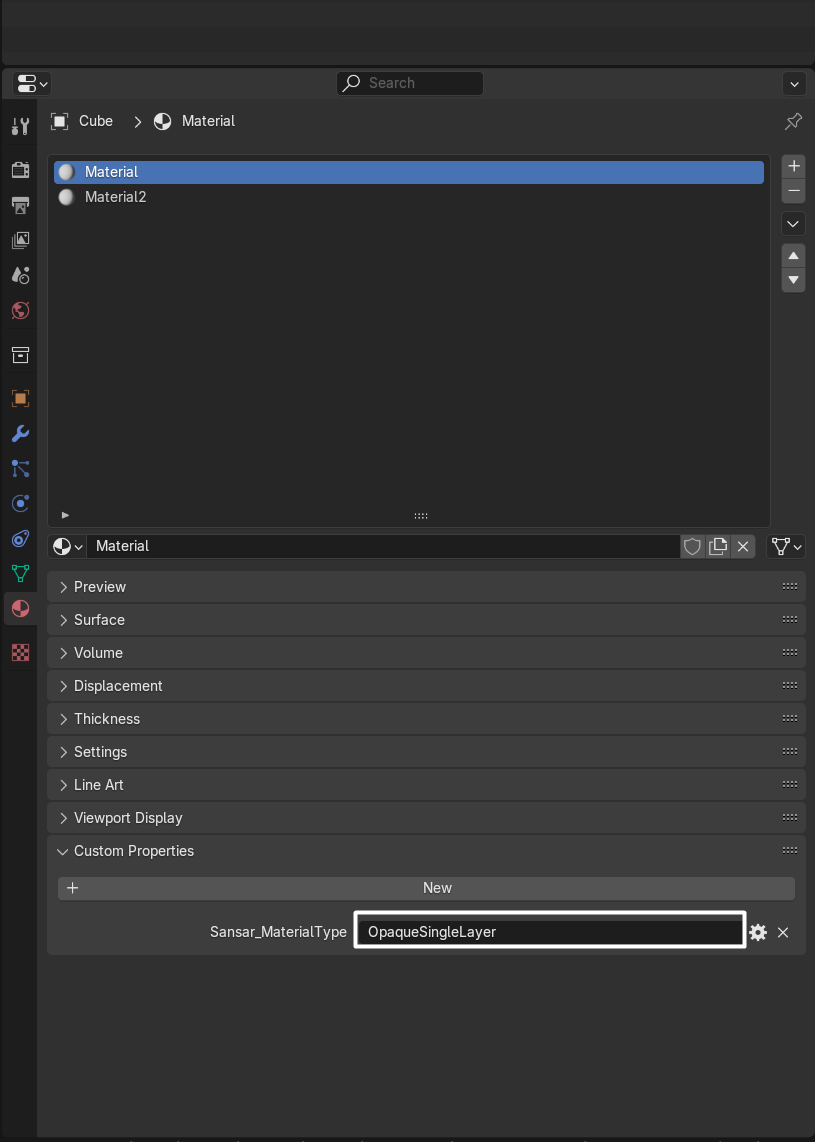
5. Now enter the **System Name** (not the **Display Name**) of the shader you want to assign to this material slot. This should be typed into the input field on the main Properties panel, not in the previous setup window.
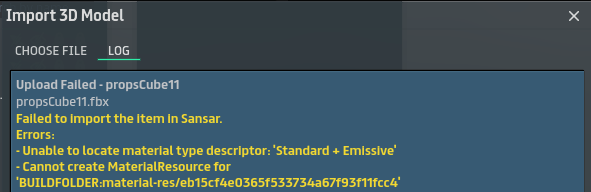
If you try to input an unrecognized name or a **Display Name** the import will fail with a error.
Example input: **OpaqueSingleLayer** for the **Standard** Shader.
The following is a list of the shader's **Display Name** and its **System Name**.
Click to reveal Shader names
Property Name: **Sansar\_MaterialType**
| Display Name | System Name |
| ----------------------------------------------------------- | ----------------------------------------------------- |
| Standard | OpaqueSingleLayer |
| Standard + Environment | OpaqueEnvironmentSingleLayer |
| Standard Two Sided | TwoSidedOpaqueSingleLayer |
| Standard + Alpha Mask | OpaqueMaskSingleLayer |
| Standard + Environment + Alpha Mask | OpaqueEnvironmentMaskSingleLayer |
| Standard Two Sided + Alpha Mask | TwoSidedOpaqueMaskSingleLayer |
| Standard + Emissive | OpaqueEmissiveSingleLayer |
| Standard Two Sided + Emissive | TwoSidedOpaqueEmissiveSingleLayer |
| Billboard | Billboard |
| Standard + Detail | OpaqueSingleLayerDetail |
| Standard Two Sided + Detail | TwoSidedOpaqueSingleLayerDetail |
| Standard + Detail + Alpha Mask | OpaqueMaskSingleLayerDetail |
| Standard Two Sided + Detail + Alpha Mask | TwoSidedOpaqueMaskSingleLayerDetail |
| Subsurface + Detail | OpaqueSubsurfaceSingleLayerDetail |
| Subsurface + Detail + Alpha Mask | OpaqueMaskSubsurfaceSingleLayerDetail |
| Standard + Detail + Emissive | OpaqueEmissiveSingleLayerDetail |
| Standard Two Sided + Detail + Emissive | TwoSidedOpaqueEmissiveSingleLayerDetail |
| Four Layer Non-Specular | OpaqueDiffuseMultiLayer |
| Standard Three Layer + Detail | OpaqueTripleLayerDetail |
| Emissive + UV Animation | Emissive |
| Emissive Two Sided + UV Animation | TwoSidedEmissive |
| Transmissive + Emissive | TransmissiveEmissive |
| Standard + Emissive + Stereographic | StereographicOpaqueEmissiveSingleLayer |
| Standard + UV Animation | ScrollingOpaqueSingleLayer |
| Standard Two Sided + UV Animation | TwoSidedScrollingOpaqueSingleLayer |
| Standard + Emissive + UV Animation | ScrollingOpaqueEmissiveSingleLayer |
| Standard Two Sided + Emissive + UV Animation | TwoSidedScrollingOpaqueEmissiveSingleLayer |
| Standard + Alpha Mask + UV Animation | ScrollingOpaqueMaskSingleLayer |
| Standard Two Sided + Alpha Mask + UV Animation | TwoSidedScrollingOpaqueMaskSingleLayer |
| Index: Standard + UV Animation | IndexScrollingOpaqueSingleLayer |
| Index: Standard Two Sided + UV Animation | TwoSidedIndexScrollingOpaqueSingleLayer |
| Media: Media Surface | VideoScreen |
| Media: Media Surface + Stereographic | StereographicVideoScreen |
| Media: Media Surface + ChromaKey | ChromaKeyVideoScreen |
| Media: Displacement Media + UV Animation | MediaScrollingOpaqueEmissiveSingleLayer |
| Media: Two Sided Displacement Media + UV Animation | TwoSidedMediaScrollingOpaqueEmissiveSingleLayer |
| Transparent | Transparent |
| Transparent + Multibump | TransparentMultibump |
| Diffractive: Transparent + Multibump | TransparentMultibumpDiffract |
| Diffractive: Transparent + Multibump + Environment | TransparentMultibumpEnvironmentDiffract |
| Diffractive: Standard + Alpha Mask | OpaqueDiffractionMaskSingleLayer |
| Diffractive: Standard Two Sided + Alpha Mask | TwoSidedOpaqueDiffractionMaskSingleLayer |
| Diffractive: Standard + Alpha Mask + UV Animation | ScrollingOpaqueDiffractionMaskSingleLayer |
| Diffractive: Standard Two Sided + Alpha Mask + UV Animation | TwoSidedScrollingOpaqueDiffractionMaskSingleLayer |
| Fresnel: Standard + Emissive | OpaqueEmissiveFresnelSingleLayer |
| Fresnel: Standard Two Sided + Emissive | TwoSidedOpaqueEmissiveFresnelSingleLayer |
| Pixelize: Billboard | BillboardPixelize |
| Pixelize: Billboard + Alpha Mask + UV Animation | ScrollingOpaqueMaskPixelSingleLayer |
| Pixelize: Standard + Emissive | OpaqueEmissivePixelizeSingleLayer |
| Pixelize: Standard Two Sided + Emissive | TwoSidedOpaqueEmissivePixelizeSingleLayer |
| Pixelize: Standard + Alpha Mask | OpaquePixelizeMaskSingleLayer |
| Pixelize: Standard Two Sided + Alpha Mask | TwoSidedOpaquePixelizeMaskSingleLayer |
| Pixelize: Standard + Emissive + UV Animation | ScrollingOpaqueEmissivePixelizeSingleLayer |
| Pixelize: Standard Two Sided + Emissive + UV Animation | TwoSidedScrollingOpaqueEmissivePixelizeSingleLayer |
| Screenspace: Standard + Emissive | ScreenspaceOpaqueEmissiveSingleLayer |
| Screenspace: Two Sided Standard + Emissive | TwoSidedScreenspaceOpaqueEmissiveSingleLayer |
| Screenspace: Standard + Emissive + UV Animation | ScrollingScreenspaceOpaqueEmissiveSingleLayer |
| Screenspace: Standard Two Sided + Emissive + UV Animation | TwoSidedScrollingScreenspaceOpaqueEmissiveSingleLayer |
| No Shadow: Standard | OpaqueSingleLayerNoShadow |
| No Shadow: Standard + Emissive | OpaqueEmissiveSingleLayerNoShadow |
| No Shadow: Standard + Alpha Mask | OpaqueMaskSingleLayerNoShadow |
| No Shadow: Standard Two Sided + Alpha Mask | TwoSidedOpaqueMaskSingleLayerNoShadow |
| Audio Reactive: Emissive + UV Animation | AudioEmissive |
| VAT: Standard | OpaqueVATSingleLayer |
| VAT: Standard + Alpha Mask | OpaqueMaskVATSingleLayer |
| VAT: Standard + Emissive | OpaqueEmissiveVATSingleLayer |
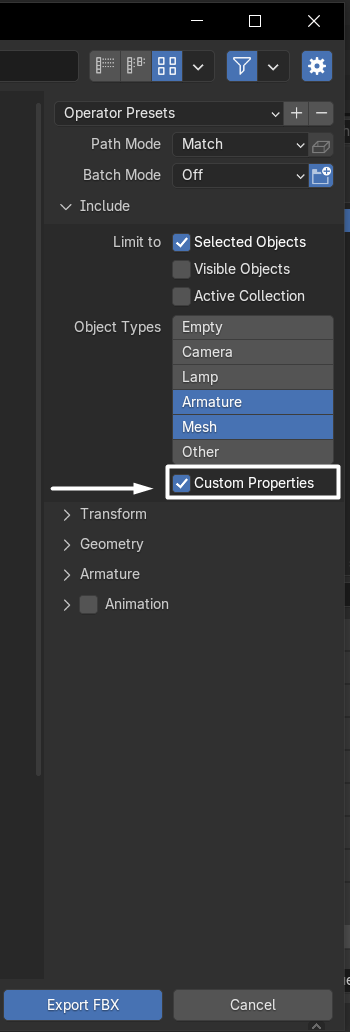
6. Finally when you export your object make sure to use .FBX and tick the **Custom Properties** box.
Now when you import to sansar the material slots shader will automatically be assigned to your defined shader.
***
### Assigning Shader Settings
This section explains how to assign shader settings such as sliders, toggle boxes, and input fields.
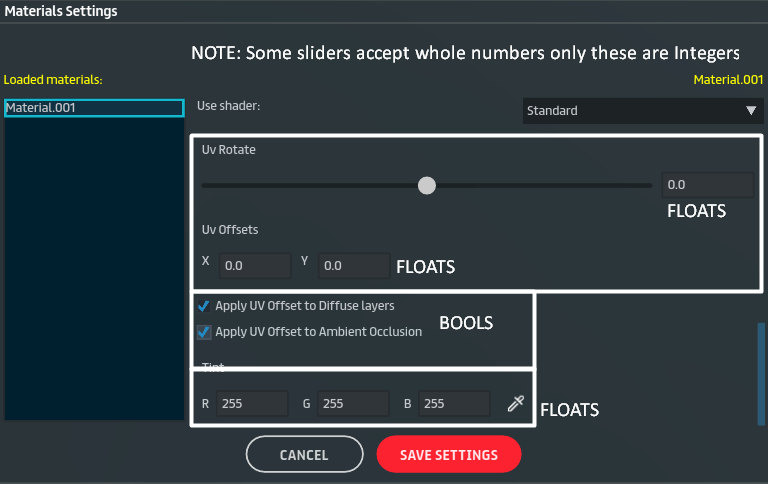
These settings use one of the following data types: **Float**, **Integer**, or **Bool**.
Each shader has its own set of available settings. You must first assign the shader you want to use before configuring any settings. If you add a setting that is not supported by the selected shader, it will be ignored.
#### **NOTE: Follow the guide above to assign your shader before continuing.**
***
1. **Choose the material slot** you want to configure.\
Each material slot is set up individually, so you must repeat this process for every slot you want to control. Any settings you do not configure will fall back to Sansar’s default values and can still be adjusted during import.
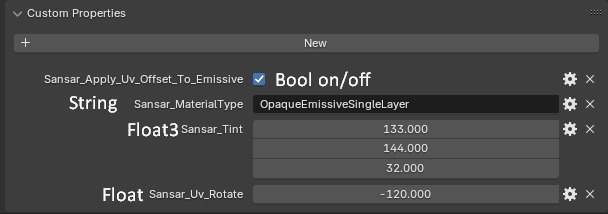
Make sure your shader is assigned first—you should see it listed in the material’s **Custom Properties**.
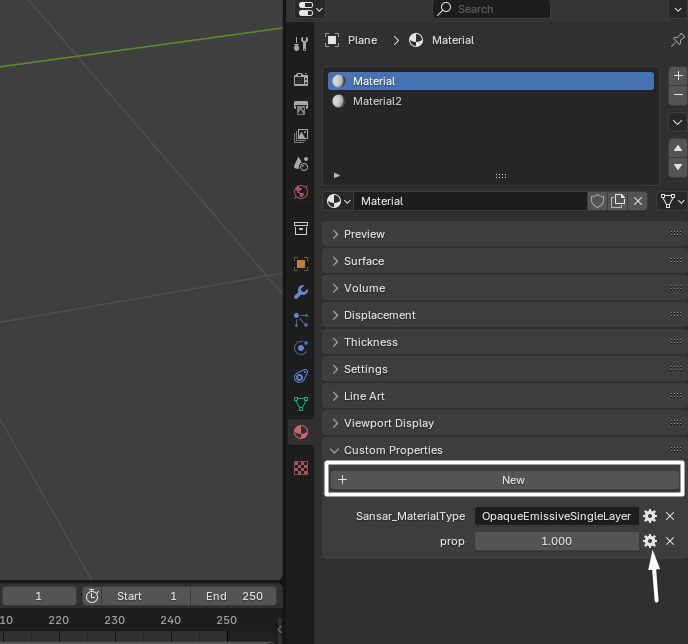
2. In the material’s **Custom Properties** tab, click **New** to create a property, you can add multiple. Then open the **Edit Property** panel by clicking the cog icon next to the new property.
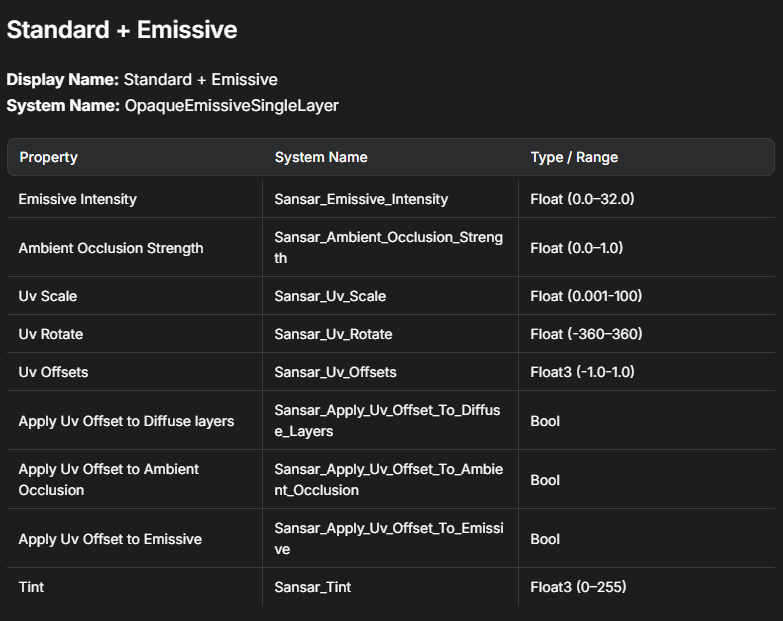
3. Using the [Shader Lookup Table](/latest/creating-in-sansar/shaders-and-materials/shader-lookup-table.md), find the shader and property you want to configure.\
Take note of the property’s **System Name**, **Type**, and **Range**.
4. Choose the property **Type** that matches the shader setting you want to control.
***
### Table Key
* **Float – Float**\
A single number value. Can include decimal values (for example: `1.5`, `0.025`).
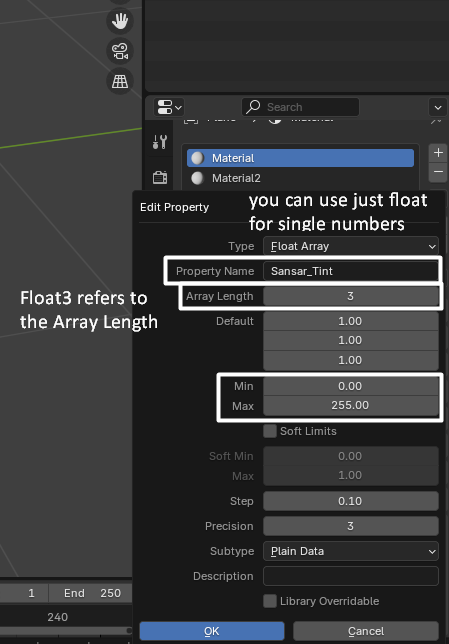
* **Float3 – Float Array**\
A group of numbers used together. Any `Float` followed by a number indicates how many values are required.\
**Example:** `1.0, 0.5, 0.0`\
Some settings expect additional values even if they are not actively used—leave these extra values set to `0`.
* **Integer – Integer**\
A whole number only. While floats may be accepted, the shader will only use whole numbers (for example: `1`, `10`).
* **Bool – Boolean**\
A simple on/off setting.
***
5. Set the property’s **System Name**, include capitals, along with any **Minimum** and **Maximum** values based on the shader’s **Range**.\
You only need to define the limits you plan to use, but it is best practice to match the full supported range.
You do **not** need to set the **Default Value** here, this is done in the main properties panel instead.
Once done click OK
6. In the main panel you can now add your number values to the fields.
You can add as many properties as you need, you do not need to add them if you do not need to control on import as they will just be defaulted if no property is given.
The order these appear in blender is not importent, just make sure you always have your shader defined.
7. Finally when you export as .FBX make sure to enable the **Custom Properties** box.
Now when you import to sansar the material slots shader will automatically be assigned to your defined shader and any sliders settings or bools will be setup!
## Settings Lookup Table
A full table of the shaders settings names ranges and types is available here [Shader Lookup Table](/latest/creating-in-sansar/shaders-and-materials/shader-lookup-table.md)
## Troubleshooting
Settings not working:
* Make sure to check for capitals or extra spaces.
* You are using the system names, and the correct type.
* Your shader was defined.
---
# Agent Instructions
This documentation is published with GitBook. GitBook is the documentation platform designed so that both humans and AI agents can read, navigate, and reason over technical content effectively. Learn more at gitbook.com.
## Querying This Documentation
If you need additional information that is not directly available in this page, you can query the documentation dynamically by asking a question.
Perform an HTTP GET request on the current page URL with the `ask` query parameter, and the optional `goal` query parameter:
```
GET https://docs.sansar.com/latest/creating-in-sansar/shaders-and-materials/automating-shader-setup.md?ask=&goal=
```
`ask` is the immediate question: it should be specific, self-contained, and written in natural language.
`goal` is optional and describes the broader end goal you are ultimately trying to accomplish on behalf of the user. GitBook uses it to tailor the answer towards what is most useful for that goal.
The response will contain a direct answer to the question and relevant excerpts and sources from the documentation.
Use this mechanism when the answer is not explicitly present in the current page, you need clarification or additional context, or you want to retrieve related documentation sections.