> For the complete documentation index, see [llms.txt](https://docs.sansar.com/latest/llms.txt). Markdown versions of documentation pages are available by appending `.md` to page URLs; this page is available as [Markdown](https://docs.sansar.com/latest/creating-in-sansar/importing-things-to-sansar/importing-collision-volumes.md).
# Importing Collision Volumes
This page covers importing of collision volumes see [Collision Volumes](/latest/creating-in-sansar/partoftheworldeditor/collision-volumes.md) for info on what they are and do.
Collision volumes are currently only editable on world items and not avatars or avatar based objects.
## Adding a collision mesh on import
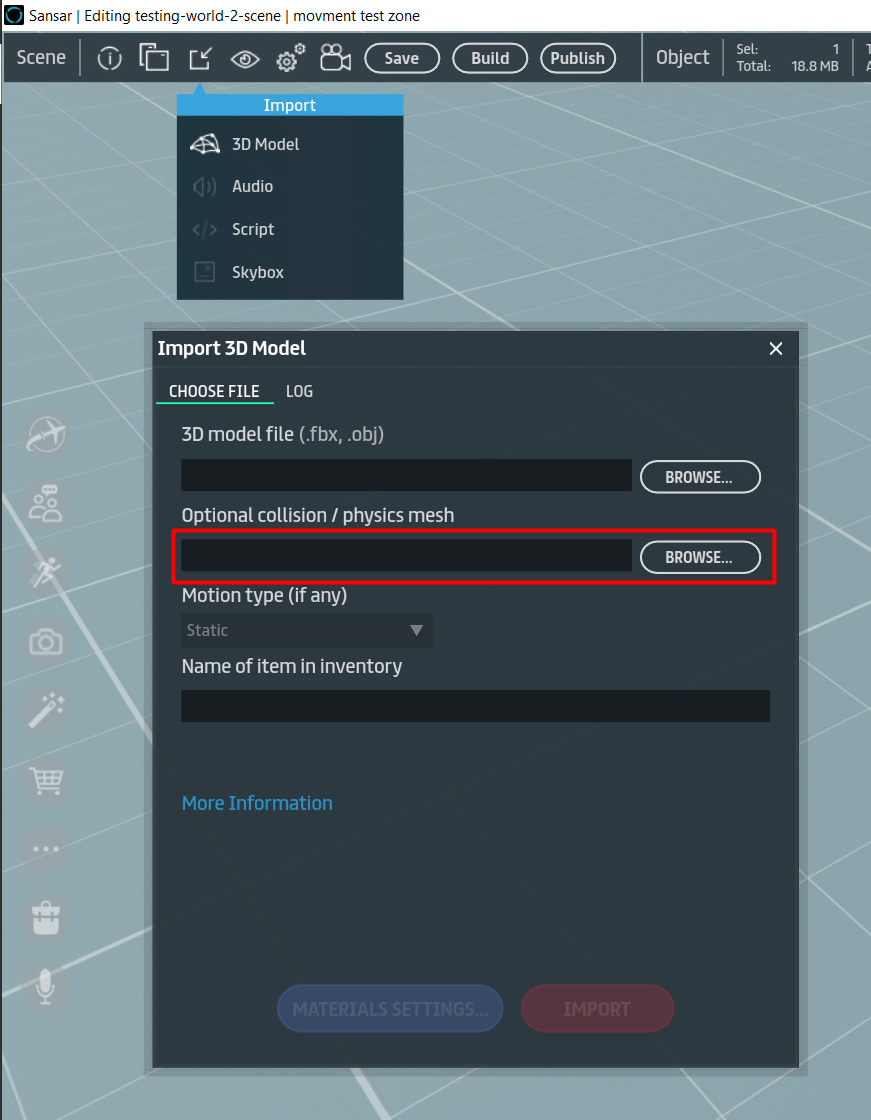
When importing your item a second field is available for your collision mesh file we highly suggest you do not use your Render mesh file as your collision. if you wish to set the [Motion type](/latest/creating-in-sansar/partoftheworldeditor/object-motion-types.md) you are required to have a collision volume. You can add a system volume later but it is limited to a 'Cube' and 'Sphere'.
## Setting up a file for automatic collision import
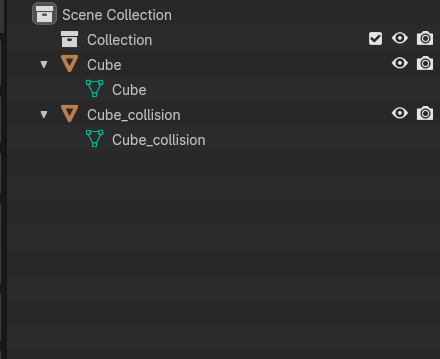
It is also possible to setup your original objects .FBX to bring in collision volumes automatically when you follow the naming convention within a program like blender, your intended volume must have the naming convention of 'yourmeshname\_collision' you can import multiple volumes and multiple meshes at the same time this way when exporting have them all selected and make sure the transforms and origin points are the same between object and collision.
## Adding a collision to an existing object
Existing objects that did not originally contain a collision on import can be given new volumes but only from the two system types 'Cube' and 'Sphere' you are able to add multiple volumes to an object to build up a new shape. Its not currently possible to add a new custom shape to an object without reimporting it.
1. Select the object and right click.
2. Left Click 'add' then select 'Volume'
3. A structure panel should automatically open if not 'Right click the object and select 'Structure'
4. locate the newly added Volume left click to select it and then right click then select 'properties' you can now manipulate the volume and adjust some settings like size and position relative to the render mesh.
## removing a collision volume from an object
In the structure menu right click the Volume you wish to remove and select 'Delete' if this was a Mesh Volume it is not able to be recovered and you will need to respawn the original from your inventory.
---
# Agent Instructions
This documentation is published with GitBook. GitBook is the documentation platform designed so that both humans and AI agents can read, navigate, and reason over technical content effectively. Learn more at gitbook.com.
## Querying This Documentation
If you need additional information that is not directly available in this page, you can query the documentation dynamically by asking a question.
Perform an HTTP GET request on the current page URL with the `ask` query parameter, and the optional `goal` query parameter:
```
GET https://docs.sansar.com/latest/creating-in-sansar/importing-things-to-sansar/importing-collision-volumes.md?ask=&goal=
```
`ask` is the immediate question: it should be specific, self-contained, and written in natural language.
`goal` is optional and describes the broader end goal you are ultimately trying to accomplish on behalf of the user. GitBook uses it to tailor the answer towards what is most useful for that goal.
The response will contain a direct answer to the question and relevant excerpts and sources from the documentation.
Use this mechanism when the answer is not explicitly present in the current page, you need clarification or additional context, or you want to retrieve related documentation sections.