> For the complete documentation index, see [llms.txt](https://docs.sansar.com/latest/llms.txt). Markdown versions of documentation pages are available by appending `.md` to page URLs; this page is available as [Markdown](https://docs.sansar.com/latest/creating-in-sansar/importing-things-to-sansar/importing-a-skybox.md).
# Importing a Skybox
## Overview
A short overview for skyboxes:
* Supported import format is `.exr`.
* The input image must be a horizontal 6:1 strip where `width = 6 * height`.
* If the image is not exactly 6:1, the skybox import fails.
* Skybox processing uses an HDR cubemap path with preview disabled.
* Effective maximum imported size is `24576 x 4096` (which is `4096 x 4096` per cube face).
* Per-face dimensions are capped at `4096`, so larger inputs are clamped to that maximum.
## What Is a Skybox?
A skybox is a large cube that surrounds an entire scene and represents the sky and distant environment. Each face of the cube has an image applied to it, creating the illusion of a world beyond the playable area.
Skyboxes also affect scene mood by influencing lighting color, tone, and atmosphere.
## Creating a Skybox Map
Skybox textures are mapped onto a cube, so your source image must follow a strict 6:1 layout (six square faces in one horizontal strip).
Skybox strip orientation order from left to right: +X, -X, +Y, -Y, +Z, -Z.
you can get the matching skybox here to see in world
[Sansar Skybox Orientation](https://www.sansar.com/store/listings/71fbe0ef-0fea-4c0a-a397-8e4042f3b7e6/sansar-skybox-orientation)
* Sansar skyboxes use `Y+` as up and `Z+` as forward.
* Use `.exr` for skybox source files.
* Keep your strip within the effective maximum limit of `24576 x 4096` (`4096` per face).
* Try to use smaller texture resolution if you can for performance.
a full blender step by step guide coming soon....
## Importing to Sansar
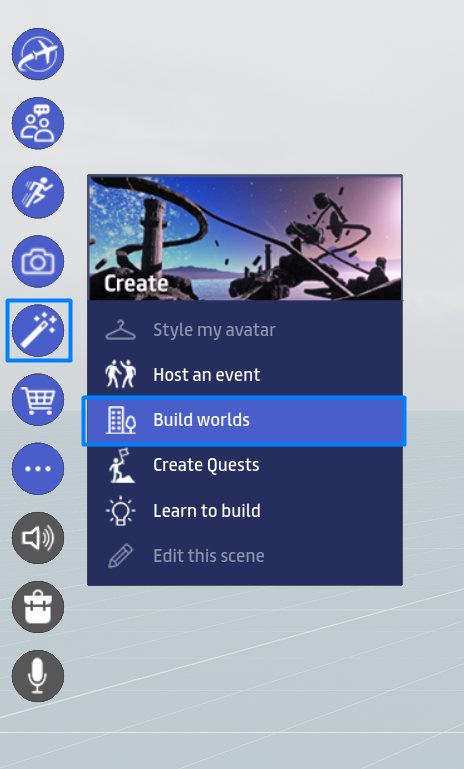
1. Open an Edit Mode scene.
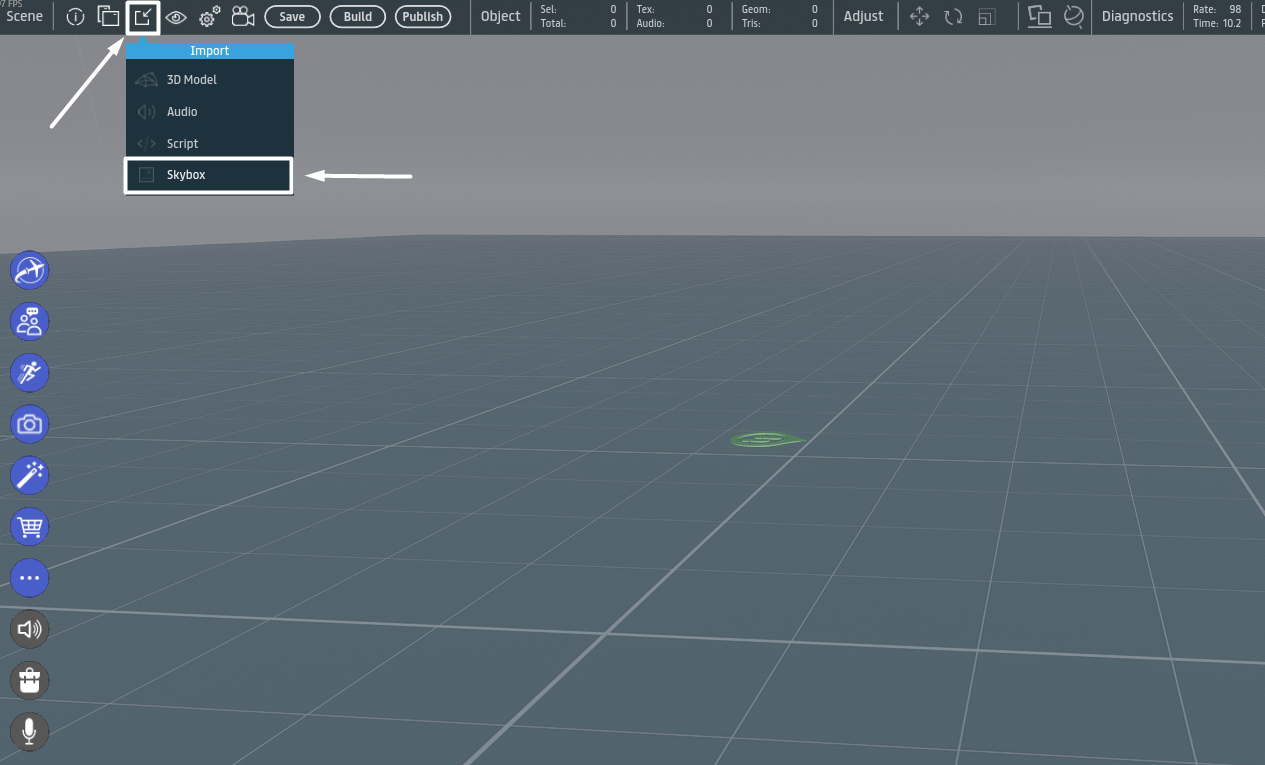
2. From the top toolbar, choose **Import** and select **Skybox**.
.
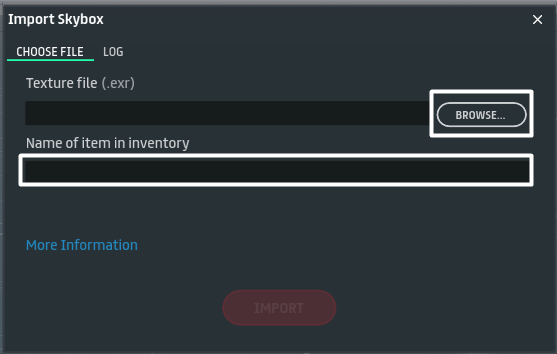
3. Browse to your `.exr` skybox strip file.
4. Wait for import to complete. These can take several minutes due to size. If an error occurs, confirm the image follows the required 6:1 layout.
5. Enter an item name for your inventory and upload.
6. After upload, apply the imported skybox from scene settings.
## Selling This Asset Type
To sell this asset type, follow this guide: [Selling Skyboxes](/latest/sansarstore/selling-your-content/selling-different-asset-types/world-based-items/skyboxes.md).
---
# Agent Instructions
This documentation is published with GitBook. GitBook is the documentation platform designed so that both humans and AI agents can read, navigate, and reason over technical content effectively. Learn more at gitbook.com.
## Querying This Documentation
If you need additional information that is not directly available in this page, you can query the documentation dynamically by asking a question.
Perform an HTTP GET request on the current page URL with the `ask` query parameter, and the optional `goal` query parameter:
```
GET https://docs.sansar.com/latest/creating-in-sansar/importing-things-to-sansar/importing-a-skybox.md?ask=&goal=
```
`ask` is the immediate question: it should be specific, self-contained, and written in natural language.
`goal` is optional and describes the broader end goal you are ultimately trying to accomplish on behalf of the user. GitBook uses it to tailor the answer towards what is most useful for that goal.
The response will contain a direct answer to the question and relevant excerpts and sources from the documentation.
Use this mechanism when the answer is not explicitly present in the current page, you need clarification or additional context, or you want to retrieve related documentation sections.