# Creating Quests

## Creating your own quests

You can create your own [quests](https://github.com/Wookey-Technologies/sansar-client-docs/blob/main/sansarbasics/NavigateAndExplore/quests.md) in Sansar, allowing others to track and complete a set of objectives you define.

## Creating a new quest

To create a new quest:

1. Choose **Create > Create Quests** from the main menu to open the Quest Creator panel.
2. On the Quest Creator panel, click **New Quest**.
3. Enter a **Quest name**, up to 100 characters.
4. (Optional) Click **Browse** to select and upload a 400x192 thumbnail image for the quest. You can easily create an image by choosing **Socialize > Take a photo** from the main menu and choosing **For a Quest** from the dropdown menu in the screenshot tool.
5. (Optional) Enter a brief **Description** (up to 350 characters). This message is displayed to visitors when the quest is offered to them.
6. (Optional) Enter a brief **Summary** (up to 250 characters), to be displayed on the main tab of the Quests panel when you move your mouse cursor over the quest's thumbnail.
7. Enter a brief **Completion message** (up to 250 characters). This message is displayed to visitors who complete the quest.
8. Click **Save**.

![](https://1251409636-files.gitbook.io/~/files/v0/b/gitbook-x-prod.appspot.com/o/spaces%2FeFXiTZShM8YWMV94n1eV%2Fuploads%2Fgit-blob-7bacd3fa7dbc37dc6546396105adb02fb15de87f%2Fnew-quest-001.jpeg?alt=media) ![](https://1251409636-files.gitbook.io/~/files/v0/b/gitbook-x-prod.appspot.com/o/spaces%2FeFXiTZShM8YWMV94n1eV%2Fuploads%2Fgit-blob-a3ff2b92aea9a62d82607c0d23051802804cb460%2Fquest-creator-002.png?alt=media)

After saving the new quest, you may edit the name, image, description, and completion message at any time by clicking the **Edit** (pencil) button next to the quest's name.

## Adding objectives

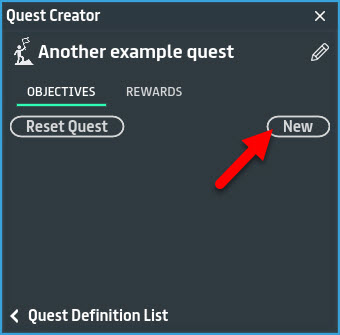
Immediately after creating a new quest, the quest's **Objectives** tab appears. You can use this tab to create and edit objectives within your quest:

* Click **new** to create a new objective.
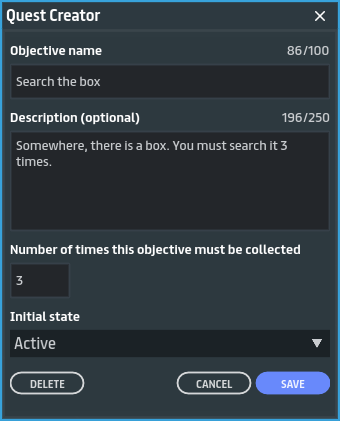
* Enter an **Objective Name** (up to 200 characters). Try to make a short command such as: "Walk 50 meters"
* (Optional) Enter a brief **Description** of the objective (up to 250 characters). This is a good place to add helpful hints or details about the quest.
* (Optional) Enter a **Number of times this objective must be collected.** This is the number of times the objective must be collected before it is completed. Set to '0' for objectives that do not need to be collected multiple times.

<figure><img src="https://1251409636-files.gitbook.io/~/files/v0/b/gitbook-x-prod.appspot.com/o/spaces%2FeFXiTZShM8YWMV94n1eV%2Fuploads%2Fgit-blob-e9daf327a4ac765d20a2d7c151cfb0fb840d4a8d%2Fobjective-tab-creat-quest-001.jpeg?alt=media" alt=""><figcaption></figcaption></figure>

* Set an **Initial State**:
  * **Active** - The objective is able to be completed.
  * **Locked** - The objective cannot be completed until it becomes unlocked (active). Usually, unlocking an objective requires the completion of prerequisite objectives.
* Click **Save** to save the objective.
* Continue adding new objectives until you have as many as you want for your request.

<figure><img src="https://1251409636-files.gitbook.io/~/files/v0/b/gitbook-x-prod.appspot.com/o/spaces%2FeFXiTZShM8YWMV94n1eV%2Fuploads%2Fgit-blob-8224c9153c3d1030847b976005806a5a0e2d2ae5%2FQuest-creator-New-objective-002.png?alt=media" alt=""><figcaption><p>You can drag and drop quest objectives to re-order them on the Objectives tab.</p></figcaption></figure>

***

## Adding rewards

You are not required to add rewards when setting up your quest; it is completely optional. To add a reward, click the **Rewards** tab of your quest to access the Rewards Menu. In order for an item to be eligible as a quest reward, it must meet the following conditions:

* It must be an Accessory, Custom Avatar, or item of Clothing.
* It must be in your avatar inventory. You can see your avatar inventory in the Character Editor. (You can open the Character Editor by choosing **Create > Style my avatar** from the main menu, then clicking **Customize**.)
* You must own the proper license to distribute the item. If you can list the item in the Store, you can use it as a reward. (Note that you are *not* required to list your item on the Sansar Store.)

There are *Mandatory* and *Choosable* rewards. You can create a quest with just one type, both types or neither:

* **Mandatory Rewards ("Assign a reward")**: These rewards will be given to the player upon quest completion. You can assign up to three mandatory rewards.
* **Choosable Rewards ("Let the player choose a reward")**: The player is presented with two rewards and they must choose which one to receive. When setting up choosable rewards, you must assign two rewards as choosable options. If you only assign one reward, the choosable reward option will not be shown to the player.

With up to three mandatory rewards and one choosable reward (out of a set of two), a quest can give out a maximum of four rewards.

To add a reward to your quest:

1. Select one of the eligible items shown in the **Add reward** dropdown in one of the rows in the Rewards tab of the Quest Creator panel. The dropdown displays a list of all the items you own that are eligible.
2. On the next page, enter the **Name** and **Image** you want to use for the reward; by default, these fields are filled by the item's existing name and image. If you remove the image, the reward uses a default icon as its image.

To delete a reward from a quest, select that reward and click the **Delete**, or click the **trash icon** for that reward from the Rewards tab of the Quest Creator panel.

## Setting up quest givers and objectives in a world

## Quest giver

There are multiple ways to offer a quest to a visitor. In this example, we will create a clickable object that offers the quest when clicked:

* Add an object to the scene to act as your quest giver.
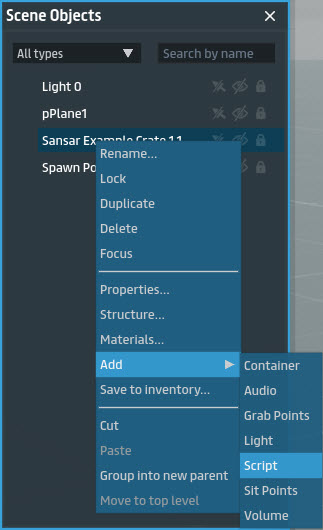
* Add a new script to the quest giver object by selecting it in the Scene Objects panel and choosing **Add > Script**

<figure><img src="https://1251409636-files.gitbook.io/~/files/v0/b/gitbook-x-prod.appspot.com/o/spaces%2FeFXiTZShM8YWMV94n1eV%2Fuploads%2Fgit-blob-2e5f29d0d1dc4c54e5822037e638d6c0604a8ede%2FAdd%20script-creating-quests-005.jpeg?alt=media" alt=""><figcaption></figcaption></figure>

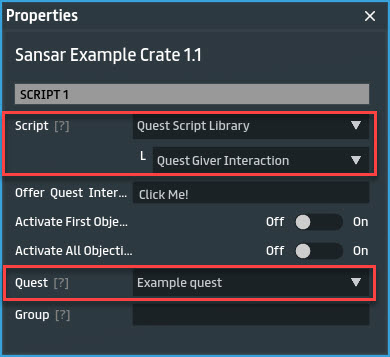
* In the object's Properties, under the script section (usually "Script 1" for new objects), choose **Quest Script Library** from the **Script** dropdown menu.
* Choose **Quest Giver Interaction** from the dropdown that appears below Quest Script Library.
* From the **Quest** dropdown, select the quest you have created.

<figure><img src="https://1251409636-files.gitbook.io/~/files/v0/b/gitbook-x-prod.appspot.com/o/spaces%2FeFXiTZShM8YWMV94n1eV%2Fuploads%2Fgit-blob-cc0b11d0c7d277a19d0c0fecb78136b1908f4370%2Fquest%20giver%20library%20script.jpeg?alt=media" alt=""><figcaption><p>Parameters of the <strong>Quest Giver Interaction</strong> script in the <strong>Quest Script Library</strong>. Select your quest from the dropdown under the <strong>Quest</strong> parameter.</p></figcaption></figure>

***

## Quest objectives

Quest objectives can be completed in various ways. In this example, we will allow visitors to complete an objective by interacting an object in your world. To add an interactive quest objective object to your scene:

1. Add an object to the scene to act as the quest objective.
2. Add a new script to the object by selecting it in the Scene Objects panel and choosing **Add > Script**

<figure><img src="https://1251409636-files.gitbook.io/~/files/v0/b/gitbook-x-prod.appspot.com/o/spaces%2FeFXiTZShM8YWMV94n1eV%2Fuploads%2Fgit-blob-2e5f29d0d1dc4c54e5822037e638d6c0604a8ede%2Fquest-obj-007.jpeg?alt=media" alt=""><figcaption></figcaption></figure>

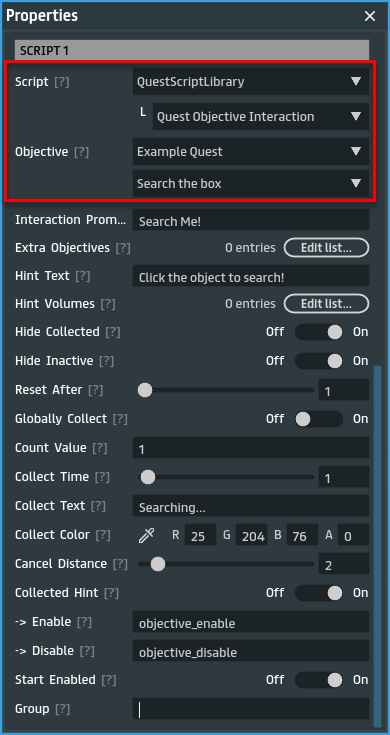
1. In the object's Properties, under the script section (usually "Script 1" for new objects), choose **Quest Script Library** from the **Script** dropdown menu.
2. Select **Quest Objective Interaction** from the dropdown that appears below Quest Script Library.
3. From the first **Objective** dropdown, select the quest you have created.
4. From the second **Objective** dropdown, select the objective you would like visitors to complete with this interaction.

<figure><img src="https://1251409636-files.gitbook.io/~/files/v0/b/gitbook-x-prod.appspot.com/o/spaces%2FeFXiTZShM8YWMV94n1eV%2Fuploads%2Fgit-blob-8e5c5b56092cbcf1559d43739f6b50adc96f1132%2Fquest-obj-008.png?alt=media" alt=""><figcaption><p>Parameters of the <strong>Quest Objective Interaction</strong> script in the <strong>Quest Script Library</strong>. Select your quest from the first dropdown under <strong>Objective</strong>, then, in the second dropdown, select the objective to be completed.</p></figcaption></figure>

***

## Testing your quest

To test a quest you have created:

* Save and build the scene containing your quest giver and objectives.
* Visit the scene.
* Interact with the quest giver object, which should offer you the quest.
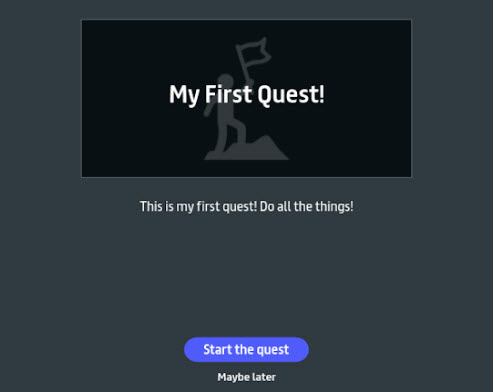
* Accept the quest by clicking **Start the quest**.
* Interact with a quest objective object to complete the objective.
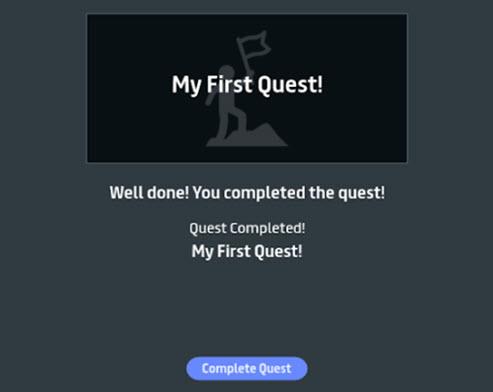
* Upon completing the quest, accept the completion confirmation.

<figure><img src="https://1251409636-files.gitbook.io/~/files/v0/b/gitbook-x-prod.appspot.com/o/spaces%2FeFXiTZShM8YWMV94n1eV%2Fuploads%2Fgit-blob-7cc6de02c64ecf53241dcbdc05347b61e83a781c%2FStart%20quest.jpeg?alt=media" alt=""><figcaption><p>When the quest giver offers you a quest click <strong>Start the quest</strong> to accept.</p></figcaption></figure>

***

<figure><img src="https://1251409636-files.gitbook.io/~/files/v0/b/gitbook-x-prod.appspot.com/o/spaces%2FeFXiTZShM8YWMV94n1eV%2Fuploads%2Fgit-blob-fe40d03020f8b05e79635b8e18d0727f5969e3dd%2FComplete%20quest.jpeg?alt=media" alt=""><figcaption><p>When you complete the quest, click <strong>Complete Quest</strong> to confirm the quest's completion.</p></figcaption></figure>

***

## Resetting quest progress

You can reset progress on quests that you own by using the Quest Creator panel:

* Choose **Create > Create Quests** to open the Quest Creator panel.
* Click the name of the quest you would like to reset.
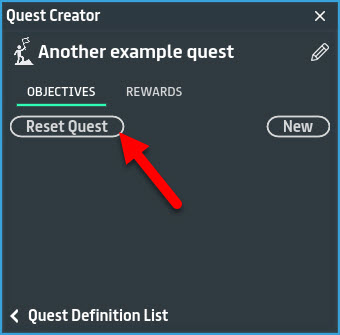
* On the quest's **Objectives** tab, click **Reset Quest** to reset your progression through the quest objectives.

<figure><img src="https://1251409636-files.gitbook.io/~/files/v0/b/gitbook-x-prod.appspot.com/o/spaces%2FeFXiTZShM8YWMV94n1eV%2Fuploads%2Fgit-blob-324978fae3d5d817b771b9cdc6eea0bccd064457%2FReset%20quest.jpeg?alt=media" alt=""><figcaption><p>Click Reset Quest on the Objectives tab of the Quest Creator panel to reset your current progress on the quest.</p></figcaption></figure>

***

#### Have more questions? Ask in our [Discord!](http://discord.gg/sansarofficial)