# Fitting Designer Clothing to your Avatar

## Fitting Marvelous Designer clothing to your avatar

[Marvelous Designer](https://github.com/Wookey-Technologies/sansar-client-docs/blob/main/avatar-creation/dressing-the-avatar/marvelous-designer-integration.md) is a third-party modeling tool that allows the easy creation of 3D virtual clothing using patterns, like those used in sewing. Sansar integrates some of Marvelous Designer's technology, allowing you to import clothing from Marvelous Designer and use its cloth simulation feature to adjust the fit of your clothing exactly how you want it. Roll up sleeves, smooth out wrinkles, or pop your collar!

Wearing Marvelous Designer clothing

Once you have purchased or uploaded some Marvelous Designer clothing, you can add it to your avatar the same way you would add any other piece of clothing or accessory:

1. Open the avatar editor by choosing **Create >** **Style my avatar** from the main menu.
2. Select an avatar from the Lookbook, which is a list of your saved avatar looks, and click **Customize**.
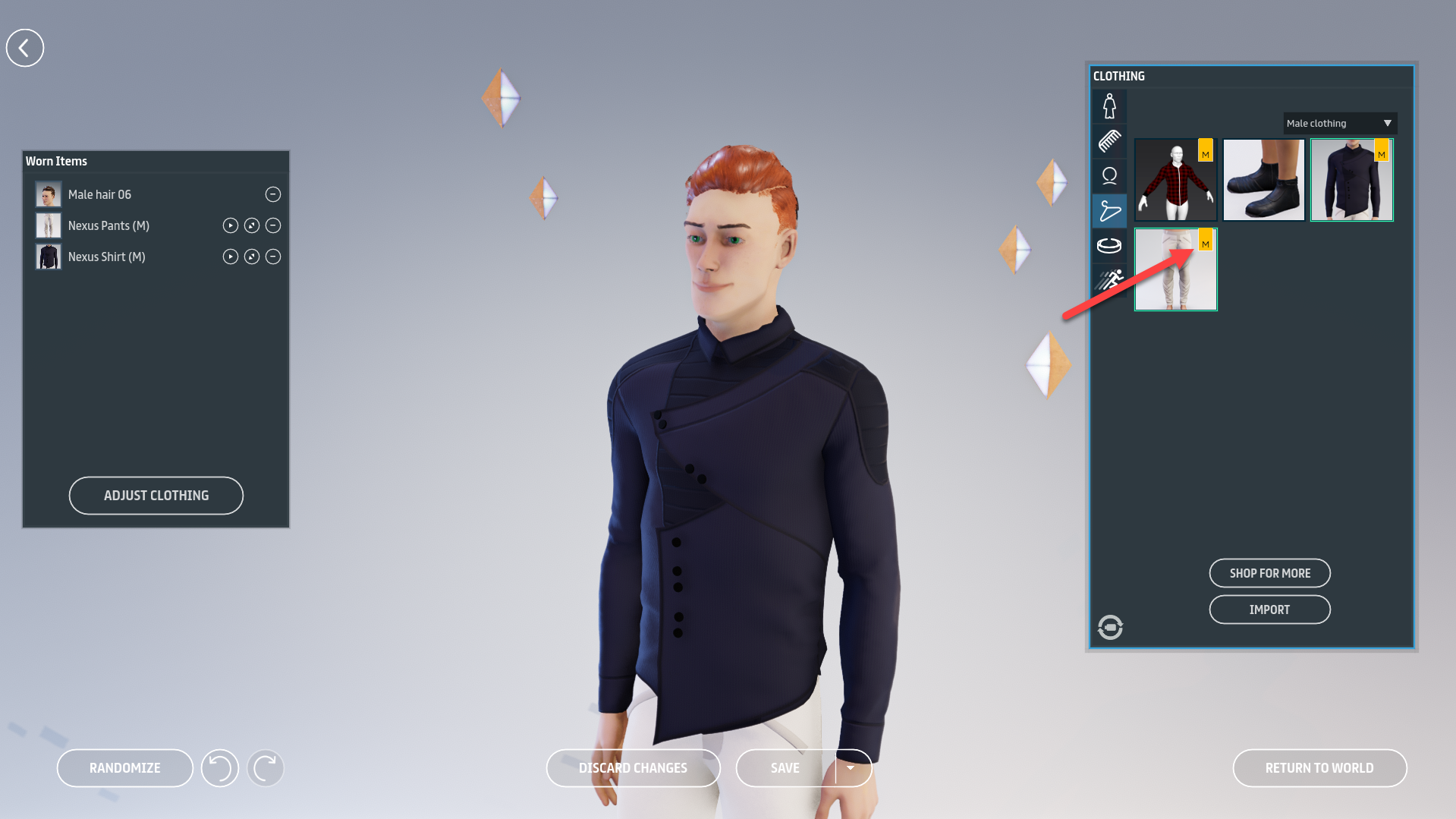
3. Click the **Clothing** tab to view your available clothing. Marvelous designer clothing is marked with a Marvelous Designer "M" logo.
4. Click the thumbnails in the clothing tab to add or remove articles of clothing. Note that there is currently a limit on the number of pieces of clothing you can wear at one time.

<figure><img src="https://1251409636-files.gitbook.io/~/files/v0/b/gitbook-x-prod.appspot.com/o/spaces%2FeFXiTZShM8YWMV94n1eV%2Fuploads%2Fgit-blob-3b60a0297386767d0e07f2272ac86bd866df9951%2Fmd-icion-01.png?alt=media" alt=""><figcaption><p>Marvelous Designer clothing is marked with an "M" logo.</p></figcaption></figure>

***

### **Adjusting Marvelous Designer clothing**

Once you are wearing some Marvelous Designer clothing, you can adjust it in adjust mode.

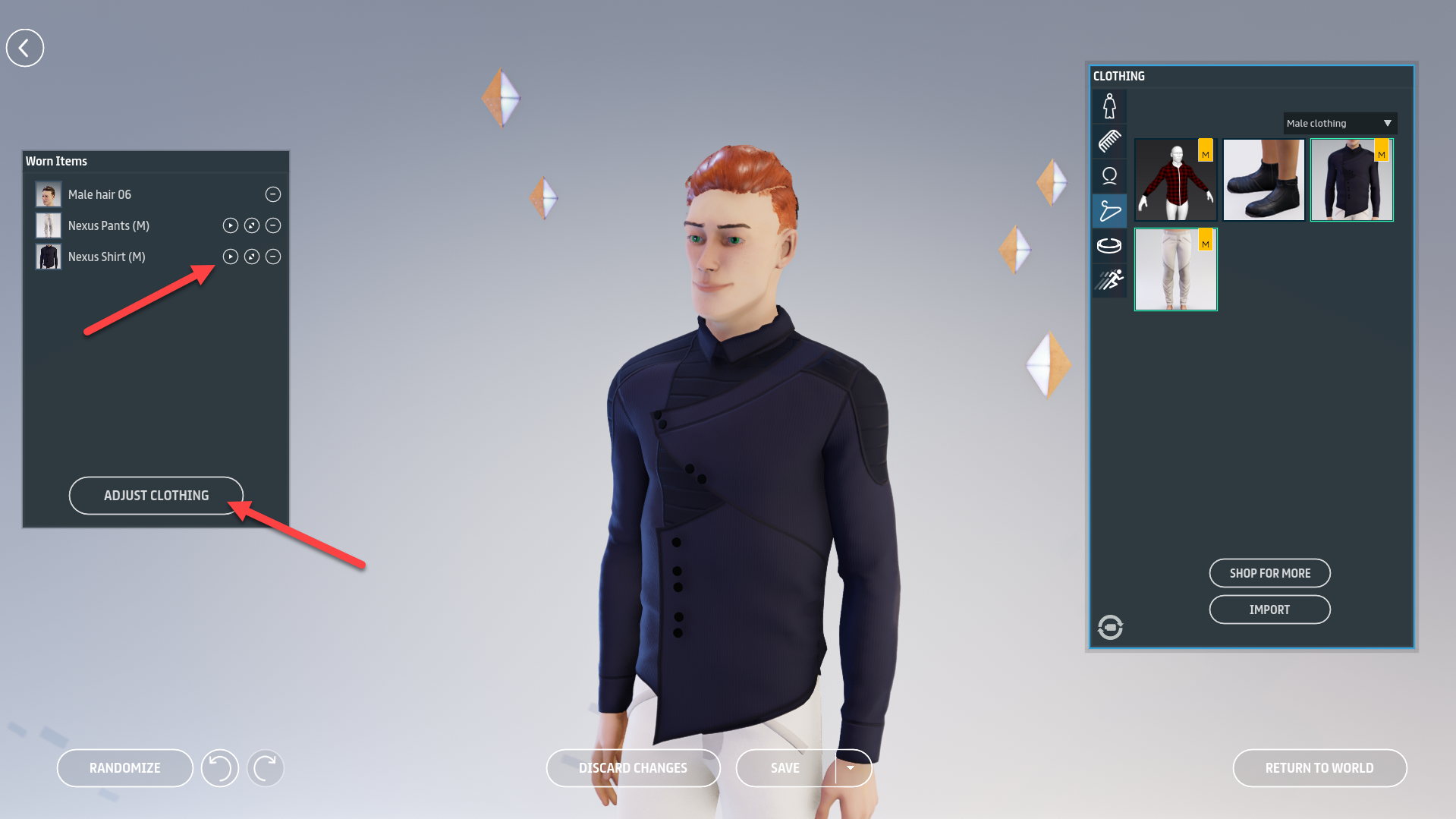
While customizing your look, click the triangular **Play** button next to a clothing item to adjust that item, or click **Adjust Clothing** to adjust all Marvelous Designer clothing on your avatar.
<figure><img src="https://1251409636-files.gitbook.io/~/files/v0/b/gitbook-x-prod.appspot.com/o/spaces%2FeFXiTZShM8YWMV94n1eV%2Fuploads%2Fgit-blob-22964e0057b1d0529baf8107f2798ad2104183de%2Fadjust-clothing-button-02.png?alt=media" alt=""><figcaption><p>Click the triangular <strong>Play</strong> button next to a clothing item to adjust that item, or click <strong>Adjust Clothing</strong> to adjust all Marvelous Designer clothing on your avatar.</p></figcaption></figure>

***

Once you are in this mode, your avatar enters a "T" pose. You can do the following adjusting actions with any Marvelous Designer clothing:

### **Grabbing**

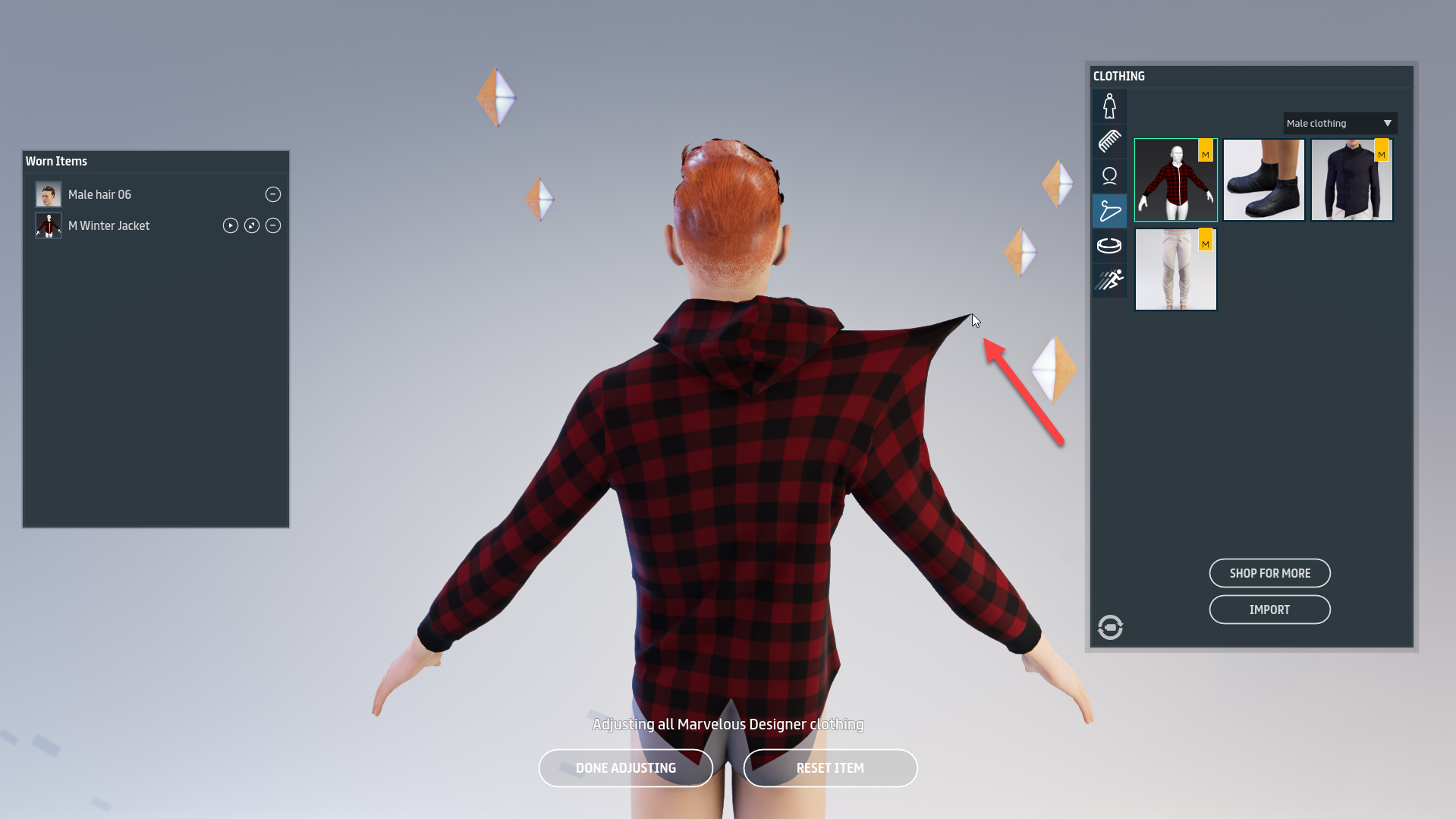
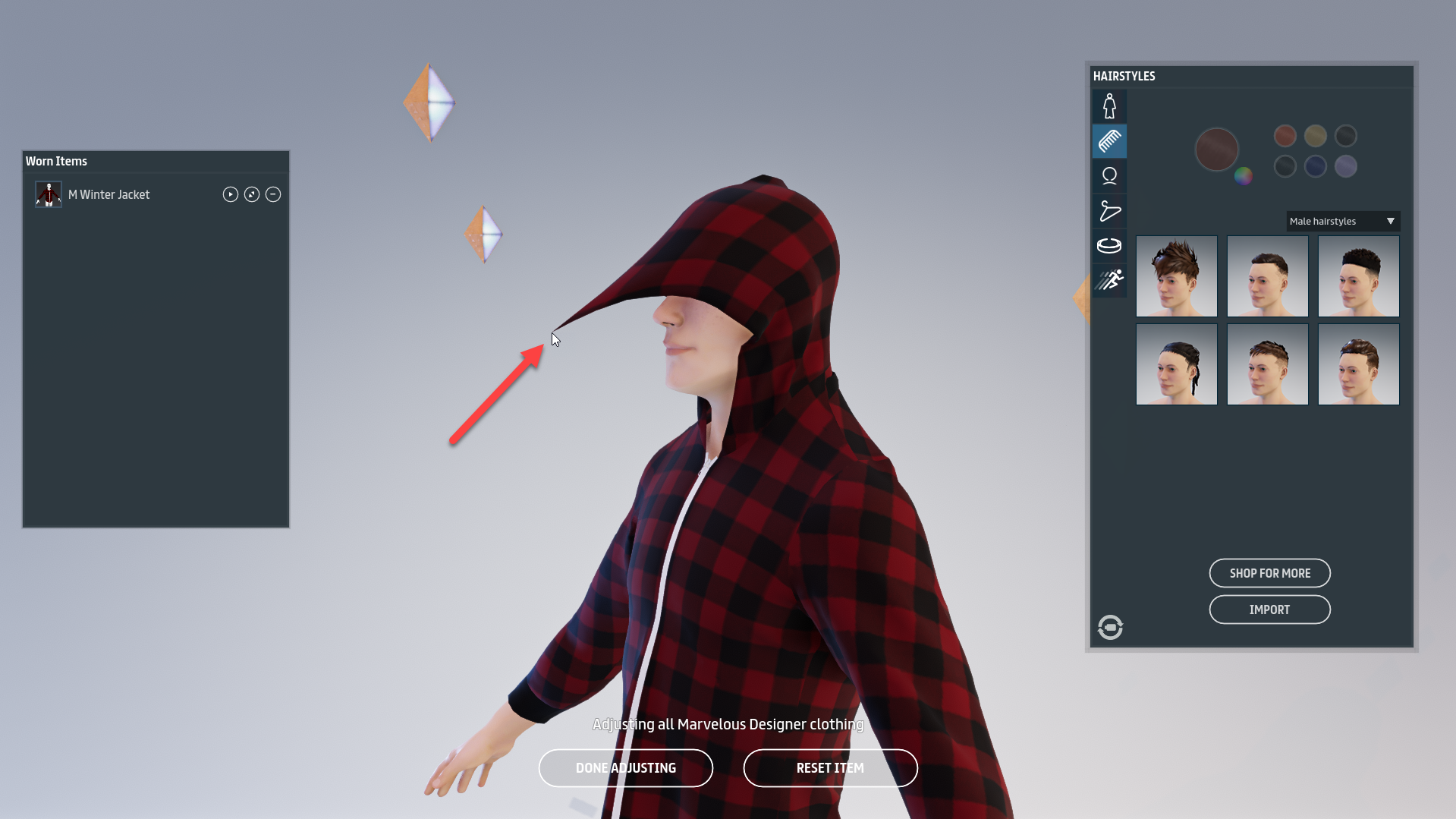
Grabbing allows you to fit an article of Marvelous Designer clothing better on your avatar. This is especially helpful when you see some patches of the avatar body poking out from the clothing or when you want to move the cloth such as a hood on a hoodie.

Click the clothing with your **Left Mouse Button** and drag it to re-position any part of an article of Marvelous Designer clothing. In VR, you can grab clothing using the **Grip Button**. As you pull one section, the rest of the garment shifts accordingly as cloth would.

<figure><img src="https://1251409636-files.gitbook.io/~/files/v0/b/gitbook-x-prod.appspot.com/o/spaces%2FeFXiTZShM8YWMV94n1eV%2Fuploads%2Fgit-blob-d815846538bbabdd94fdc528f3a2839e23fad5c0%2Ftughood-03.png?alt=media" alt=""><figcaption><p>Click and drag while in adjust mode to adjust a garment's fit and position. For example, this hood was pulled over the avatar's head.</p></figcaption></figure>

***

### **Pulling zippers**

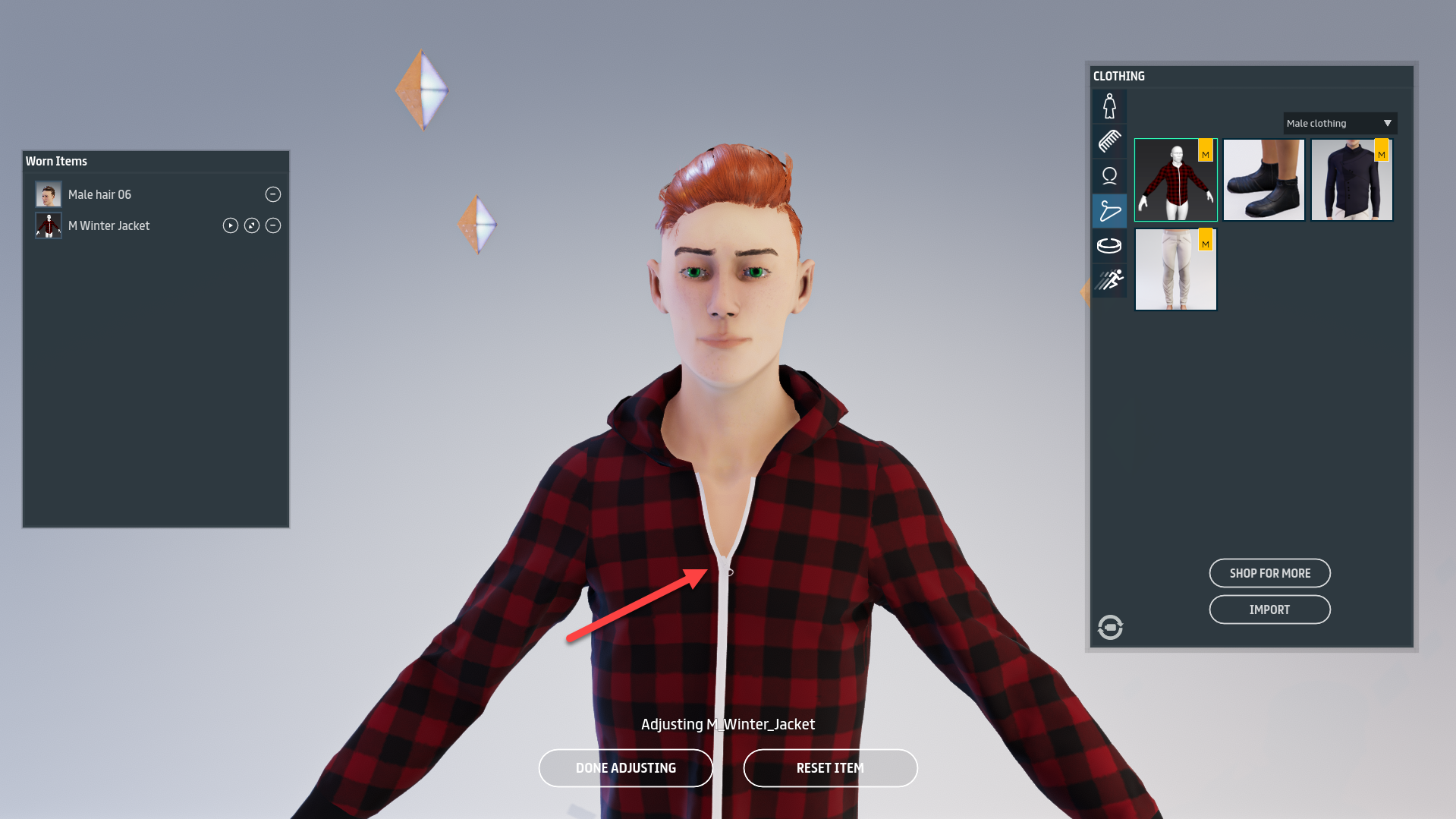
If your clothing has a zipper, you can zip or unzip it by clicking and dragging the zipper tab up/down.

Click the clothing with your **Left Mouse Button** and drag it to re-position any part along the zipper line. In VR, you can move the zipper using the **Grip Button**. Note that the zipper does not move in real time. The zipper will unzip or zip after you move the tab to the desired spot.

<figure><img src="https://1251409636-files.gitbook.io/~/files/v0/b/gitbook-x-prod.appspot.com/o/spaces%2FeFXiTZShM8YWMV94n1eV%2Fuploads%2Fgit-blob-2e1e5b942f7e21477ebbba5b809c659cf8741bce%2Fsipper-tab-04.png?alt=media" alt=""><figcaption><p>Drag the zipper tab up or down to zip or unzip zippered clothing.</p></figcaption></figure>

***

### **Pinning clothing**

You may *pin* clothing to your avatar to prevent it from pulling away from the pinned location while you adjust it.

Pin clothing up by pressing the **Middle Mouse Button** while holding the **Left Mouse Button**. You may also remove pins individually by clicking the pin locations with the **Middle Mouse Button** or press **W+Left Mouse Button** to remove all pins. Pins stay in place permanently until they are removed, even after you finish customizing your avatar. Add or remove pins using **A** or **X** on Oculus Rift or the **Application Button** on Vive. Note that you may only grab with one hand at a time.

<figure><img src="https://1251409636-files.gitbook.io/~/files/v0/b/gitbook-x-prod.appspot.com/o/spaces%2FeFXiTZShM8YWMV94n1eV%2Fuploads%2Fgit-blob-471da78b8012b217d72d0a2dfe69cd7a02ada2e3%2Ftog-cloth-05.png?alt=media" alt=""><figcaption><p><strong>Note:</strong> At this time, there is no visual indicator for active pins. Clothing simply "sticks" at the pinned location and does not pull with the rest of the clothing.</p></figcaption></figure>

***

### **Saving and resetting changes**

When you are finished adjusting your clothing, click **Done Adjusting** to finalize your clothing adjustments. If you are not happy with the results, you can also click **Reset item** to revert the changes back to the state before you made adjustments. These buttons can be found at the bottom center of the screen in adjust mode.

Note that adjusting clothing is not currently possible while visiting a scene; you must make all clothing adjustments while customizing your look in the avatar editor.

### **Transform Marvelous Designer clothing**

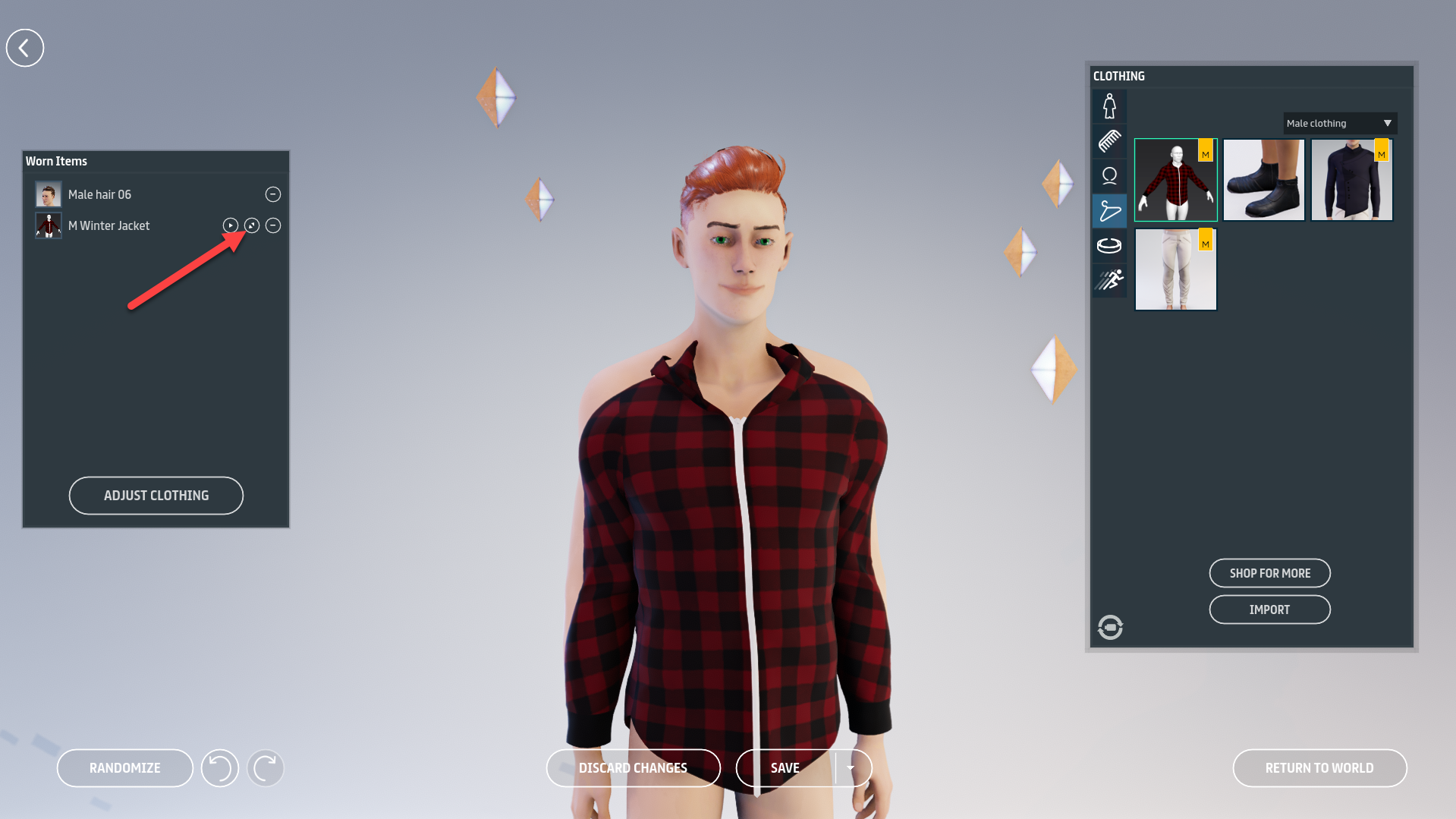
At times, you may find that some clothing doesn't fit your avatars well. With Marvelous Designer clothing, you can move or resize the item so that it fits better on your avatar. For example, if you put clothing made for a smaller avatar on a larger avatar, or if you put female clothing on a male avatar, the clothing may clip through the avatar's body or the clothes may not align to the body well.

<figure><img src="https://1251409636-files.gitbook.io/~/files/v0/b/gitbook-x-prod.appspot.com/o/spaces%2FeFXiTZShM8YWMV94n1eV%2Fuploads%2Fgit-blob-79e083bf30a93bea9509a2c8235fcc42b0f6c996%2Ftransform-item-button-06.png?alt=media" alt=""><figcaption><p>Click on the <strong>transform item</strong> button to move, rotate or resize a clothing item.</p></figcaption></figure>

***

Sansar supports the following transform actions so you can fit articles of clothing better on an avatar:

### **Translate**

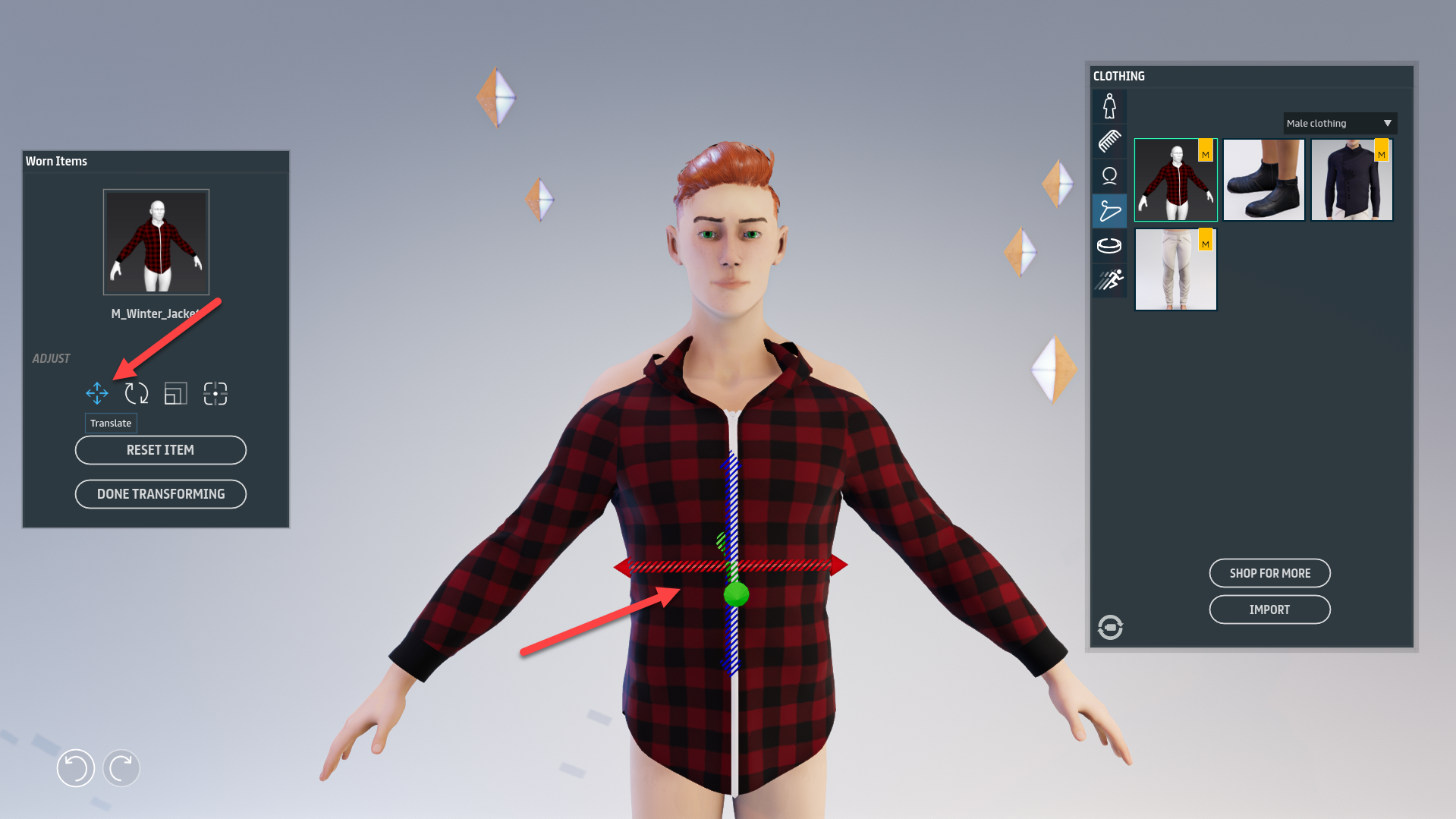
You may move the clothing item left, right, up, down, back and front using the Translate tool. To move the item:

1. On the worn items panel, click the **translate** button to expose the translation *gizmo*. This is also the default mode when entering transformation mode.
2. To move the clothing item, use the **red**, **green**, and **blue** **arrows** on the gizmo to move the object on the X, Y, and Z axis respectively.

<figure><img src="https://1251409636-files.gitbook.io/~/files/v0/b/gitbook-x-prod.appspot.com/o/spaces%2FeFXiTZShM8YWMV94n1eV%2Fuploads%2Fgit-blob-fdae683c72ddf0c9b85a01e3d6e901b64ce47748%2Ftranslate-item.png?alt=media" alt=""><figcaption><p>Click the <strong>Translate</strong> button on the worn items panel to expose the translation <em>gizmo.</em></p></figcaption></figure>

***

### **Rotate**

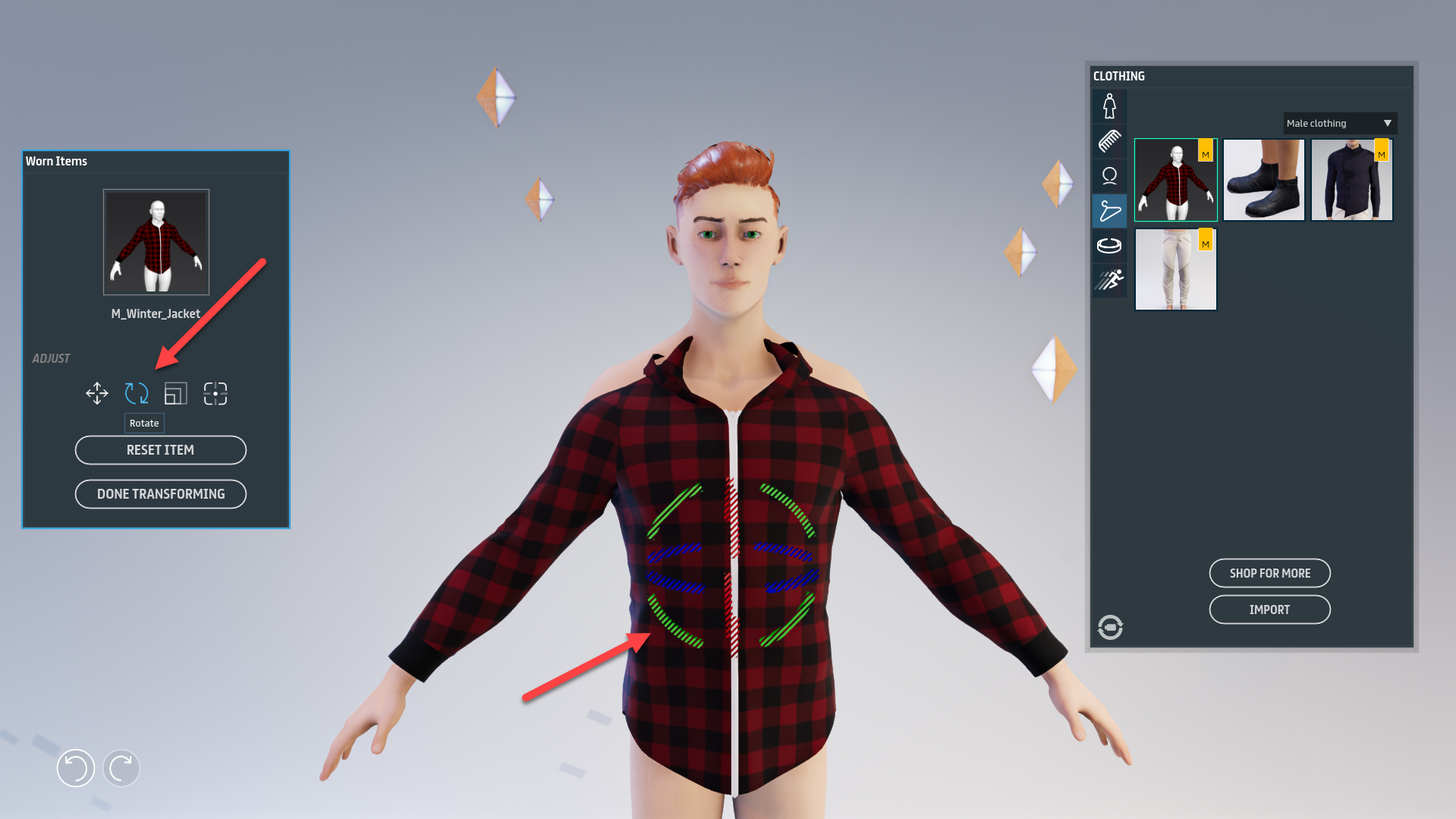
You may rotate the clothing item to the left, right, up, down, back and front using the rotate tool. To rotate the item:

1. On the worn items panel, click the **rotate** button to expose the rotation *gizmo*.
2. To rotate the clothing item, use the **red**, **green**, and **blue** **circles** to rotate the selected object around the object's X, Y, and Z axes.

<figure><img src="https://1251409636-files.gitbook.io/~/files/v0/b/gitbook-x-prod.appspot.com/o/spaces%2FeFXiTZShM8YWMV94n1eV%2Fuploads%2Fgit-blob-3c4069c5dadd02523385500309f0ad137a09eb5d%2Ftrotate-item-07%20(1).png?alt=media" alt=""><figcaption><p>Click the <strong>rotate</strong> button on the worn items panel to expose the rotation <em>gizmo.</em></p></figcaption></figure>

***

### **Scale**

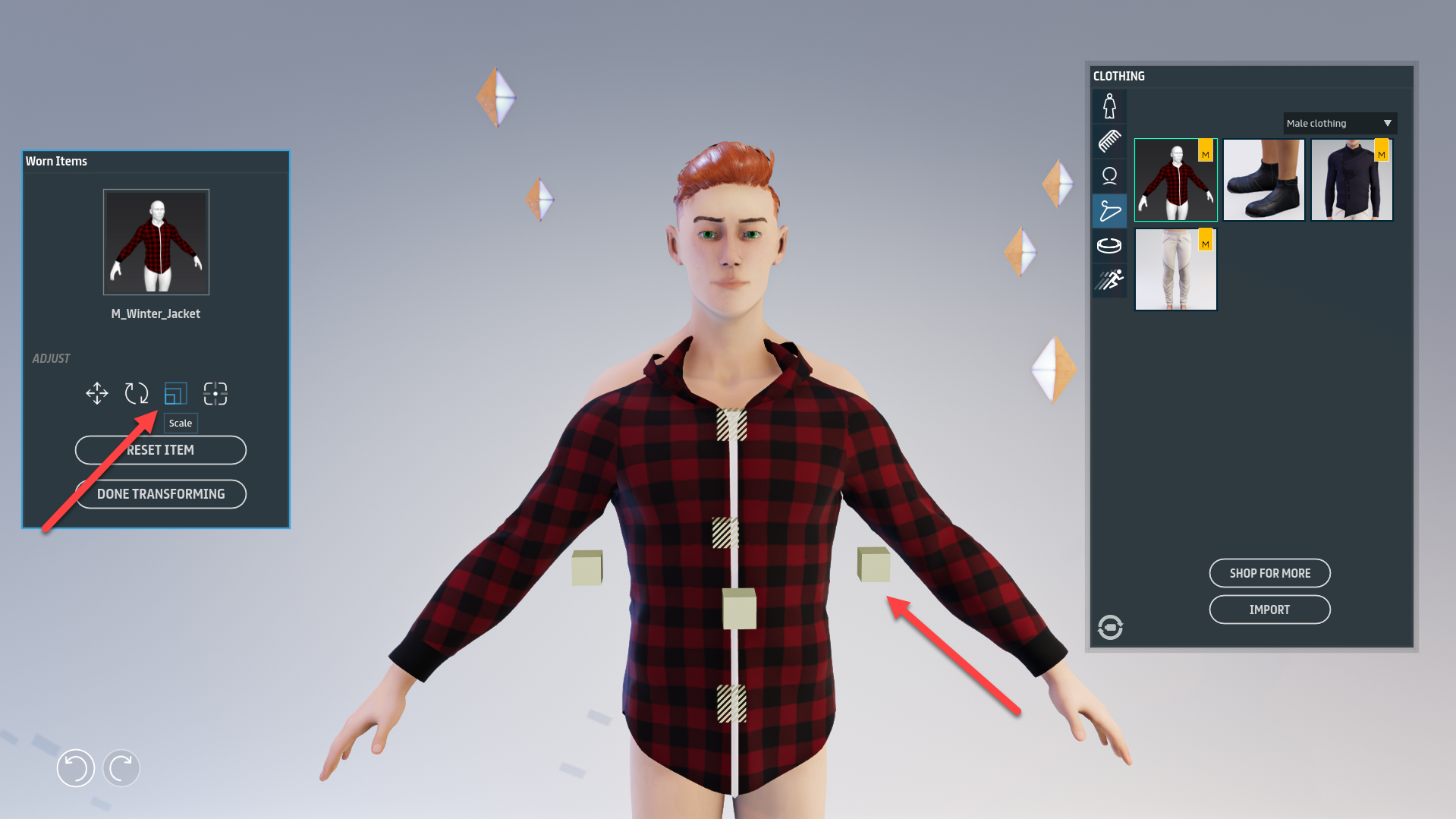
You may resize an item to be larger or smaller using the scale *gizmo*. To change the size of the item:

1. On the worn items panel, click the **scale** button to expose the scale gizmo.
2. To scale the clothing item, click and drag one of the **white boxes** to scale the object up or down.

<figure><img src="https://1251409636-files.gitbook.io/~/files/v0/b/gitbook-x-prod.appspot.com/o/spaces%2FeFXiTZShM8YWMV94n1eV%2Fuploads%2Fgit-blob-90f32d19f9eca17401e9b132795f03d4daff1cfa%2Fscale-item-08%20(1).png?alt=media" alt=""><figcaption><p>Click the <strong>scale</strong> button on the worn items panel to expose the scale <em>gizmo.</em></p></figcaption></figure>

***

### **All transformations**

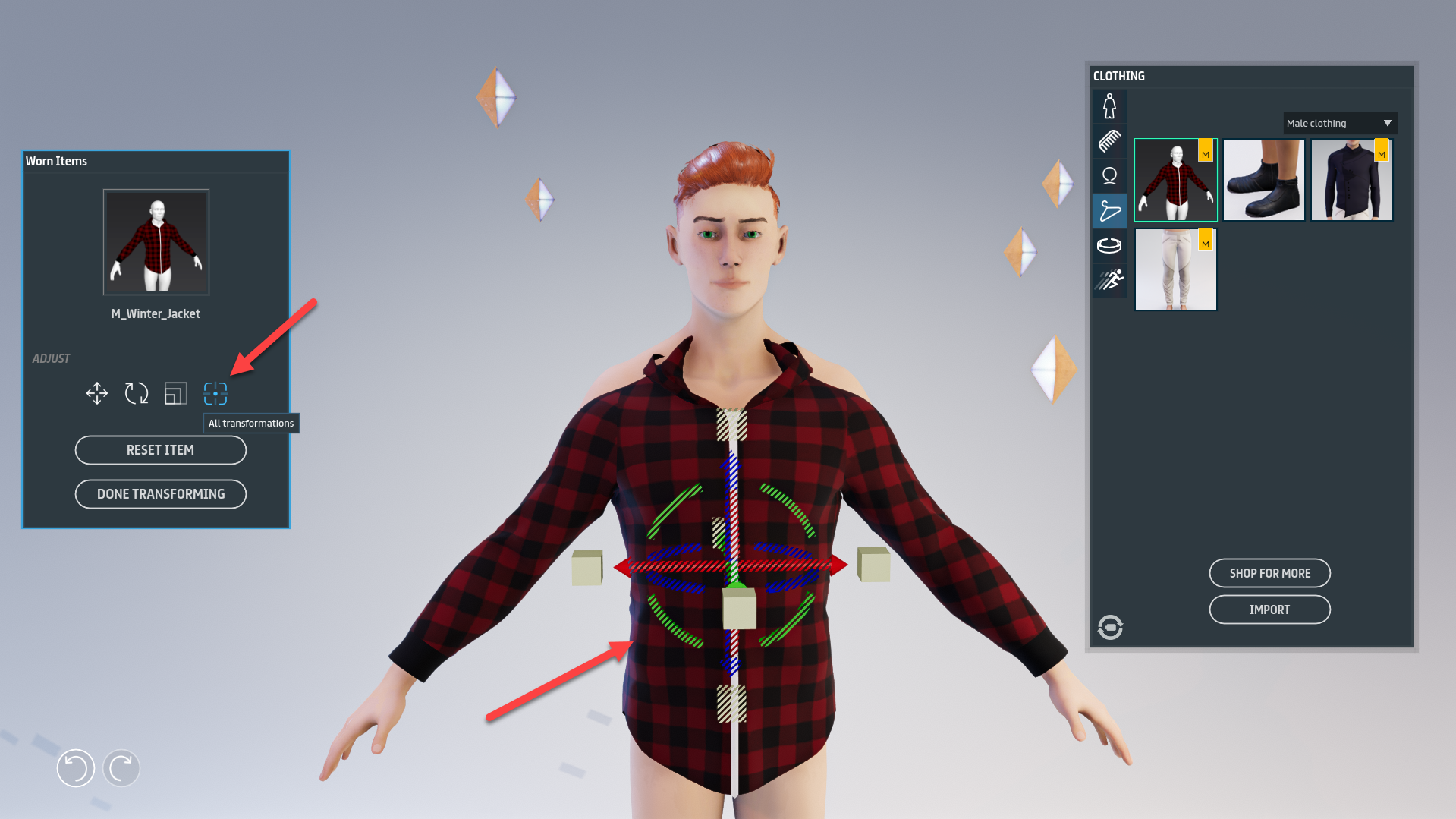
If you prefer to have quick access to all three action types at once, you can use the **All transformations** button to show the translate, rotation and scale action tools in one *gizmo.*

Saving and resetting changes

Once you are happy with your changes, click **Done transforming** to save the changes. If you want to discard your changes click **Reset item** to discard all changes, then click **Done transforming**. In transformation mode, these buttons are available on the worn items panel to the left.

<figure><img src="https://1251409636-files.gitbook.io/~/files/v0/b/gitbook-x-prod.appspot.com/o/spaces%2FeFXiTZShM8YWMV94n1eV%2Fuploads%2Fgit-blob-d7fd15d23fb960e5ca4cb1daf60d8b7a52f460d7%2Ftransform-alltransformations%20(1).png?alt=media" alt=""><figcaption><p>Click the <strong>All transformations</strong> button on the worn items panel to expose the full gizmo<em>.</em></p></figcaption></figure>

***

### **Some tips on adjusting and transforming**

* You can rotate the avatar around to get better mobility when moving the item.
* When transforming items with sleeves, it is best to make sure that the clothing item wraps around the avatar's wrists, elbows and shoulders. This helps the item move better as the avatar moves.
* You do not have to go for a perfect fit when translating. You just have to translate enough to ensure that the clothing is draped on the needed parts of the body, then switch to adjust clothing.
* When you click **Adjust Clothing**, the system pre-contours the clothing on your avatar. You can adjust the clothing further by grabbing on the cloth.

### Compatibility with rigged mesh clothing

Sansar also supports *rigged mesh* clothing, which is designed to move with your avatar's skeleton and does not include cloth simulation. Rigged mesh and Marvelous Designer clothing may be worn together, and Marvelous Designer clothing can be worn over rigged mesh clothing, and in most cases the cloth simulation can stretch or drape a Marvelous Designer garment around the rigged mesh clothing.

#### A note about layering clothing

It is possible for clothing to *interpenetrate*, or "poke through" other clothing under certain circumstances. Typically, Sansar avoids this issue by hiding any clothing or body parts that are covered by a layer of clothing. However, any layer of clothing that includes transparency prevents the layer underneath from being hidden.

For example, if your avatar wears a shirt with a hole in it, Sansar must also show the avatar's torso behind the shirt and cannot hide the torso as it normally would. During certain animations, this can cause unexpected overlap or interpenetration between the avatar and layered clothing as they move in slightly different ways.

### Creating Marvelous Designer clothing

To create MD items of clothing please see the help sections contained within [Marvelous Designer info](https://docs.sansar.com/latest/creating-in-sansar/marvelous-designer-info)

***

Have more questions? Join our [Discord!](https://discord.gg/sansarofficial)